

GENERAL
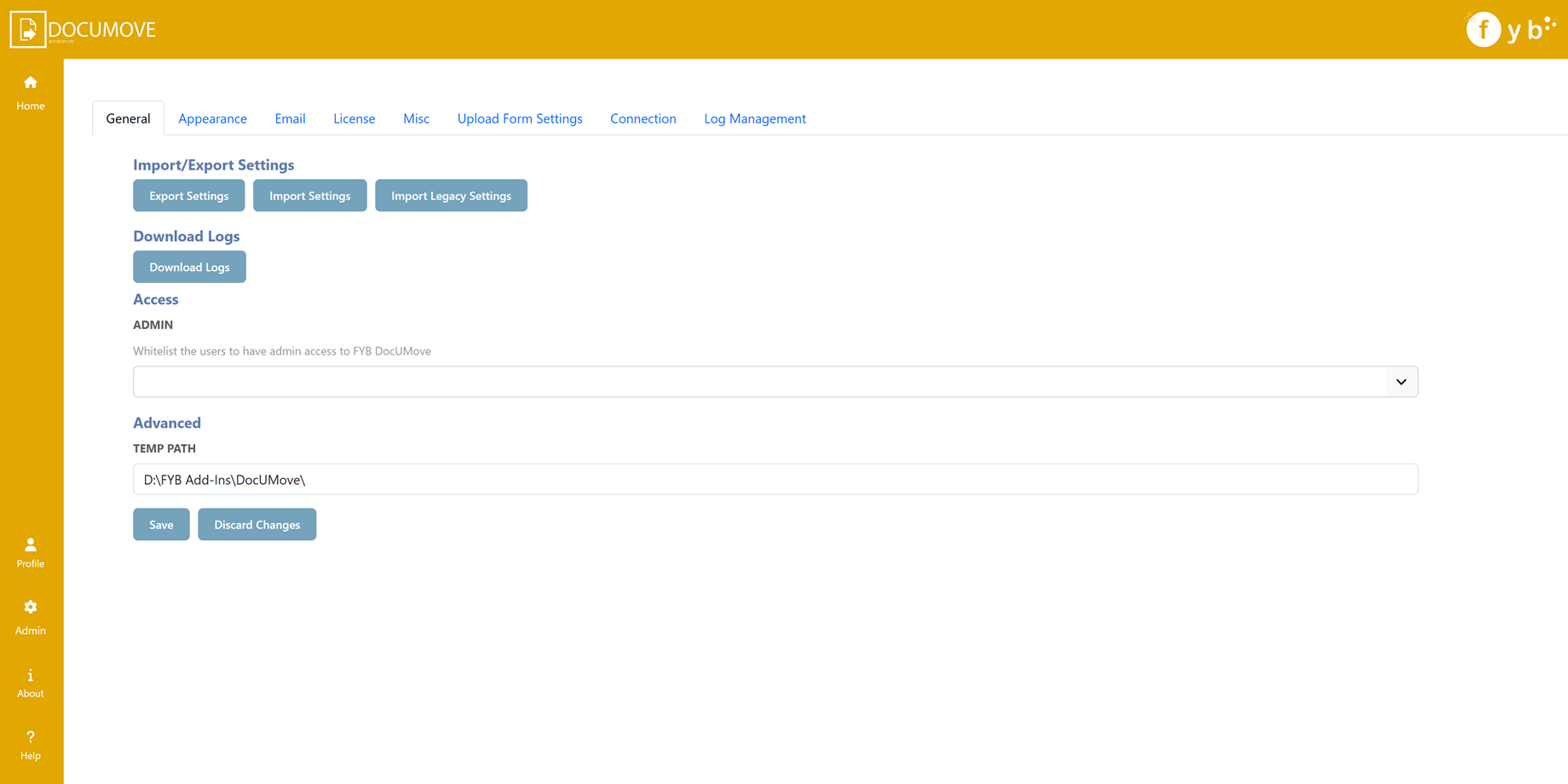
DOWNLOAD LOGS
Download a zip file containing all the FYB Connect log files.
ADMIN ACCESS
This field allows you to whitelist Content Manager users who are not Administrators or Records Managers to allow them access to FYB DocUMove's admin console.
DATASET ID
The ID of the Content Manager dataset that FYB DocUMove is connecting to.
CM SERVICE API
The URL of the Content Manager Service API
TEMP PATH
The temp directory for DocUMove, please include the trailing slash, for example: C:\FYB Add-Ins\DocUMove. This directory will also contain the DocUMove log files. Changes to this field will require an App Pool restart.
The temp directory can also be a shared path as long as the account running the app pool has access to it.
EXPORTING AND IMPORTING SETTINGS
You can either export the current configuration settings or import existing settings using the buttons below.
Use the Import Legacy Settings to import settings from DocUMove v3.6.15

EXPORTING SETTINGS
To export DocUMove's current settings, click the Export Settings button. This will automatically download the zip file containing the DocUMove configuration files. These files can be imported back into DocUMove when required.
IMPORTING SETTINGS
To import existing settings, follow the steps below.
Only import JSON files that were previously taken from the DocUMove's App_Data folder or exported from DocUMove.
If incorrect values are imported, such as additional fields that do not exist, the values will need to be updated manually in the JSON files within the App_Data folder in DocUMove's install directory.
-
Click the Import Settings button

-
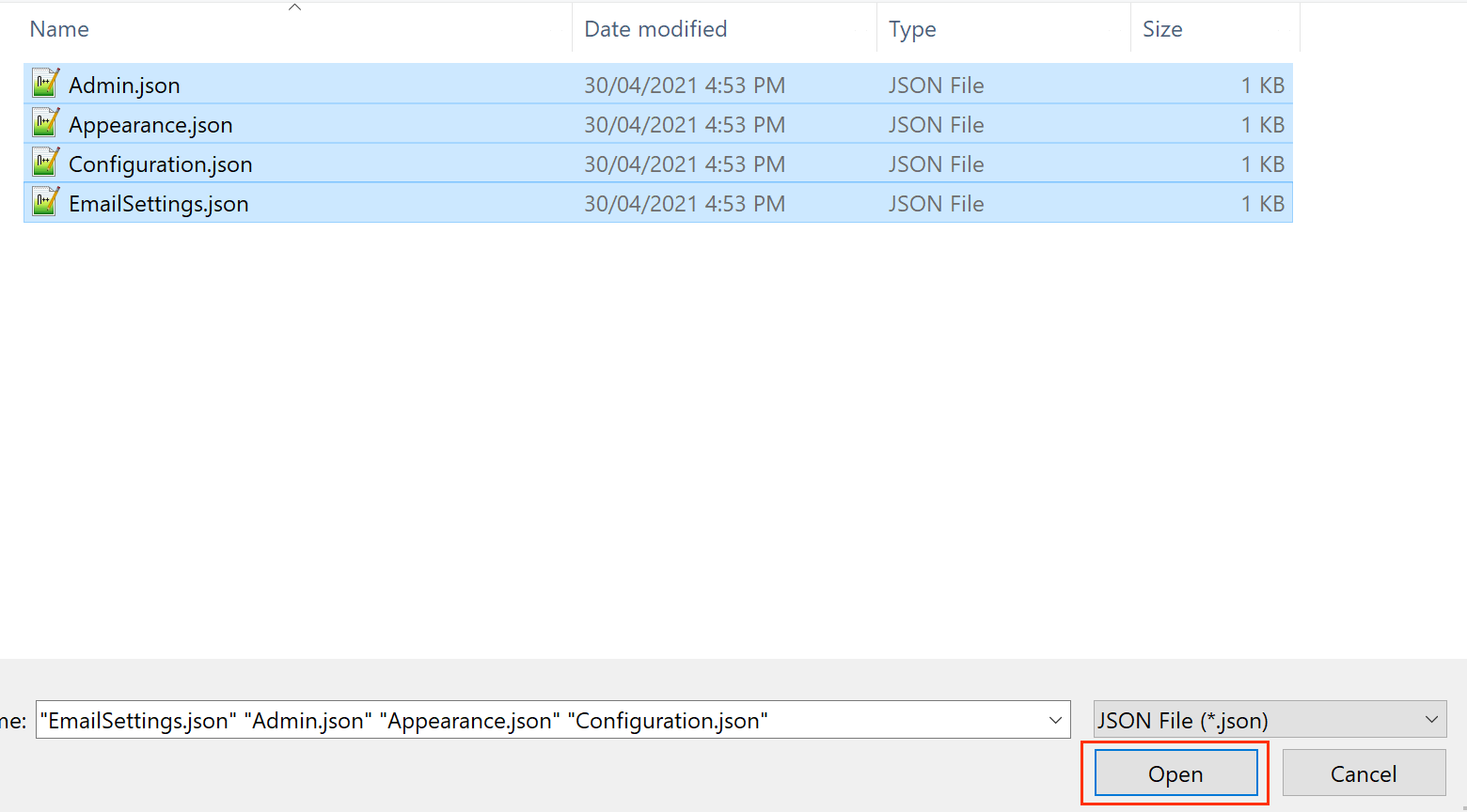
Select the Admin.json, Appearance.json, Configuration.json and/or the EmailSettings.json files and click the Open button
-
A success message will appear once the settings files have been updated, then the admin page will reload shortly afterwards
IMPORT LEGACY SETTINGS
The Configuration.json and UploadFormSettings.json files exported from DocUMove v3.6.X can be imported into DocUMove 4.0.X to retain the settings from the older version.
APPEARANCE
The appearance tab allows some minor customisation of the solution.
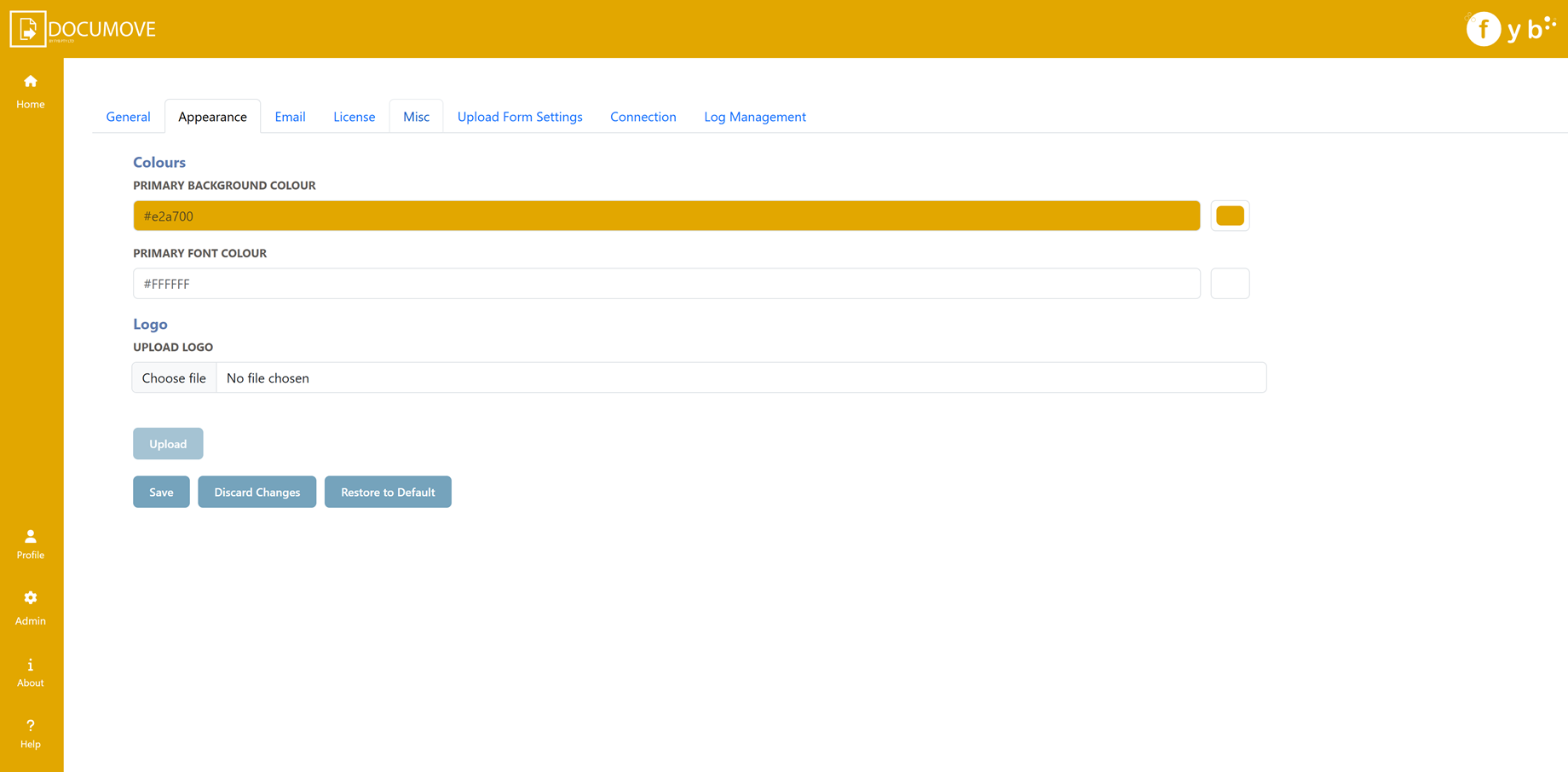
PRIMARY BACKGROUND COLOUR
Controls the colour of the header and footers for the application.
PRIMARY FONT COLOUR
Controls the font colour of the header and footers for the application
LOGO
Sets the logo for the application
EMAIL SETTINGS
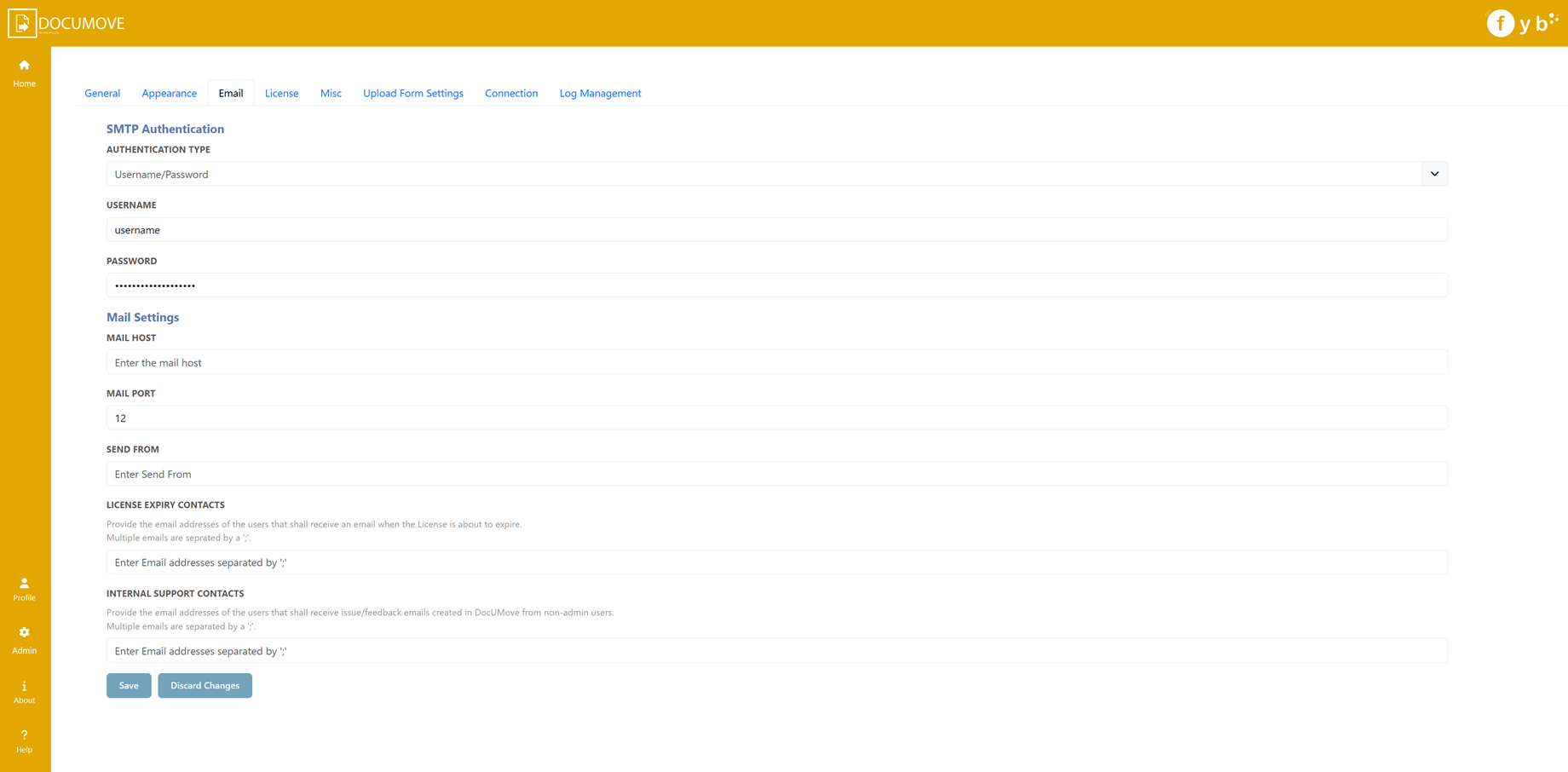
SMTP AUTHENTICATION
NONE

Choose this option if your SMTP does not have authentication
USERNAME/PASSWORD

Choose this option if your SMTP server is secured by a username and password.
Supply the values of the SMTP username and password to the respective fields.
MAIL HOST
The mail host is used to send all email notifications from.
MAIL PORT
The mail port allows for email notifications to be sent.
SEND FROM
The email address from which all email notifications are sent.
LICENSE EXPIRY CONTACTS
Provide the email addresses of the users who shall receive an email notification when the DocUMove license is due to expire. Multiple contacts can be added by adding a ';' between each contact (e.g. name@company.com.au; secondname@company.com.au).
INTERNAL SUPPORT CONTACTS
Provide the email addresses of the users who shall receive issue/feedback emails created in DocUMove from non-admin users.
Multiple emails are separated by a ';'.
LICENSE
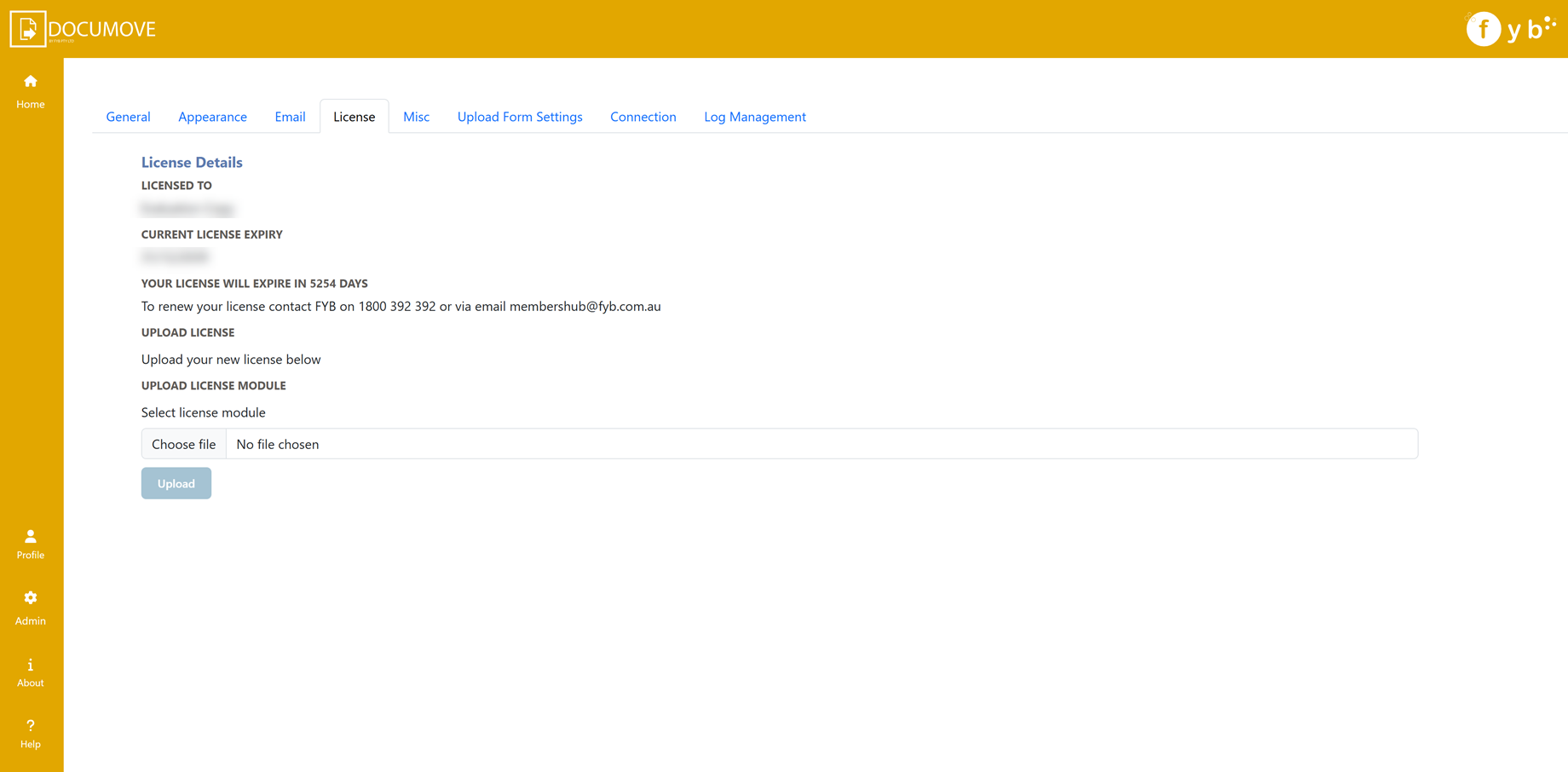
Please see the dedicated License Update guide for more details on this section.
MISC
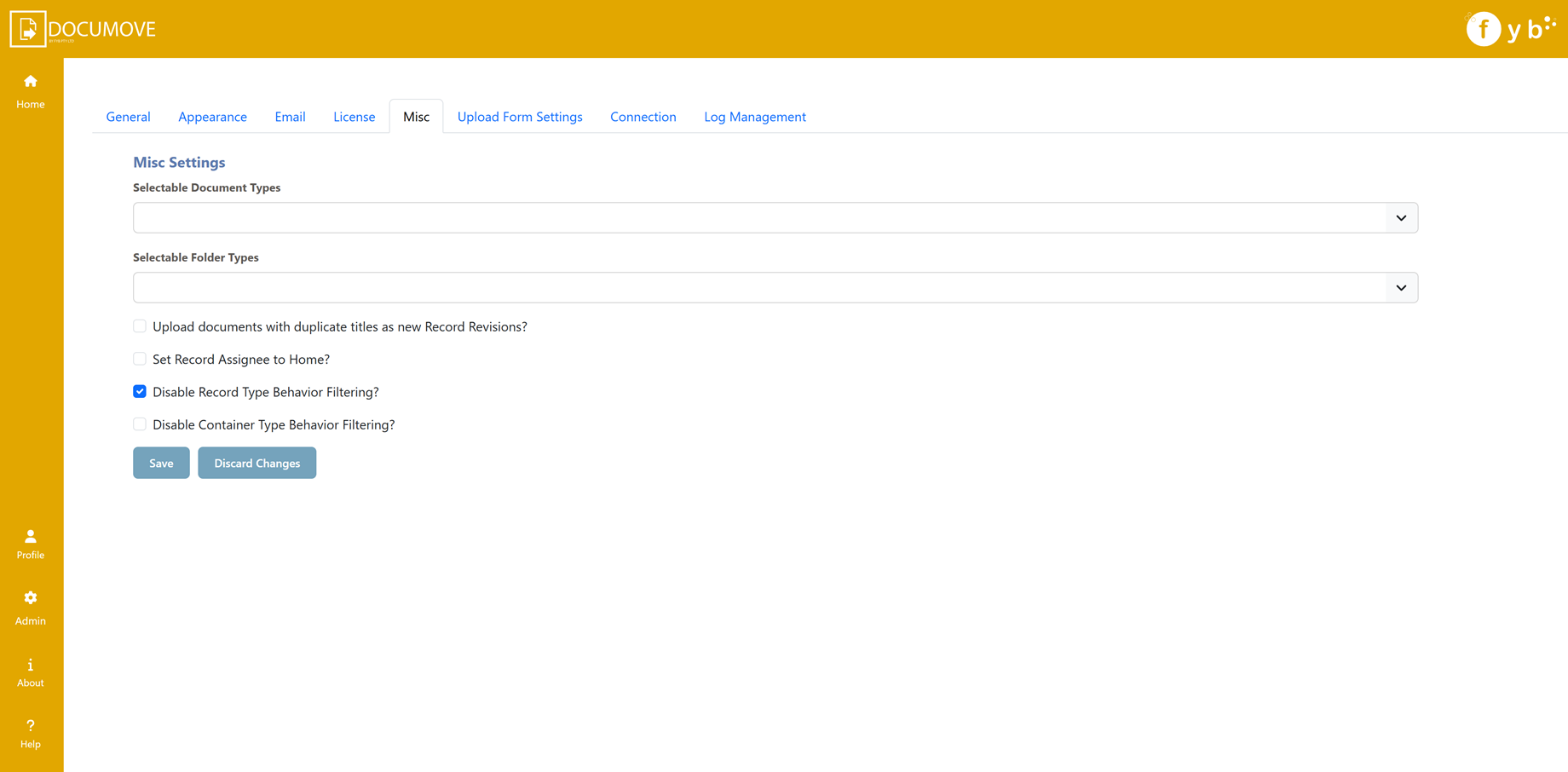
SELECTABLE DOCUMENT TYPES
Click on the Selectable Document Type field to choose Content Manager Record Types that can be allowed for use within DocUMove.
These record types will then be available from the Record Type dropdown on the upload form.
SELECTABLE DOCUMENT TYPES
Click on the Selectable Folder Type field to choose Content Manager Container Record Types that can be allowed for use within DocUMove.
Any Container search field will be filtered to only show containers of the record types selected.
UPLOAD DOCUMENTS WITH DUPLICATE TITLES AS NEW REVISIONS
Enable this option if you wish to enable duplicate title checking. If a duplicate Record is found, you will have the option to upload the file as a new revision on the Record.
SET RECORD ASSIGNEE TO HOME
Enable this option to automatically set the Record Assignee field to the home location of the person who submitted the upload request.
DISABLE RECORD TYPE BEHAVIOUR FILTERING
Enable this option to disable any record type behaviour filtering from the Selectable Document Type options. These dropdowns will search for any record type with electronic document support.
DISABLE CONTAINER TYPE BEHAVIOUR FILTERING
Enable this option to disable any container type behaviour filtering from the Selectable Container Type options. These dropdowns will search for any record type.
UPLOAD FORM
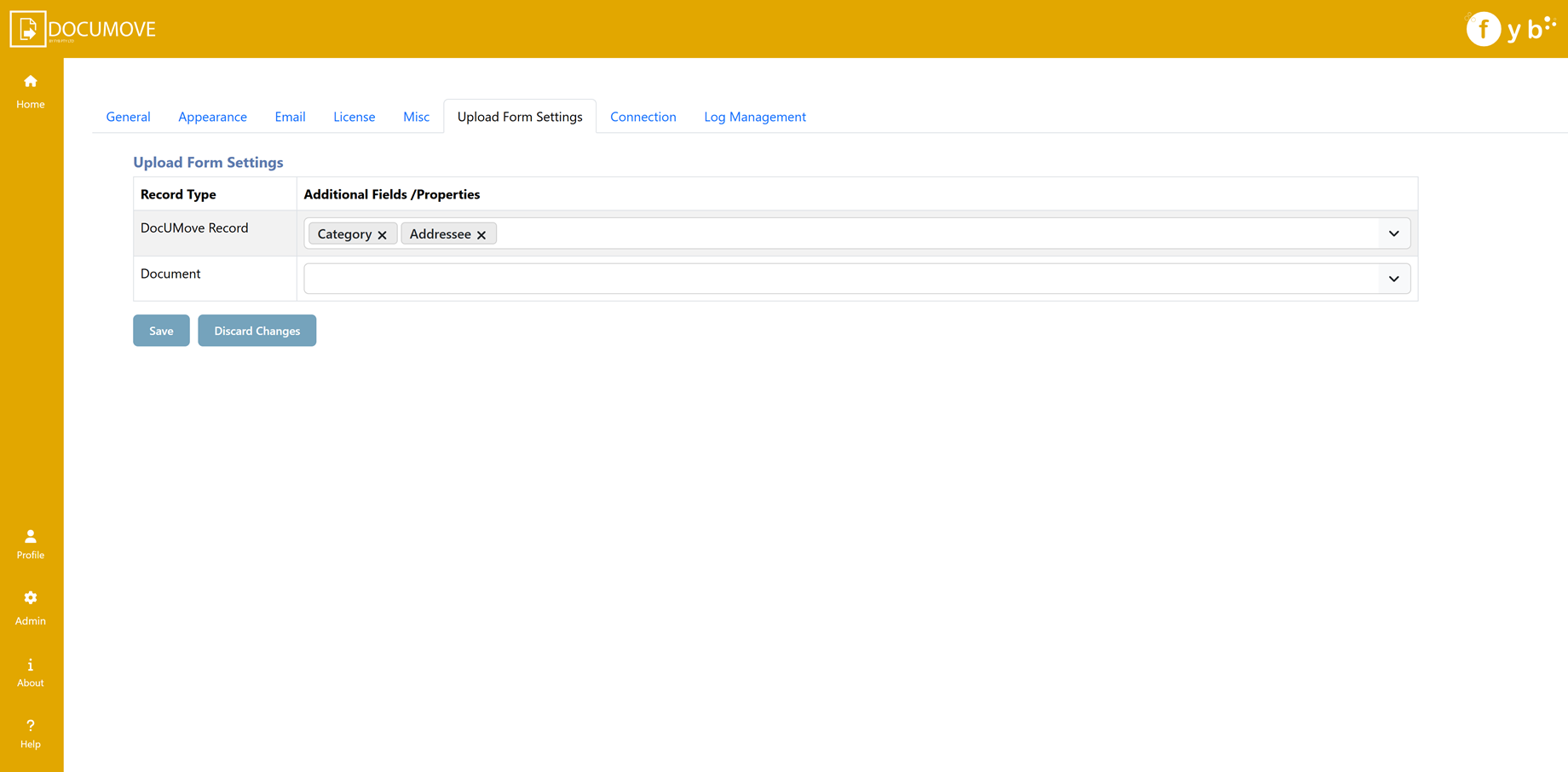
When uploading new documents to Content Manager, extra non-mandatory additional fields and properties can be added to the upload form that are not currently present on the record type form set.
This allows for the option of extra metadata to be captured upon upload.
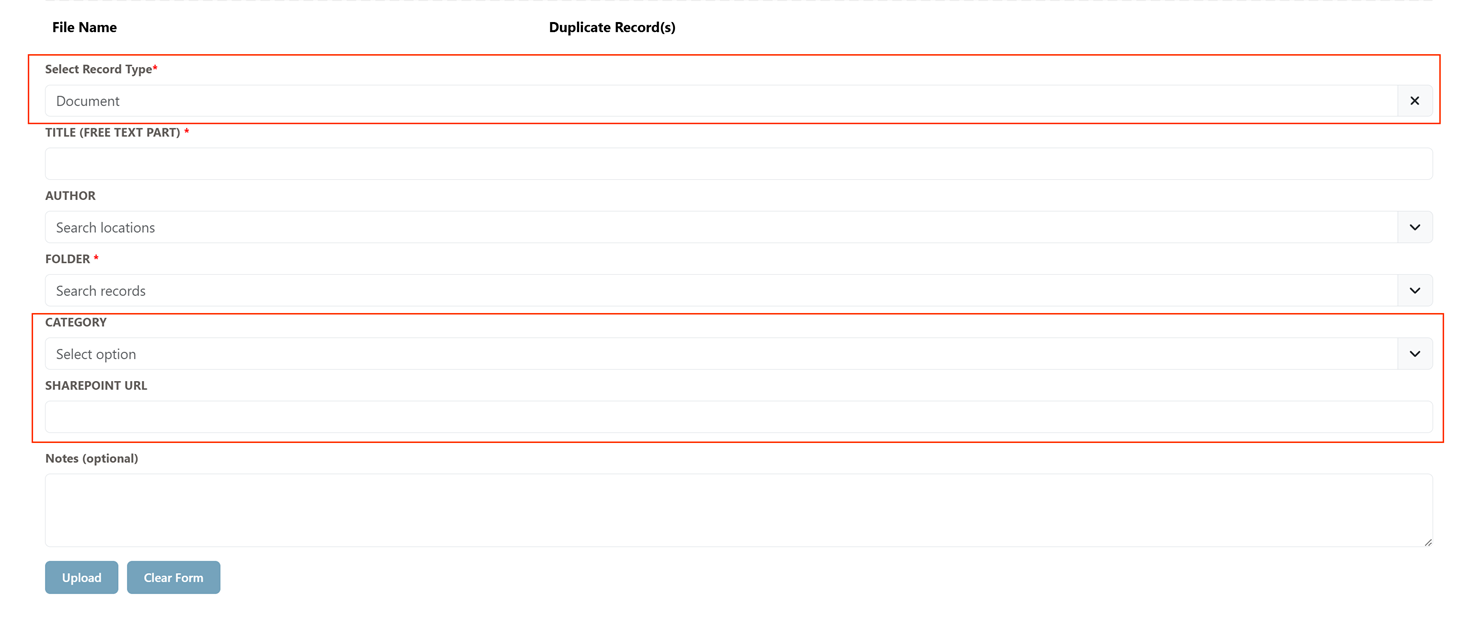
For each available record type, you can select as many additional fields or properties to add to the upload form within DocUMove.
CONNECTION
This page allows you to update or change the authentication settings for DocUMove.
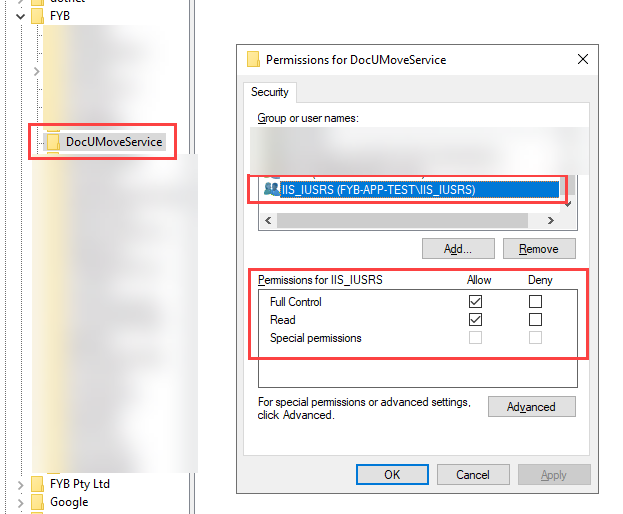
During installation, if the Use Default Application Pool Identity option was enabled, ensure the default account has write access to the Registry, as this is required for updating the Authentication Settings.
To update the permissions, navigate to Computer\HKEY_LOCAL_MACHINE\SOFTWARE\FYB\DocUMoveService in the Registry after DocUMove is installed.
An App pool stop/start is required on the DocUMove app pool for any changes on this page.
If Windows Authentication is selected, the IIS Authentication for the Content Manager Service API must be set to Basic Authentication only.
WINDOWS AUTHENTICATION
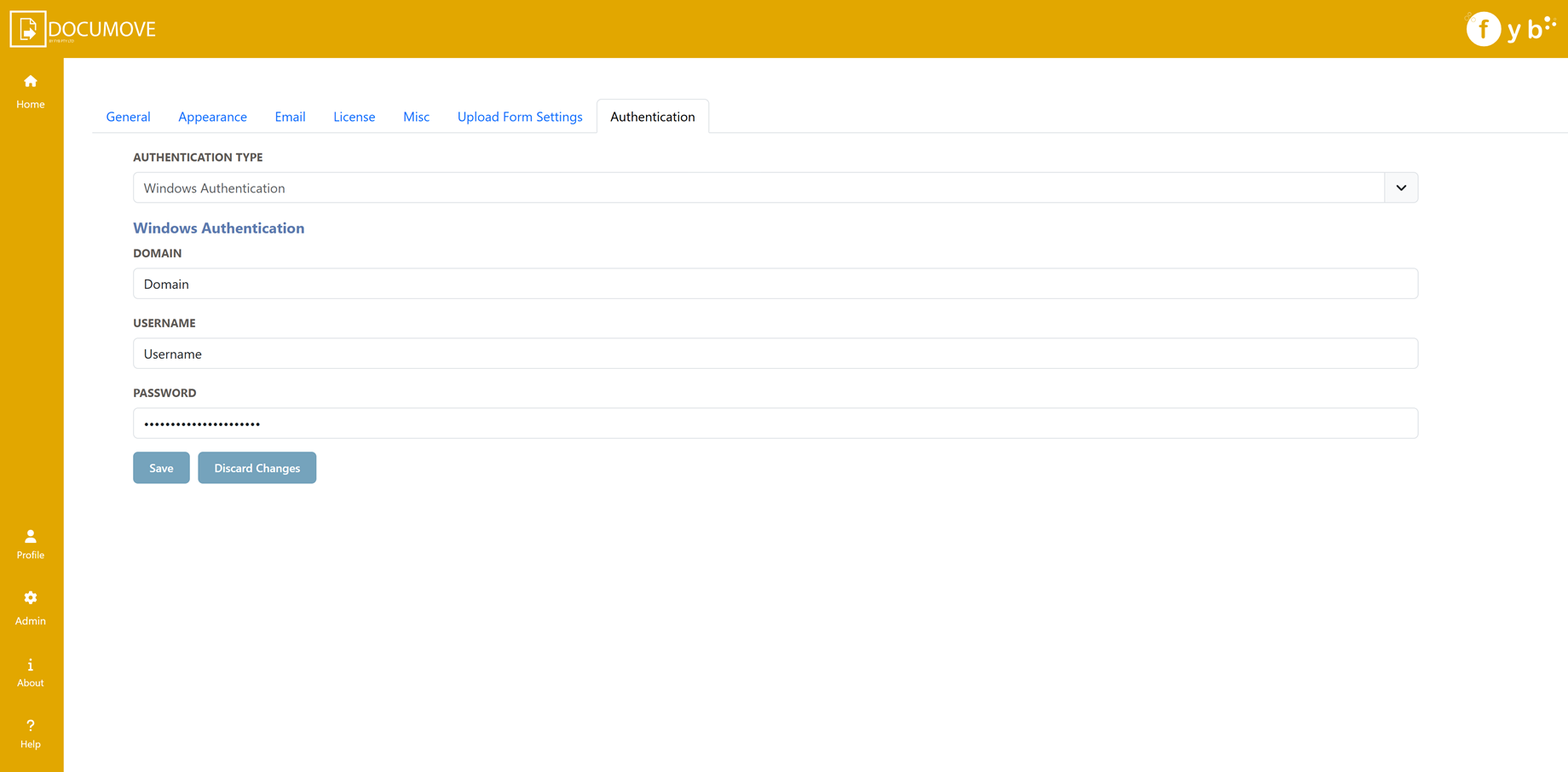
When using Windows credentials, ensure that the account used has access to Content Manager and is set as the Trusted User for the Service API.
DOMAIN
The domain of the trusted user account
USERNAME
The username of the account running the trusted user
PASSWORD
The password of the account
ENTRA OPEN ID
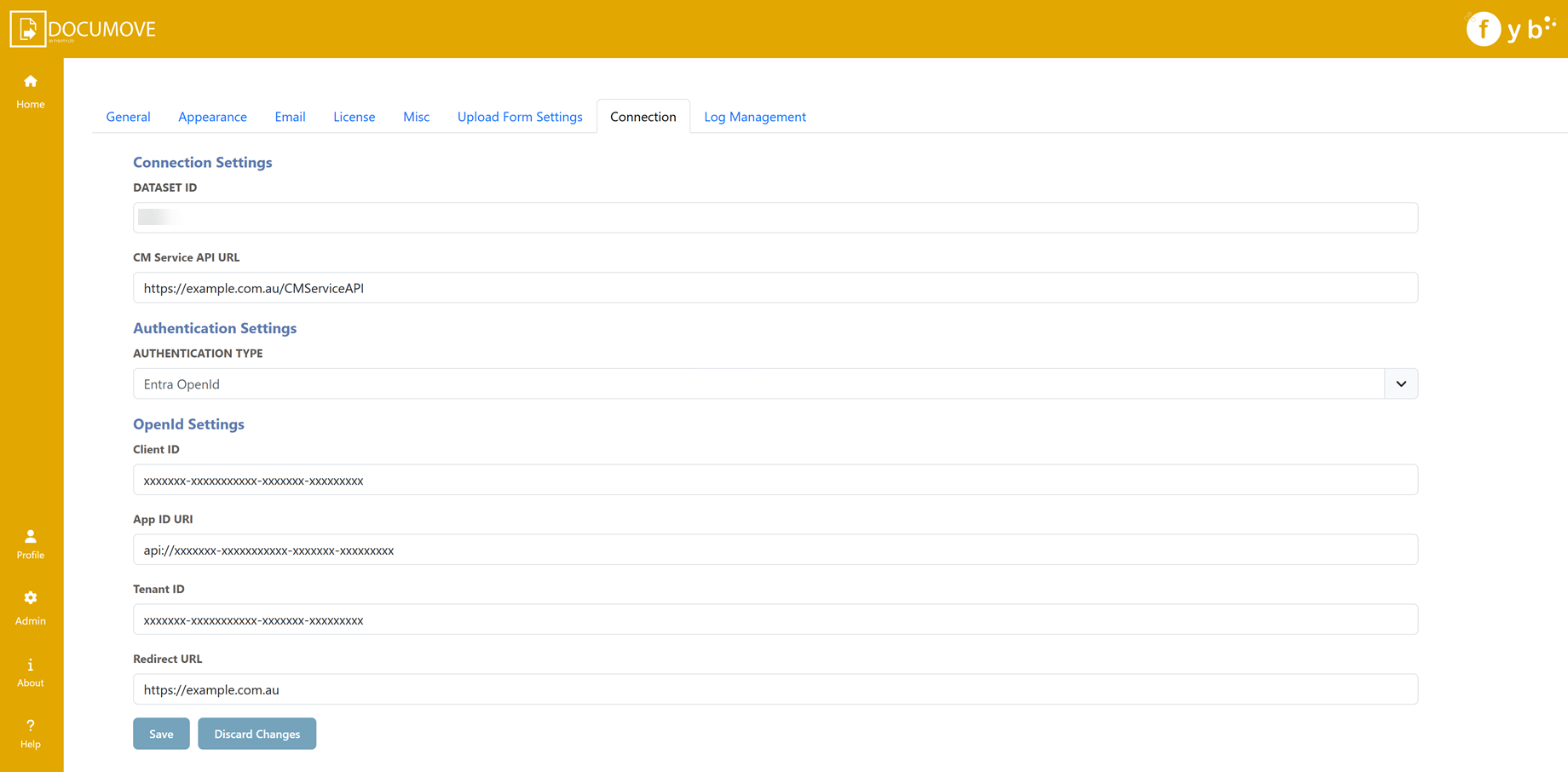
CLIENT ID
The Client ID of the Entra application used to secure Content Manager
APP ID URI
The App ID URI of the Entra application used to secure DocUMove
TENANT ID
The Tenant ID of the Entra application used to secure Content Manager
REDIRECT URL
The DocUMove URL
UPDATING IIS
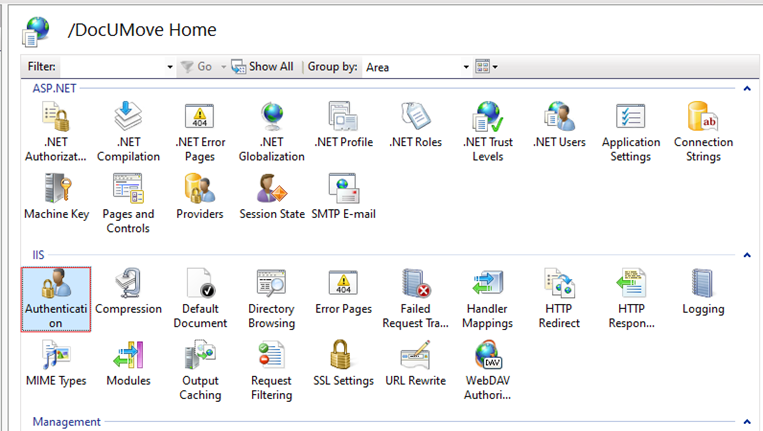
When changing the authentication types, the authentication for the DocUMove and DocUMove Service IIS Apps must be updated.
-
Navigate to the server that DocUMove is installed on
-
Go to Application Pools and stop the DocUMove application pool.
-
Open IIS
-
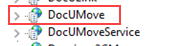
Navigate to the DocUMove IIS App
-
Click on Authentication
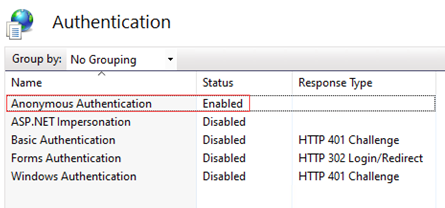
5a. For Open ID Authentication, only Anonymous Authentication is enabled.
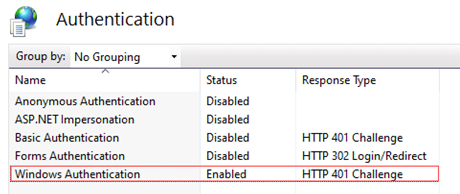
5b. For Windows Authentication, only Windows Authentication is enabled.
- Repeat steps 3 - 5 for the DocUMoveService IIS Application
- Start the DocUMove Application pool
If Windows authentication is selected during the DocUMove install, the IIS authentication for the Content Manager Service API must be set to Basic Authentication. No other authentication method can be set.
UPDATING THE CONTENT MANAGER SERVICE API CONFIG
When using Windows Authentication, the hptrim.The config file for the Content Manager Service API needs to be updated.
See the UPDATING THE CONTENT MANAGER SERVICE API CONFIG" section within the DocUMove Installation Guide for information on how to modify the hptrim.config file
LOG MANAGEMENT
This section is for configuring and automating the deletion of DocUMove Log files.
The scheduler will run every day at 12:00 am to check for logs to be deleted/archived.
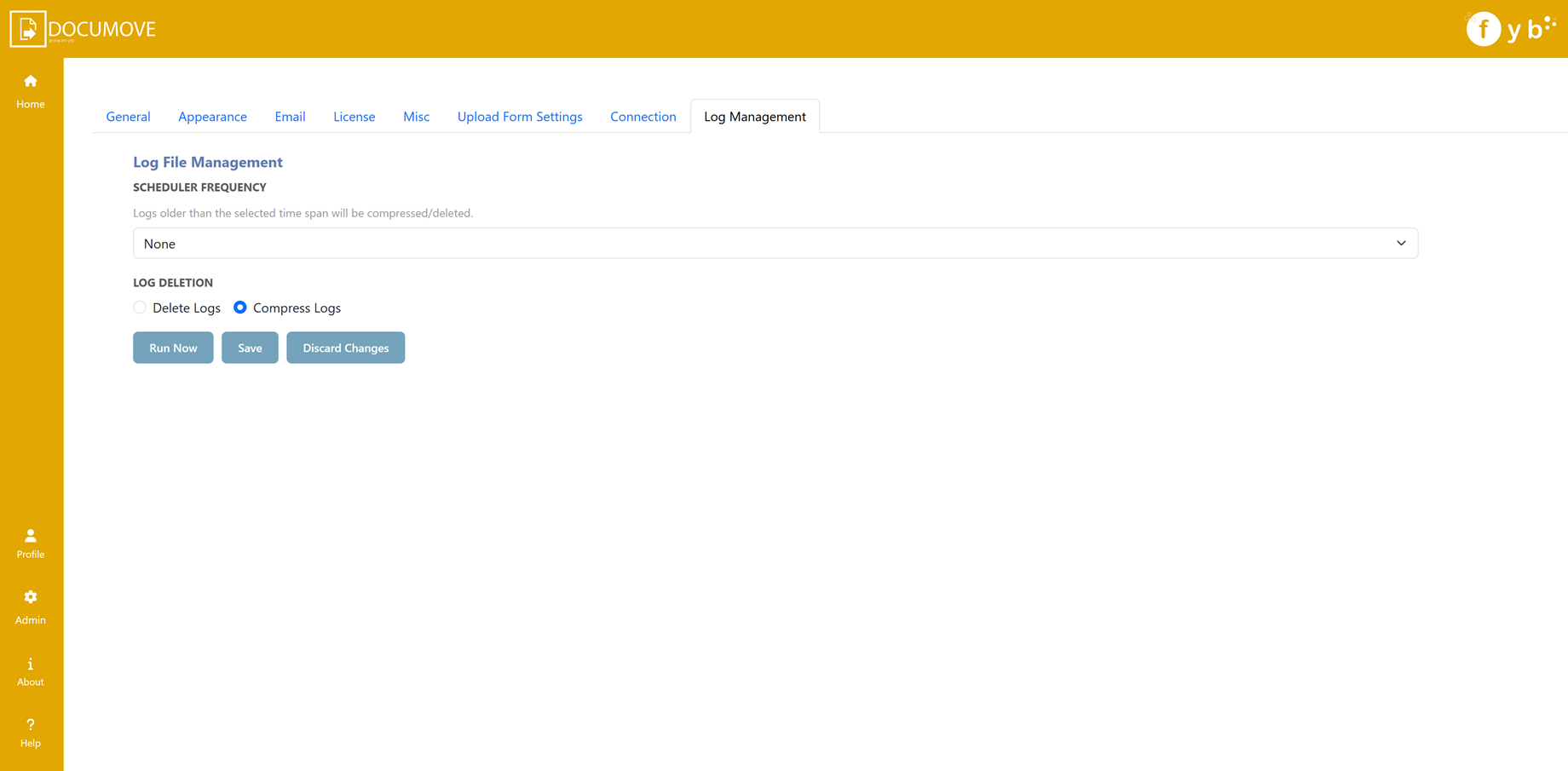
SCHEDULER FREQUENCY
Select how often the scheduler should run to delete the log files. Logs older than the selected frequency will be deleted
LOG DELETION
Select if the logs should be deleted or compressed
RUN NOW
Run the log deletion/compression instantly instead of waiting for the scheduler.