OPENID AUTHENTICATION AND ACCESS
DocUMove may use Azure AD OpenID authentication to validate the user’s credentials if the option is specified during install. To sign into the application, users will be required to enter their Microsoft 365 login details.
If the Stay Signed In option is not selected, you will be asked to authenticate twice. This is required to authenticate first with the DocUMove API, then the Content Manager Service API.
LAUNCHING THE APP
- Open a web browser and navigate to the DocUMove address
- If prompted, sign in using your work account.
NAVIGATION
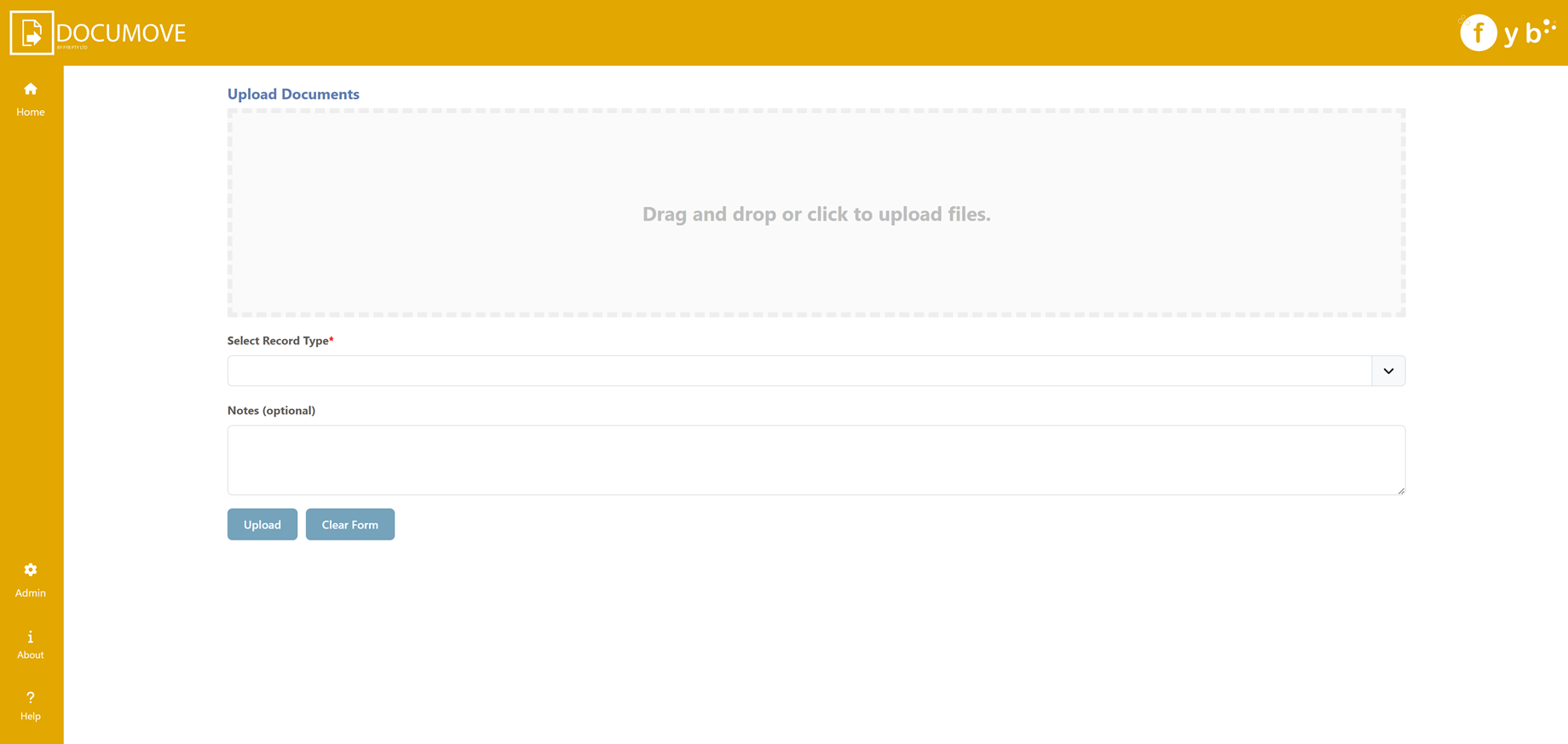
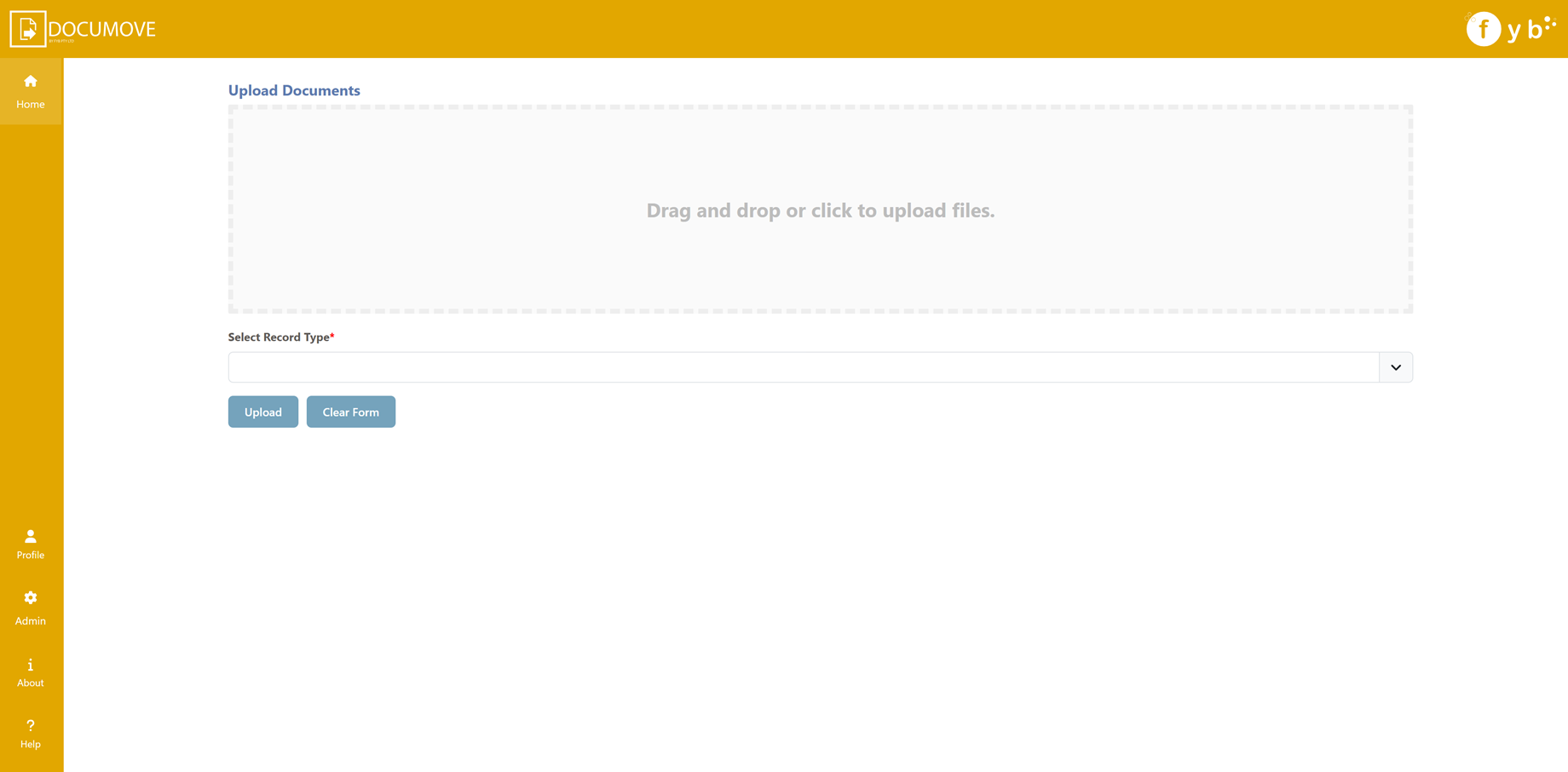
The side menu menu allows you to navigate to different areas of the application, each navigation item is explained below. Further detail can be found under the corresponding heading throughout this document.
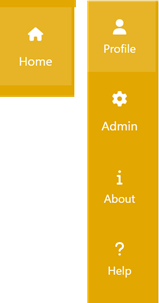
- Home - The home page
- Profile - use this button to sign out (when OpenID Authentication is used)
- Admin - The admin page, only visible to DocUMove admins
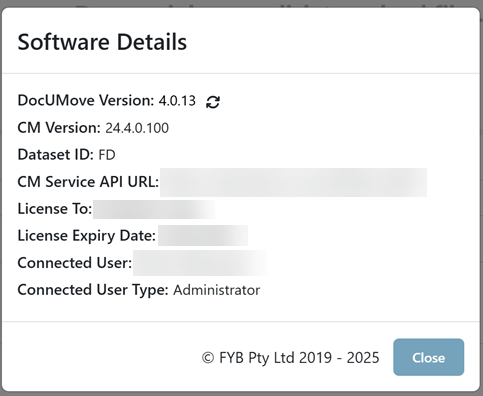
- About - Displays the About Modal
- Help - Displays the help section
UPLOADING DOCUMENTS
RECORD TYPE SELECTION
On the Home Page, select the desired Record Type from the dropdown list.
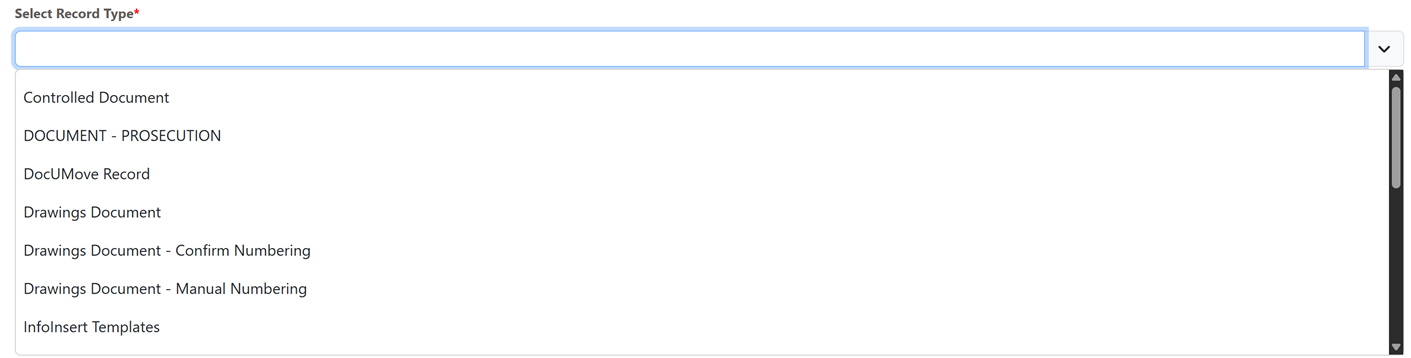
Record Types shown made selectable are conducted by Content Manager Administrators through the admin console.
Record Types that use manual record numbering patterns will not be shown in the Select Record Type drop down list.
METADATA ENTRY
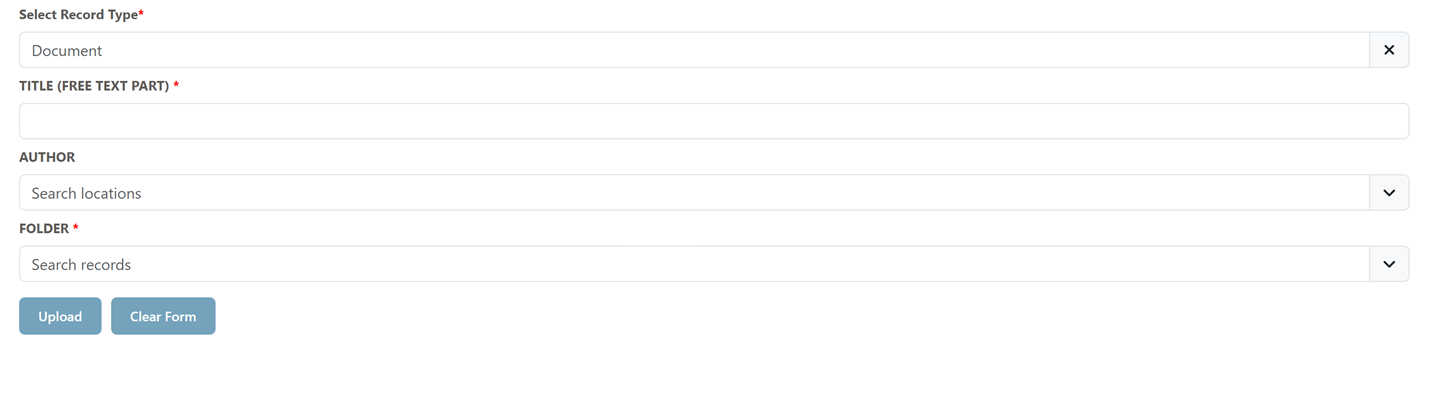
The fields on the page may be different based on the selected record type. The value you place in the field(s) will be applied to all the documents being uploaded in the batch.
The Title field is optional and will be captured from the properties of the electronic document.
The Date Created field will also be populated from the properties of the document.
In case's where the date created data cannot be captured the date modified of the document is used as a fallback replacement.
FILE SELECTION
Place the files you wish to upload onto the drag and drop area. Alternatively, click on this area to open a file browser window.

Once the files are selected, the drag & drop area will display the number of files to be uploaded.

FYB DocUMove may experience delays when uploading a file of 800MB or more.
If a single file is greater than 800MB in size we recommend dragging and dropping this record into Content Manager. Note that the max limit for any file is 2GB.
LOCATION SELECTION
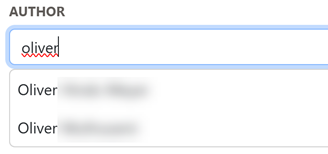
Enter the author name. Start typing the author or organisation and select the suggestion from the list.
The list will auto-populate every time a new letter is typed.
Select the appropriate author or organisation from the drop-down list.
CONTAINER SELECTION
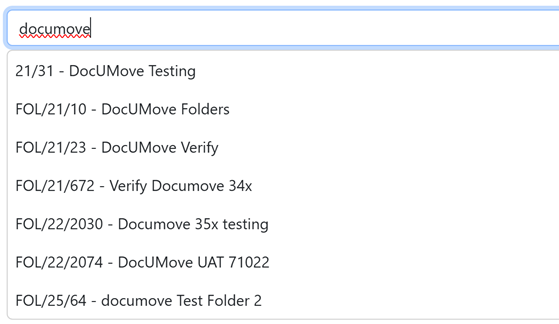
To enter the Container details, simply start typing the folder Title or Record Number that the documents will be uploaded to in Content Manager.
CLASSIFICATION SELECTION
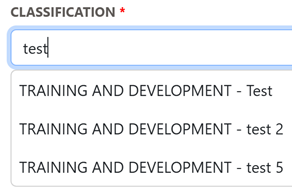
To add a classification for the records, start typing the name of the classification and select the desired classification from the drop-down list.
DATE SELECTION
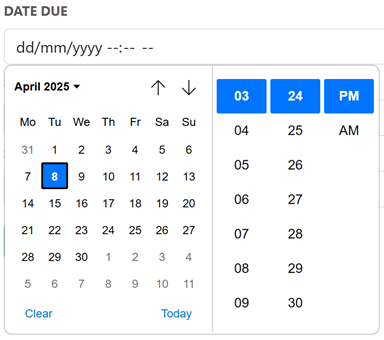
For any date fields click on the calendar icon to open the date time picker and click on the desired date from the calendar.
ADDING NOTES
To add a description or some keywords to the documents you are uploading, please enter this into the Notes (Optional) field. This information will be placed in the notes field in Content Manager.

EXTRACT EMAIL ATTACHMENTS
Currently attachments to other emails will not be extracted and uploaded.
-
If you are uploading EML or MSG files an additional option will appear on the upload form called Extract Attachments from Emails

-
Ticking this option on will extract all attachments in each email and upload them as individual records. The email will also be uploaded

UPLOAD
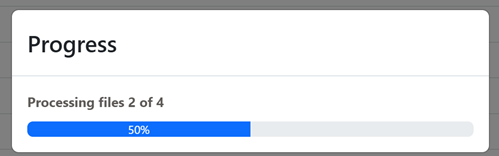
Once all the required fields have been populated click on the upload button to submit the documents to Content Manager, a progress bar will appear indicating that the files are being uploaded.

CLEAR FORM
Clicking the "Clear Form" button will clear all fields (except for the record type dropdown) and will remove the files.

RESULTS
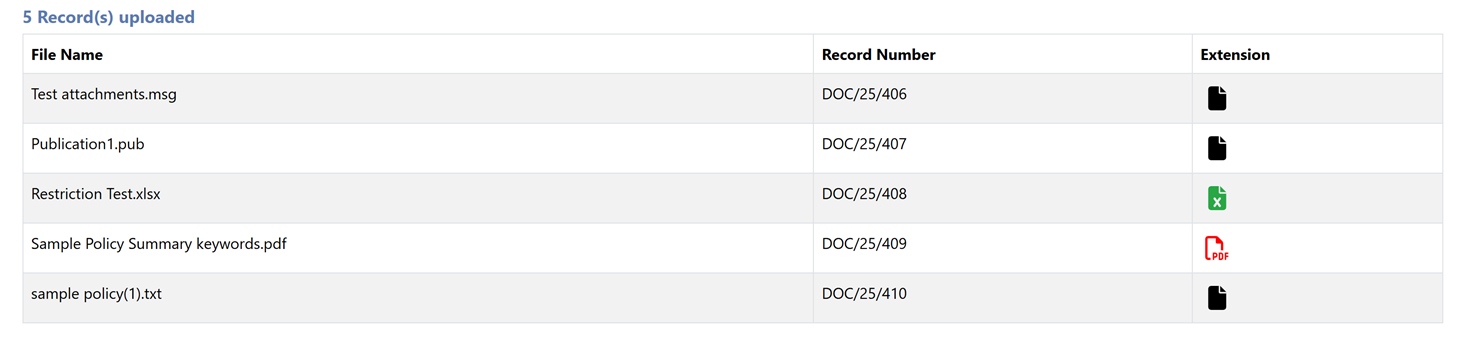
Once all the documents have been processed you will be redirected to the result screen. From here you will find general information about the type of documents that have been uploaded, the record number of the document in Content Manager and the number of files that have been successfully uploaded.
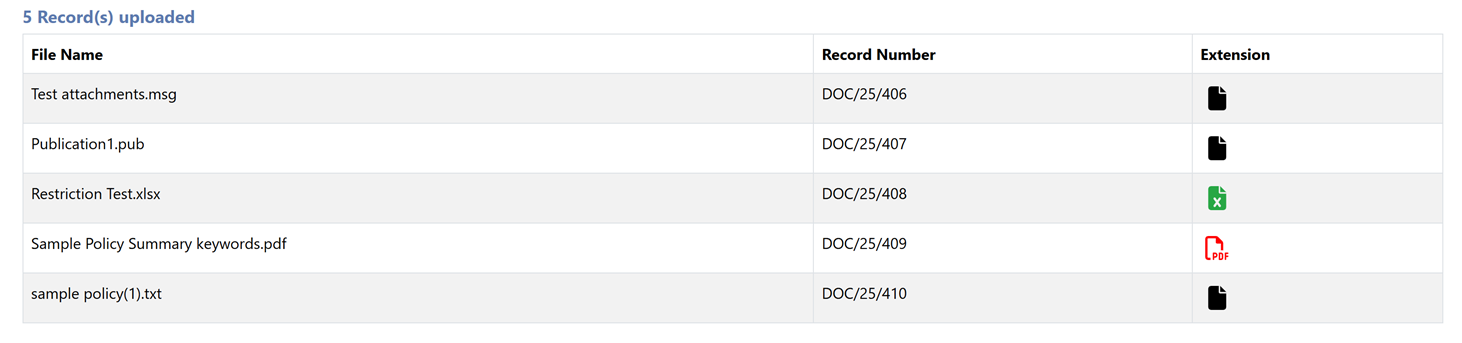
For failed uploads, you will have the option to reupload the file after fixing the issue stated in the error description
UPLOADING DOCUMENTS AS REVISIONS
If the Upload documents with duplicate titles as new revisions? option has been enabled in the Admin section then the upload process will differ as below.
DUPLICATE FILENAMES
Files that contain the same title as a record title within Content Manager will be displayed. For each listed file, you can select the record that the document will become a revision of.
After specifying the container, the application will automatically select the duplicate records with the same title within the selected container.
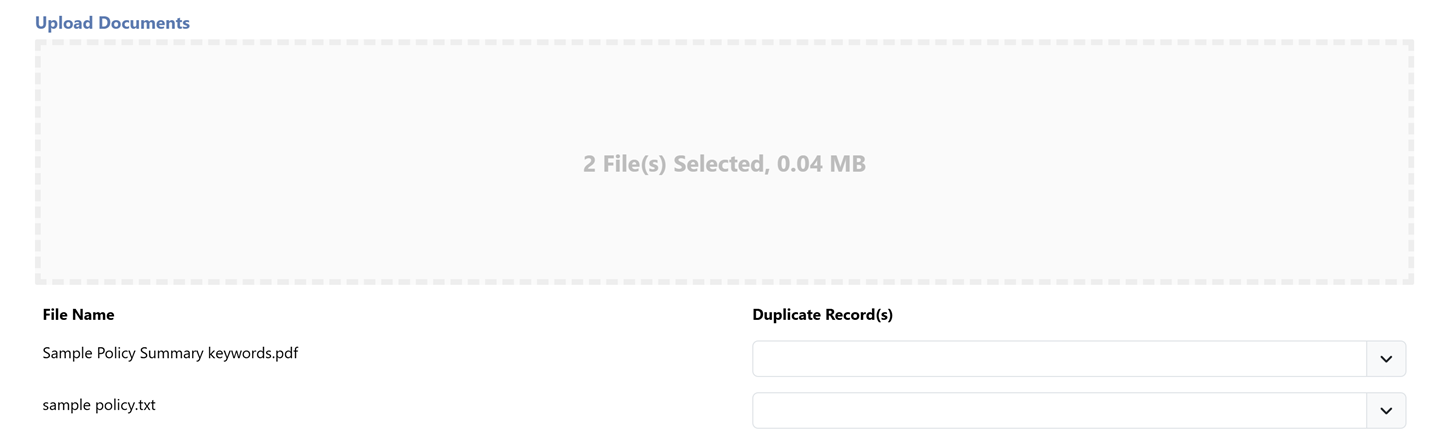
If there is a need to select the duplicate record individually (e.g. there is more than one to choose from) you can select the record using the respective combo box in the Duplicate Record column.
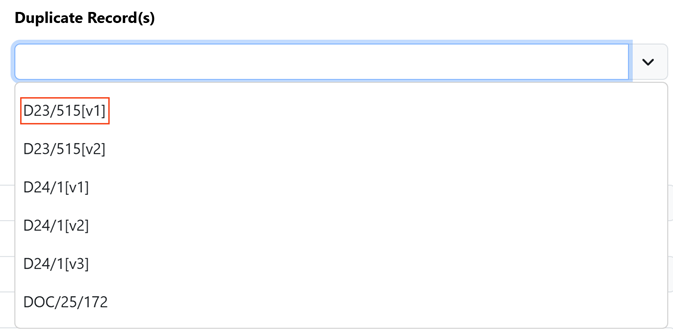
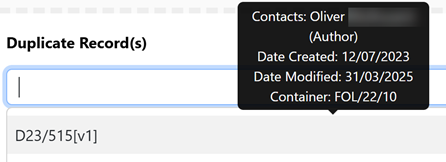
Each combo box will contain all records that share an identical title with the file's name. Hovering over any record number will display the following details for that record:
- Contacts
- Date Created
- Container
- Container Number
UPLOAD
Click the Upload Button. If there are one or more files that contain unique titles or are not linked as new revisions, the metadata fields will need to be populated.
RETRY UPLOADS
If an upload fails, you will have the ability to retry uploading the document again after fixing the specified errors.
Click Retry to try re-uploading a single document or Retry All to retry uploading all failed documents.

HELP SECTION
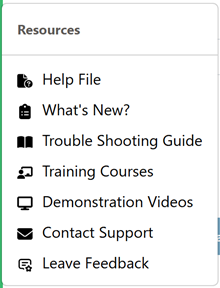
- Help File: Opens the D360 DocUMove User manual in a new tab in your browser.
- What's New?: Opens the D360 DocUMove Release Notes in a new tab in your browser.
- Trouble Shooting Guide: Opens the D360 DocUMove Trouble Shooting guide in a new tab in your browser.
- Training Courses: Opens the FYB Training Courses website in a new tab in your browser
- Demonstration Videos Opens the FYB demonstration videos in a new tab in your browser
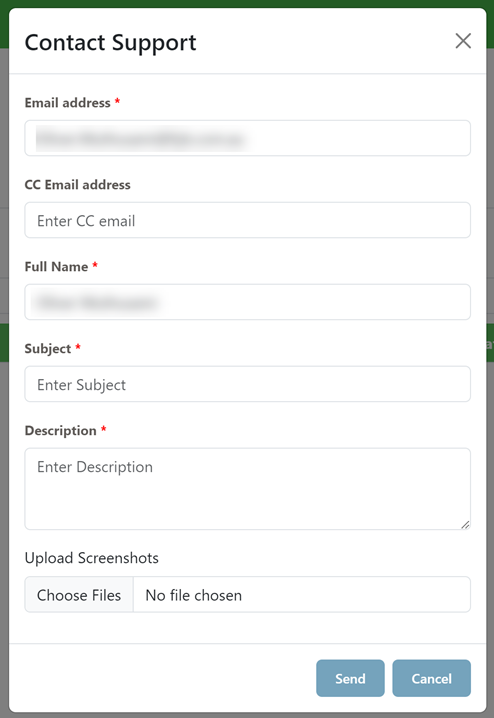
- Contact Support: Clicking this will display the Contact Support modal to log a ticket with FreshDesk
The Contact Support feature is only available to DocUMove Admins.