

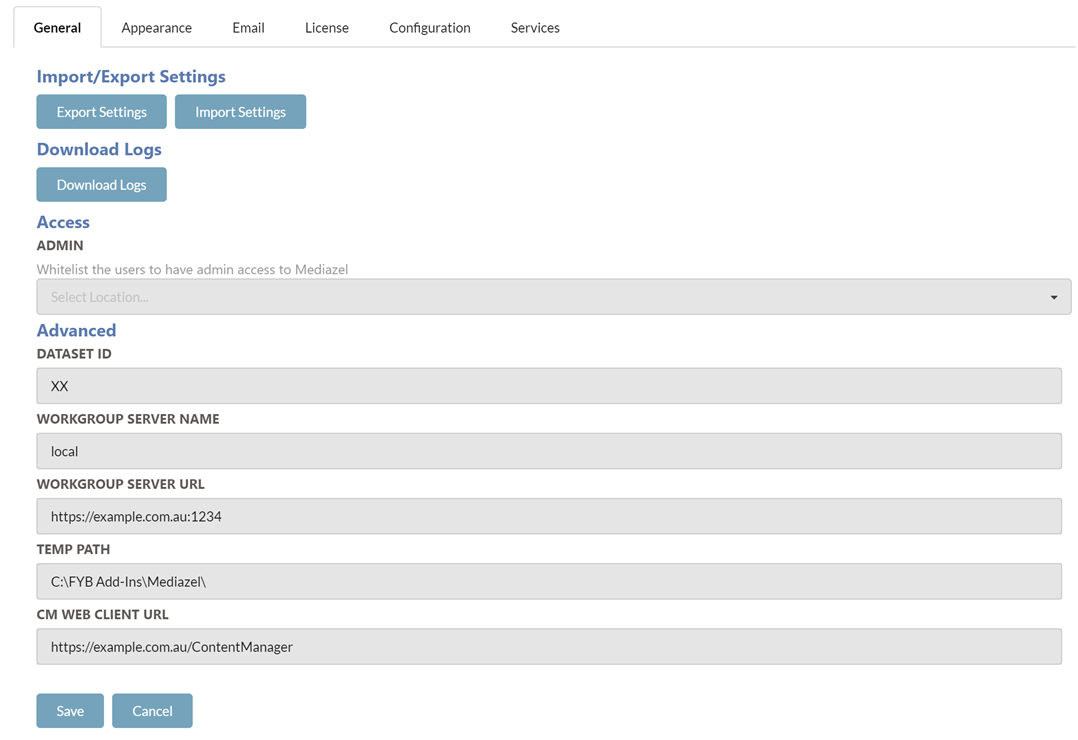
GENERAL
EXPORTING AND IMPORTING SETTINGS
You can either export the current configuration settings or import existing settings using the buttons below.
EXPORT
To export Mediazel's current settings, click the Export Settings button. This will automatically download the zip file containing the Mediazel configuration files. These files can be imported back into Mediazel when required.
IMPORT
To import existing settings, follow the steps below.
Only import JSON files that were previously taken from Mediazel's App_Data folder or exported from Mediazel.
-
Click on the Import Settings button

-
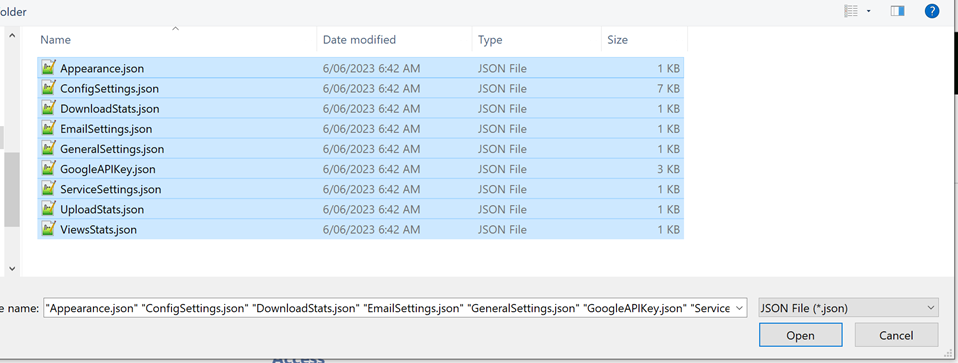
Select the settings files and click on the Open button
-
A success message will appear once the settings files have been updated and the admin page will reload shortly after to update the settings
DOWNLOAD LOGS
Download a zip file containing all the Mediazel log files.
ADMIN ACCESS
This field allows you to whitelist Content Manager users who are not an Administrator or Records managers to allow them access to Mediazel's admin console
DATASET ID
The ID of the Content Manager dataset that Mediazel is connecting to.
WORKGROUP SERVER NAME
The workgroup server name of your Content Manager workgroup server that Mediazel is connecting to Changes to this field will require an App Pool restart.
WORKGROUP SERVER URL
The workgroup server URL of your Content Manager workgroup server that Mediazel is connecting to Changes to this field will require an App Pool restart.
TEMP PATH
For the temp directory for Mediazel, please include the trailing slash, for example: C:\FYB Add-Ins\Mediazel. This directory will also contain the Mediazel log files. Changes to this field will require an App Pool restart.
CM WEB CLIENT URL
The URL of the CM Web Client. This URL is used to generate Hyperlinks of records within the CM Web Client when sharing Records via Mediazel.
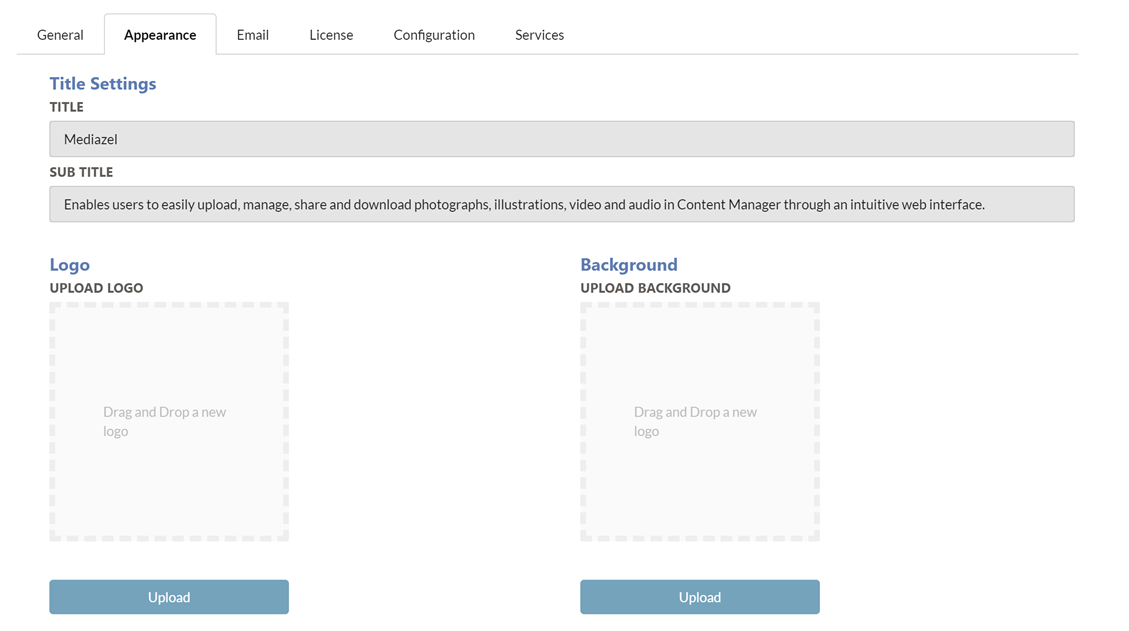
APPEARANCE
TITLE SETTINGS
TITLE
Sets the title for the solution.
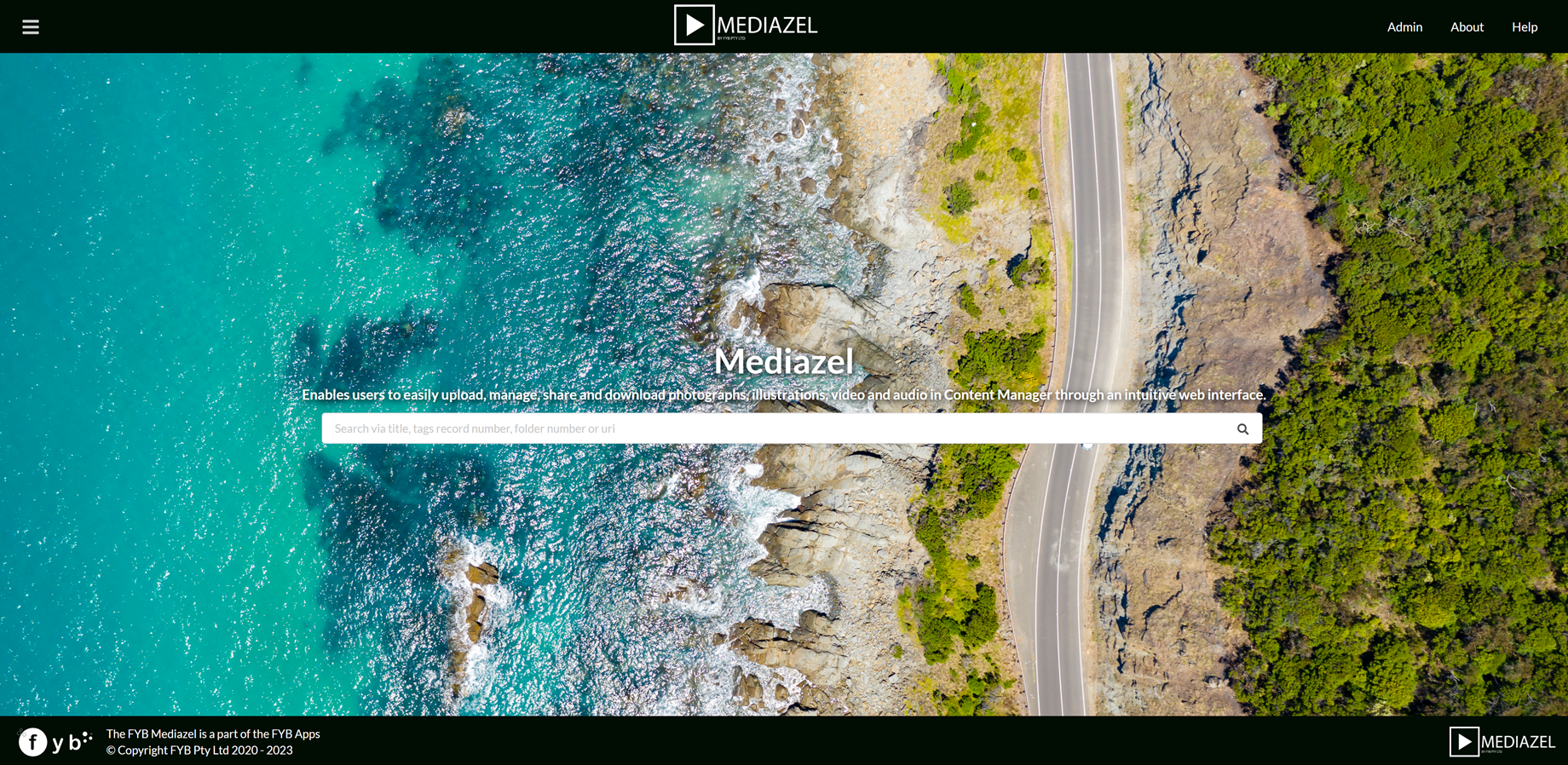
The title appears on the main landing page of the application above the search bar.

SUBTITLE
Sets the subtitle for the solution.
The subtitle appears on the main landing page of the application below the search bar.

LOGO
Sets the header logo for the application.
Click and drag the desired logo file into the file area and click on the Upload button

BACKGROUND
Sets the background image for the home page of the application.
Click and drag the desired background file into the file area and click on the Upload button
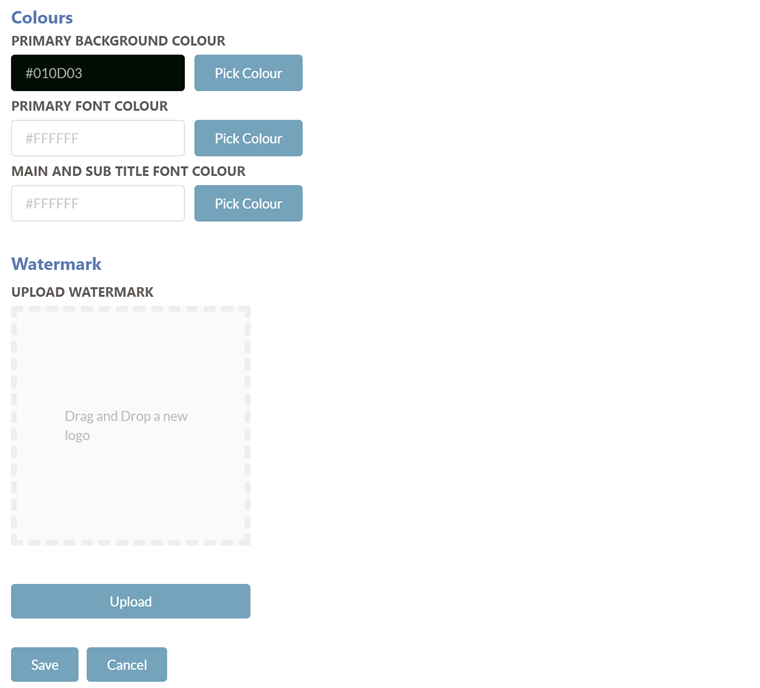
COLOURS
PRIMARY BACKGROUND COLOUR
Sets the background colour of the header and footer banners of the application.
PRIMARY FONT COLOUR
Sets the colour of the font of the text used in the application's header and footer banners.
MAIN AND SUB TITLE FONT COLOUR
Sets the colour of the font of the Title and Subtitle text on the home page of the application.
WATERMARK
Sets the watermark image to be used when downloading images with a watermark.
Click and drag the desired logo file into the file area and click on the Upload button
EMAIL SETTINGS
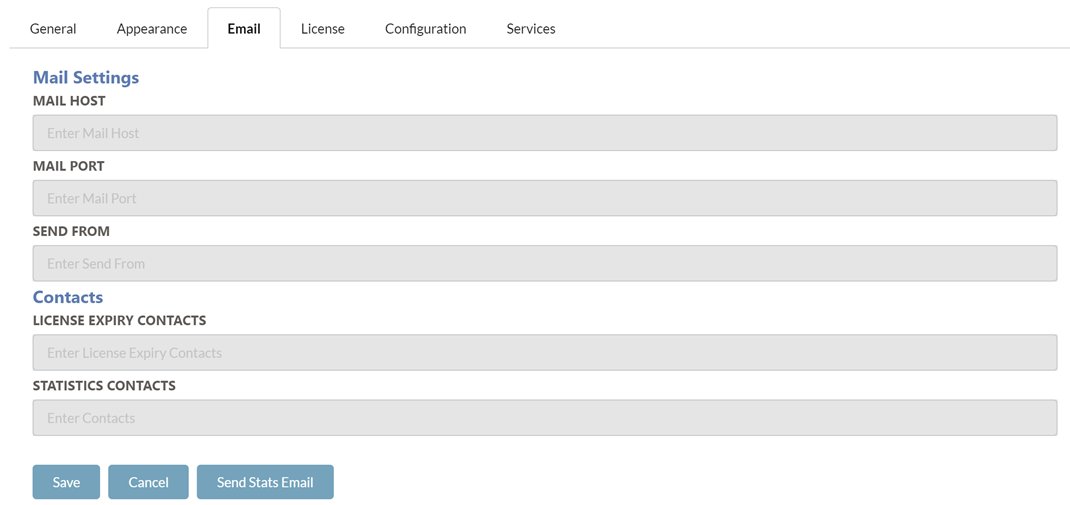
MAIL SETTINGS
MAIL HOST
The mail host used to send all email notifications from.
MAIL PORT
The mail port to allow for email notifications to be sent.
SEND FROM
The email address that all email notifications are sent from.
CONTACTS
LICENSE EXPIRY CONTACTS
Provide the email addresses of the users that shall receive an email notification when the Mediazel license is due to expire. Multiple contacts can be added by adding a ';' between each contact. (e.g. name@company.com.au; secondname@company.com.au).
STATISTICS CONTACTS
Provide the email addresses of the users that shall receive an email of the monthly usage statistics for Mediazel. Multiple contacts can be added by adding a ';' between each contact. (e.g. name@company.com.au; secondname@company.com.au).
SEND STATS EMAIL
Instantly send the monthly usage statistics for Mediazel to the email addresses listed in the.

CONFIGURATION SETTINGS
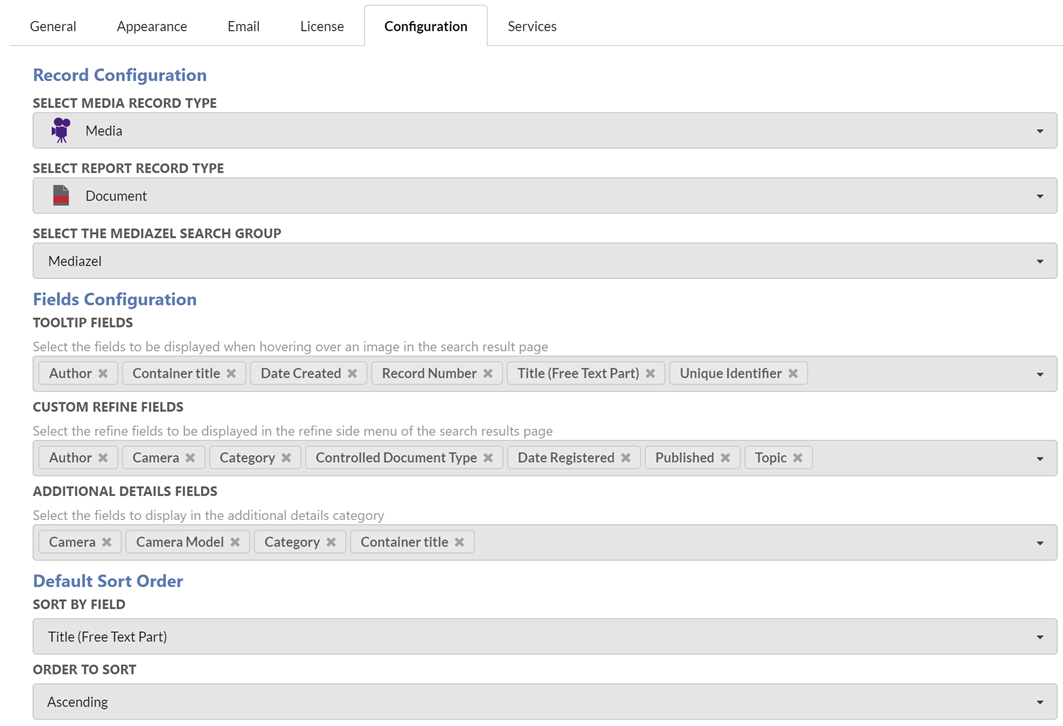
RECORD CONFIGURATION
MEDIA RECORD TYPE
This dropdown allows the user to choose the Content Manager record type that the Mediazel will utilise. This record type must be selected before any other settings are configured.
The record type is a central component of the solution, all documents displayed on the web interface are of this record type.
All metadata from this record type can be displayed on the interface also.
We recommend having a separate record type from your normal day-to-day document management, such as Media.
REPORT RECORD TYPE
This dropdown allows users to choose the Content Manager record type that Mediazel will utilise for generating PDF reports.
MEDIAZEL SEARCH GROUP
Select the Content Manager Saved Search Group that will be used to store new saved searches created in Mediazel as well as retrieve existing saved searches.
FIELD CONFIGURATION
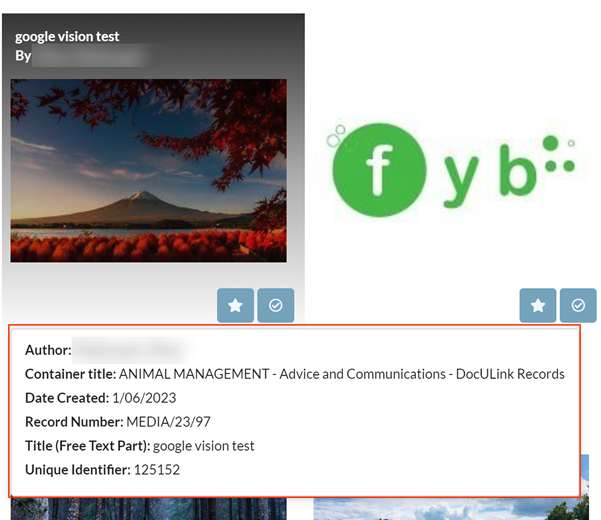
TOOLTIP FIELDS
Select the Record Properties/additional fields to be displayed when hovering over a record on the results page. A max of 6 fields can be selected.
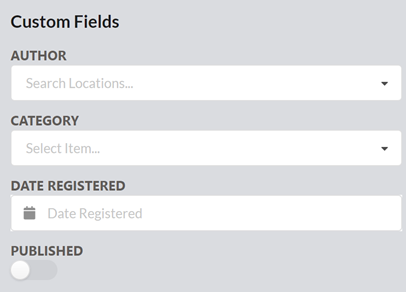
CUSTOM REFINE FIELDS
This drop-down allows the selection of the Content Manager field to be used for filtering results on the search result page (as shown below).
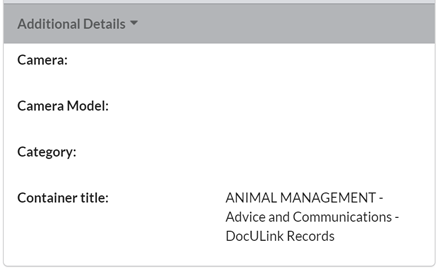
ADDITIONAL DETAILS FIELDS
This drop-down allows the selection of the Content Manager field to be used to be displayed under the additional detail category.
DEFAULT SORT ORDER
SORT BY FIELD
Choose the record field to use for default sorting. Records will be sorted using this field when search results are first displayed in Mediazel.
ORDER TO SORT
Choose between Ascending and Descending order for the default sorting.
GPS CONFIGURATION
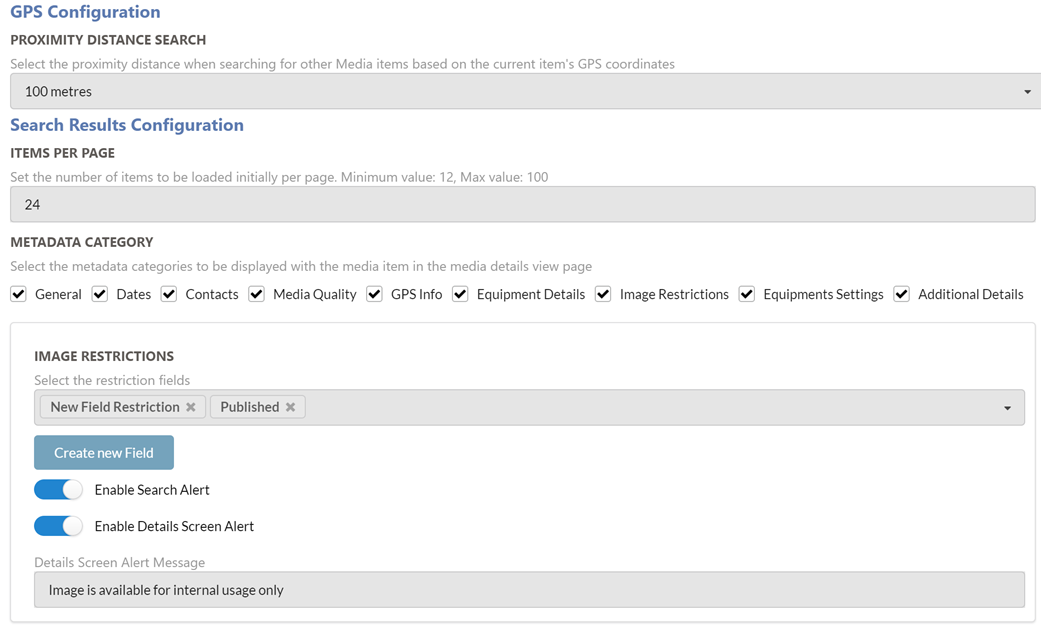
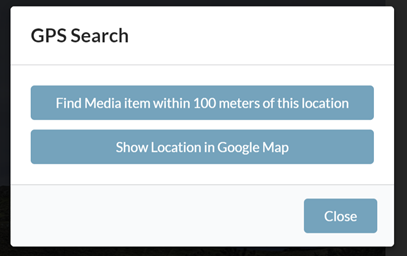
PROXIMITY DISTANCE SEARCH
Set the distance (in metres) to search for records near the current record on the Media Details page
SEARCH RESULTS CONFIGURATION
ITEMS PER PAGE
Set the number of items to be loaded initially per page.
METADATA CATEGORY
Select the category items to be displayed on the Media Details page
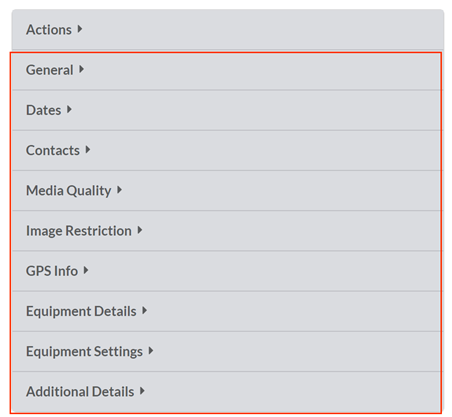
IMAGE RESTRICTIONS
This will allow admins to flag media items that have any restrictions placed on them. These restrictions are in the form of a Boolean additional field on the Media record type in Content Manager. Records that have these fields set to true will be flagged with the message shown in the “Detail Alert Message” field.
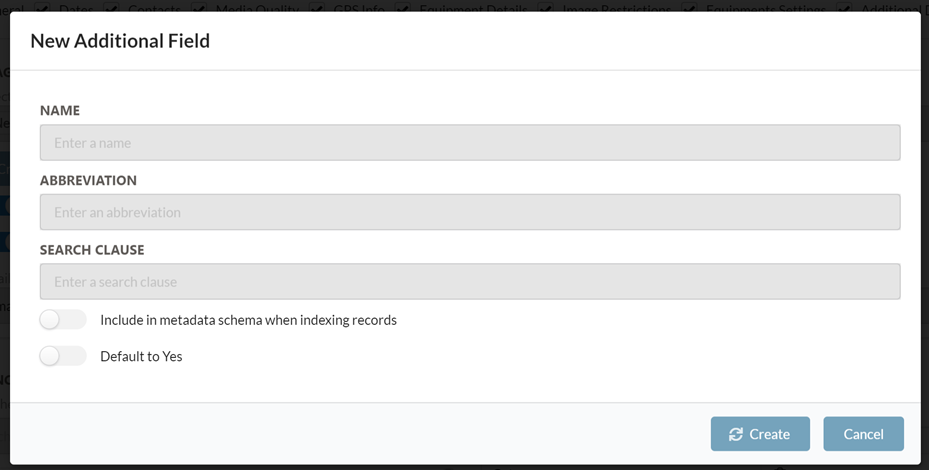
##### CREATE NEW ADDITIONAL FIELD
This button will allow you to create a new Boolean additional field that will be attached to the Media record type.
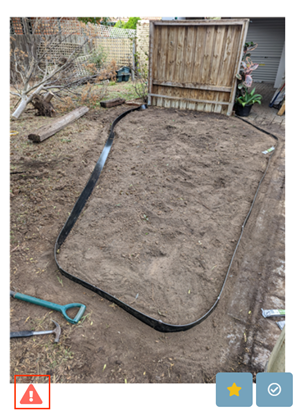
ENABLE SEARCH ALERT
If enabled, an Icon will be added to the media items if at least one of the selected boolean additional field's value is set to true for the media item
ENABLE DETAIL SCREEN ALERT
If enabled, an alert message will be added to the media details page if at least one of the selected boolean additional field's value is set to true for the media item

DETAIL SCREEN ALERT MESSAGE
The message that will be shown to users when they come across a restricted image.
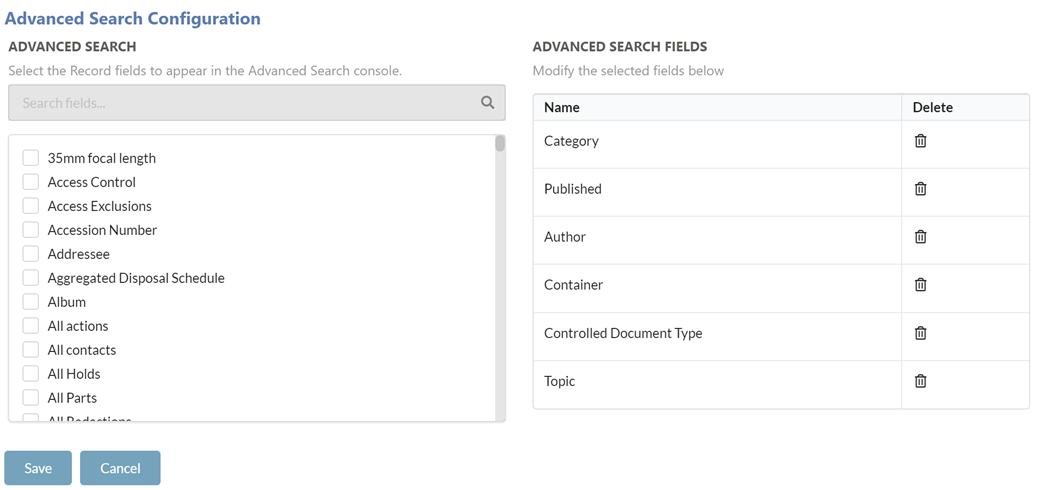
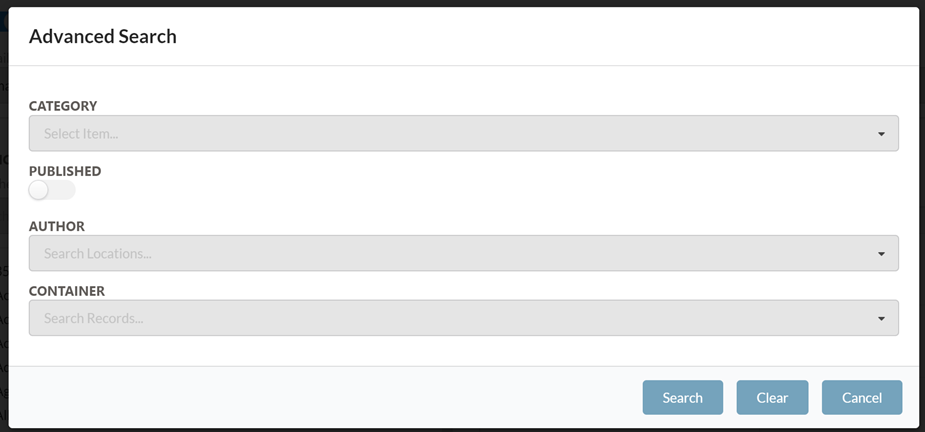
ADVANCED SEARCH
Select the metadata fields to be displayed in the Advanced Search Dialogue.
SERVICE SETTINGS
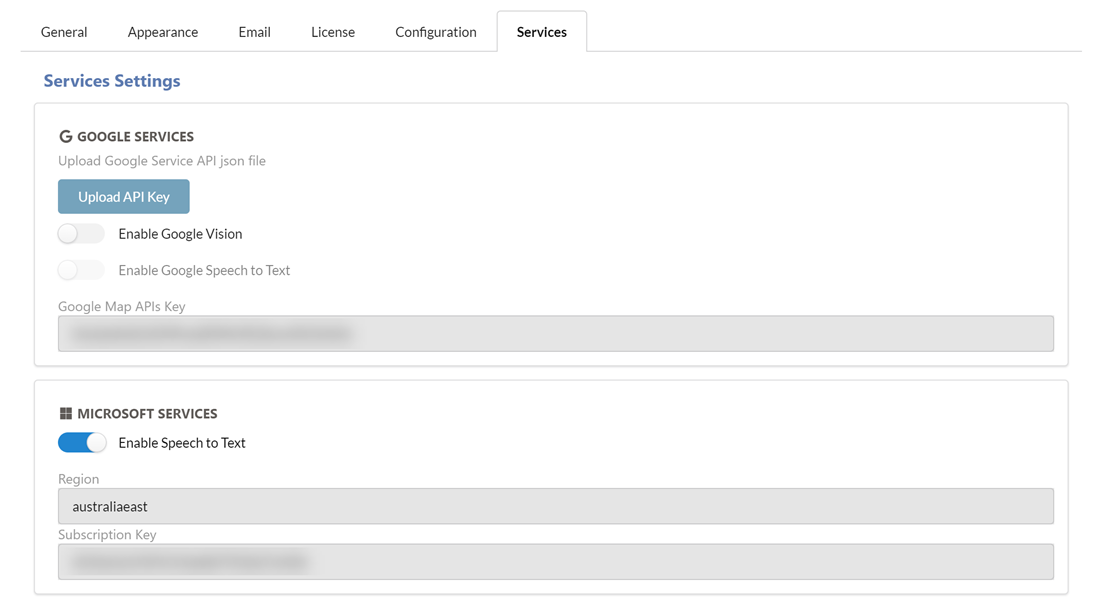
GOOGLE SERVICES
Use at your own risk
Before using any Google services, please note that the files will need to be shared/uploaded to Google Cloud for analysis. We (FYB Pty Ltd) will not be liable and nor do we hold any responsibility for any privacy breaches or data damages because of using this feature.
This section allows you to control the following Google services.
UPLOAD API KEY
Upload your Google API key. This key will be used for accessing the Google Cloud Vision and Speech services.
ENABLE GOOGLE VISION
Enable this option to auto-classify images and automatically add tags.
ENABLE GOOOGLE SPEECH
Enable this option to convert audio to text as they upload. The text will be added as a rendition on the record. If this is enabled, the Microsoft Speech to Text feature cannot be enabled.
For a list of support audio formats, click here.
GOOGLE MAPS API KEY
Allows you to specify your Google map API key. This key will be used to access the Google Maps functionality in Mediazel.
MICROSOFT SERVICES
Use at your own risk
Before using the Microsoft services, please note that the files will need to be shared/uploaded to Microsoft Cloud for analysis. We (FYB Pty Ltd) will not be liable and nor do we hold any responsibility for any privacy breaches or data damages because of using this feature.
This section allows you to control the following Microsoft services.
ENABLE SPEECH TO TEXT
Enable this option to convert audio to text as they upload. The text will be added as a rendition on the record.
For a list of support audio formats, click here.
REGION
Subscription region server.
SUBSCRIPTION KEY
The Microsoft cognitive service subscription key.