GETTING STARTED
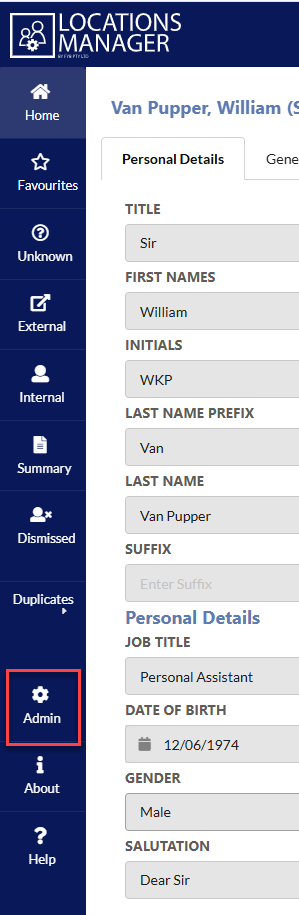
To modify Locations Manager settings, click Admin button on the side menu
The Administration Console will load
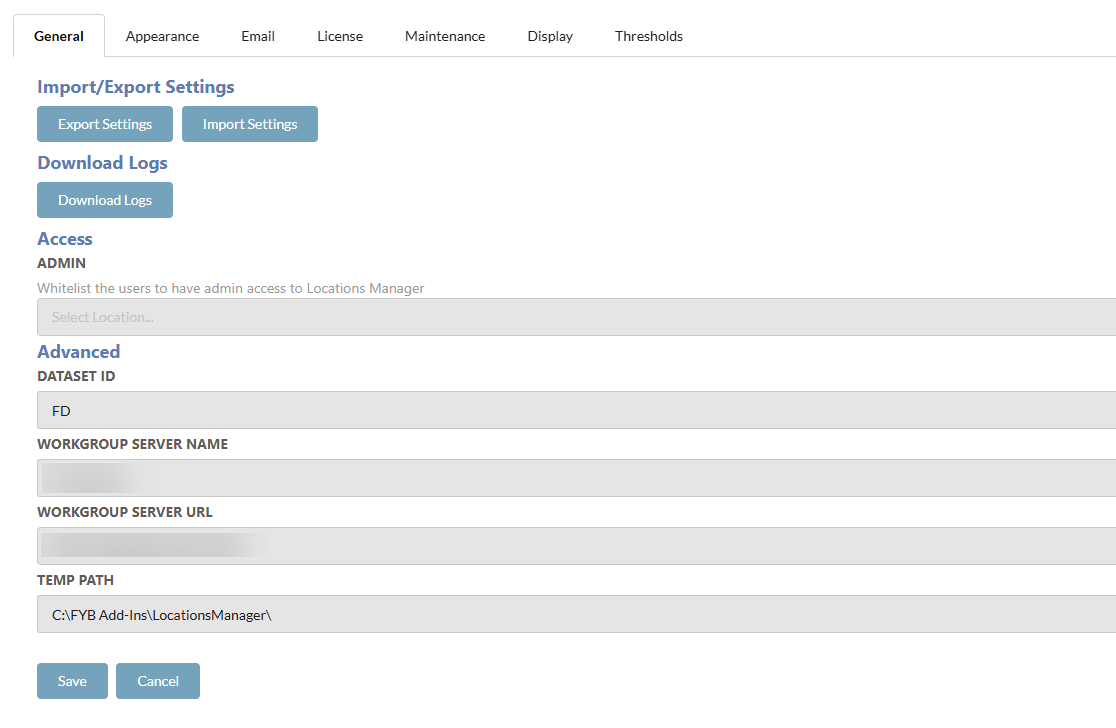
GENERAL
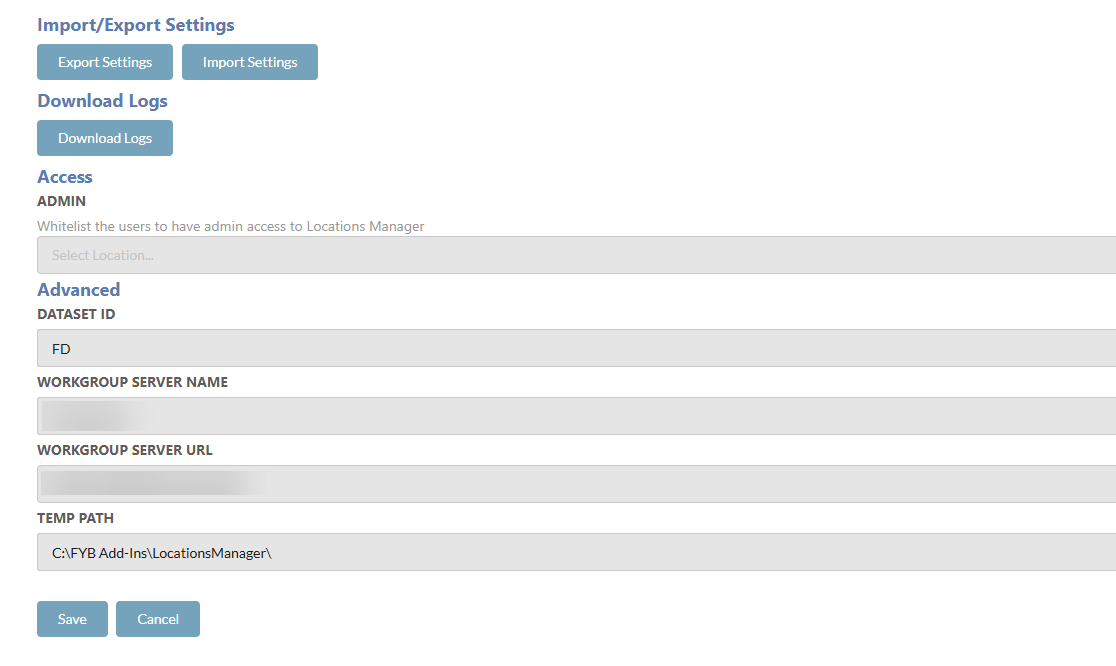
IMPORTING AND EXPORTING SETTINGS
Click the Export Settings button to download copies of all Locations Manager settings.
Click the Import Settings button to import existing settings files into Locations Manager.
DOWNLOAD LOGS
Click the Download Logs button to download a zip file containing the Locations Manager log files.
ADMIN WHITELIST
Locations Manager can only be utilised by Adminstrators and Records Managers. Anyone requiring access to Locations Manager will need to be white listed.

ADVANCED
| Name | Description |
|---|---|
| Dataset ID | The 2 character Content Manager dataset identifier |
| Workgroup Server Name | The name of the Content Manager Workgroup Server |
| Workgroup Server URL | The name of the Content Manager Workgroup URL |
| Temp Path | Path where temporary files and logs are stored |
APPEARANCE
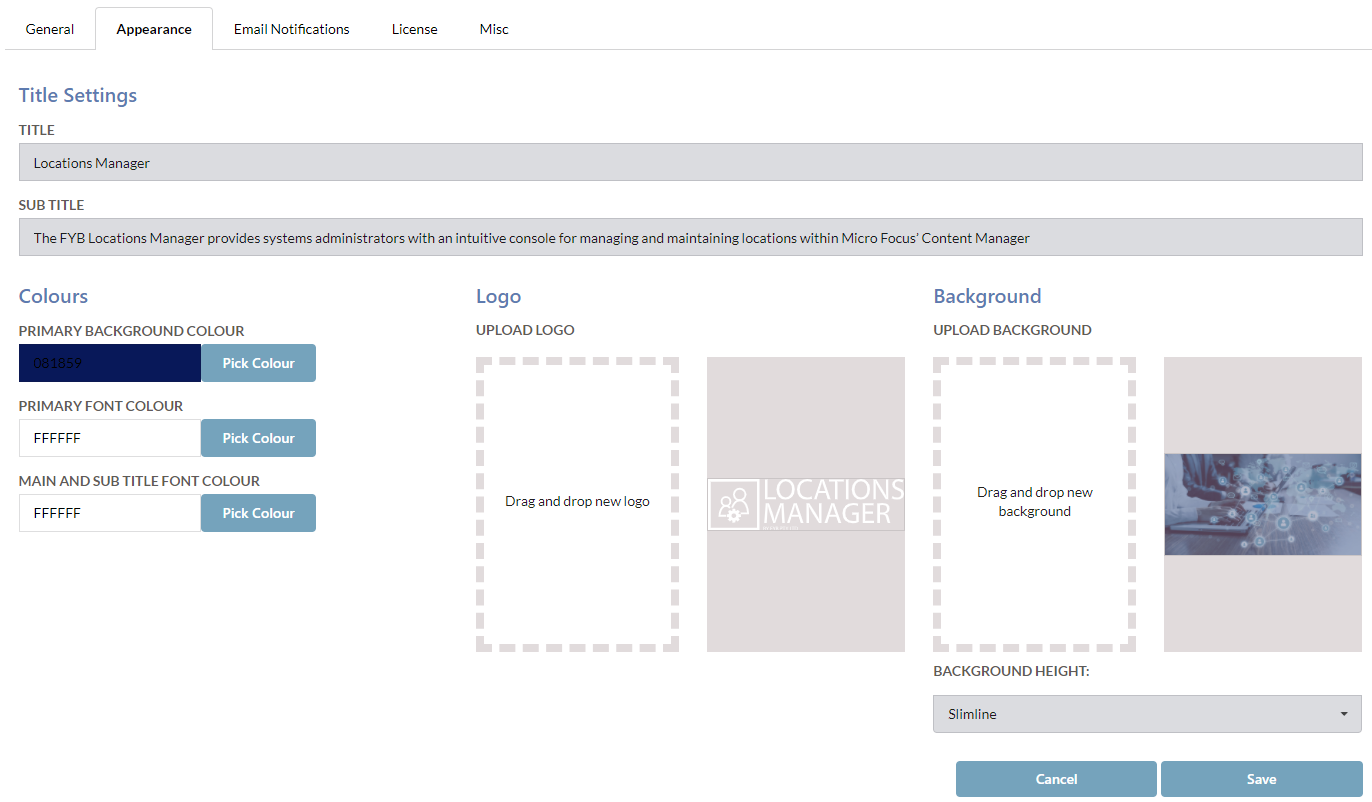
Title and Sub Title can be adjusted via the Title Settings section.
The Colours section allows you to adjust the Primary Background, Primary Font and Title colours.
To change the Logo simply drag and drop the image to the Upload Logo box. To change the Background simply drag and drop the image to the Upload Background box.
The background image height can be adjusted via the background height drop-down box.
Click the Save button to save the changes.
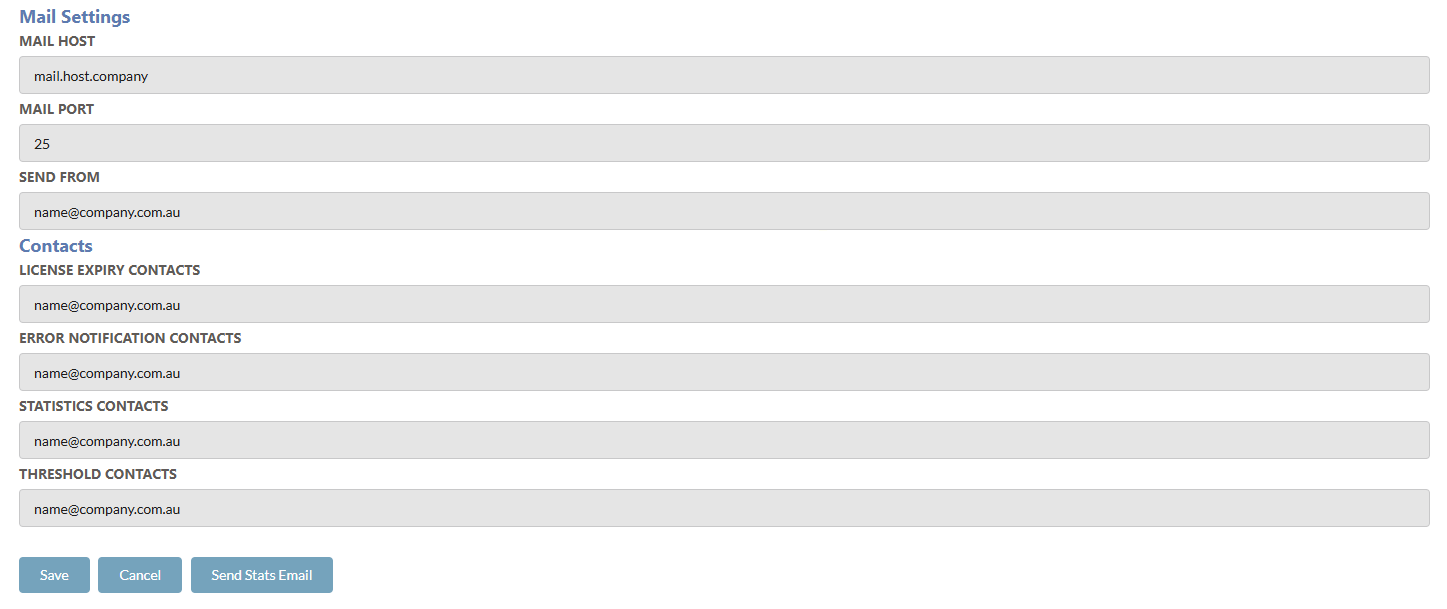
| Name | Description |
|---|---|
| Mail Host | Email server address. |
| Mail Port | The Email server port. |
| Send From | The nominated sender e-mail address |
| License Expiry | A comma separated list of email addresses that will receive the license expiry e-mail notification. |
LICENSE
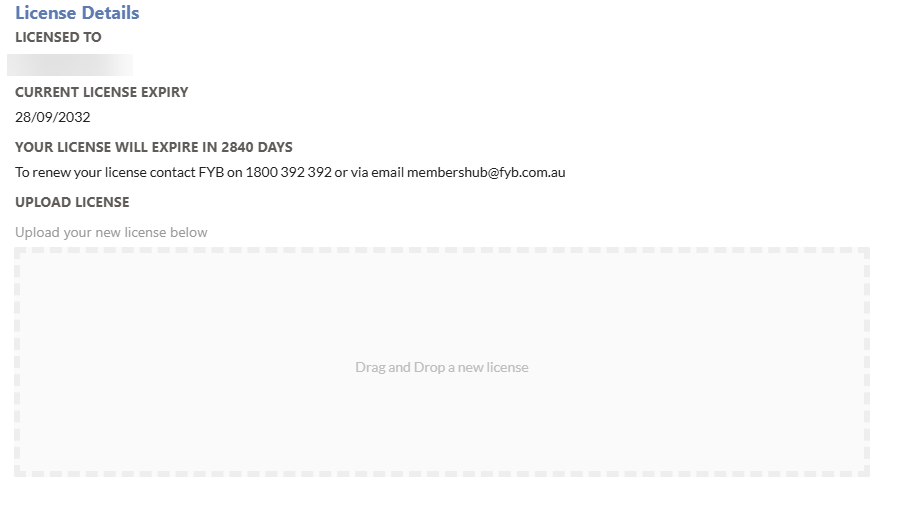
License details are displayed on this tab. To update the license please see the dedicated License Update guide.
MAINTENANCE TAB
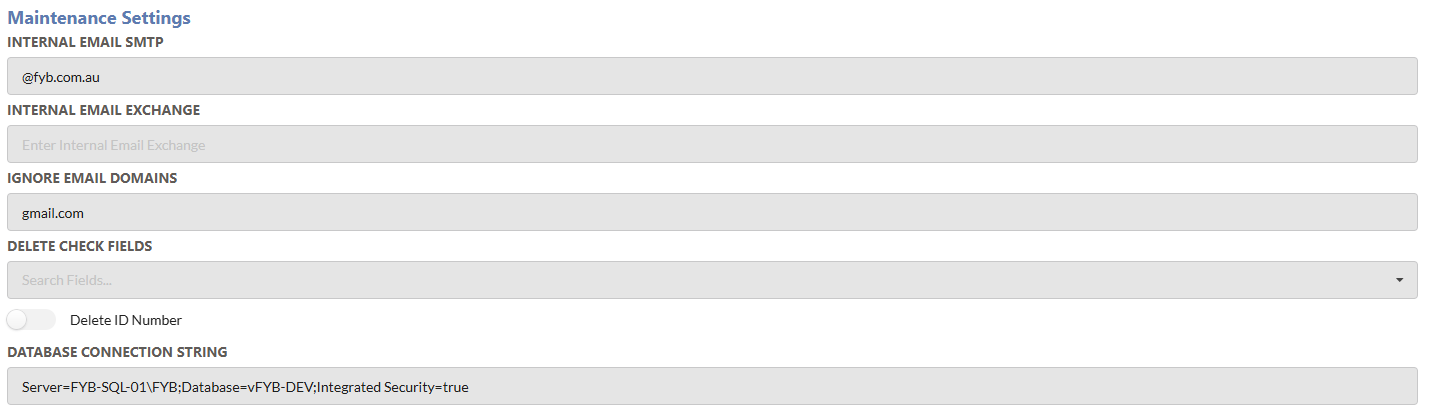
| NAME | DESCRIPTION |
|---|---|
| Internal Email SMTP | The domain name part of Internal SMTP email addresses. For example: FYB's emails all end in @fyb.com.au therefore you would enter @fyb.com.au here. Either Internal Email SMTP or Internal Email Exchange should be entered so that internal email addresses can be identified. |
| Internal Email Exchange | The exchange format string used internally when sending emails. To obtain this field you may need to check some existing internal locations in Content Manager. The string would resemble /o=First Organization/ou=Exchange Administrative Group(FYDIBOHF23SPDLT)/cn=Recipients) Either Internal Email SMTP or Internal Email Exchange should be entered so that internal email addresses can be identified. |
| Ignore Email Domains | A list of default email domains to ignore when checking for associations. This prevents association based on generic domains that are not organisation specific. Leave blank if not applicable. |
| Delete Check Field | Enter in the comma separated values of string based additional fields to prevent deletion of a location if these fields contain a value. Use the field URI. Leave blank if not applicable. |
| Delete Id Number | A Boolean (true/false) field to determine whether to block deletions of a location that contains an ID Number. Set this value to "true" to block locations from being deleted if they have an ID Number. If left blank, this field will default to "false". |
| Connection String | The Content Manager database connection string. This can be found in Content Manager Enterprise Studio in the Connection tab of the database properties window. It should be in the format SERVER=servername;DATABASE=databasename;Integrated Security=true. This field should be entered in order to enable the Duplicate locations by email and Duplicate locations by name functionality |
DISPLAY
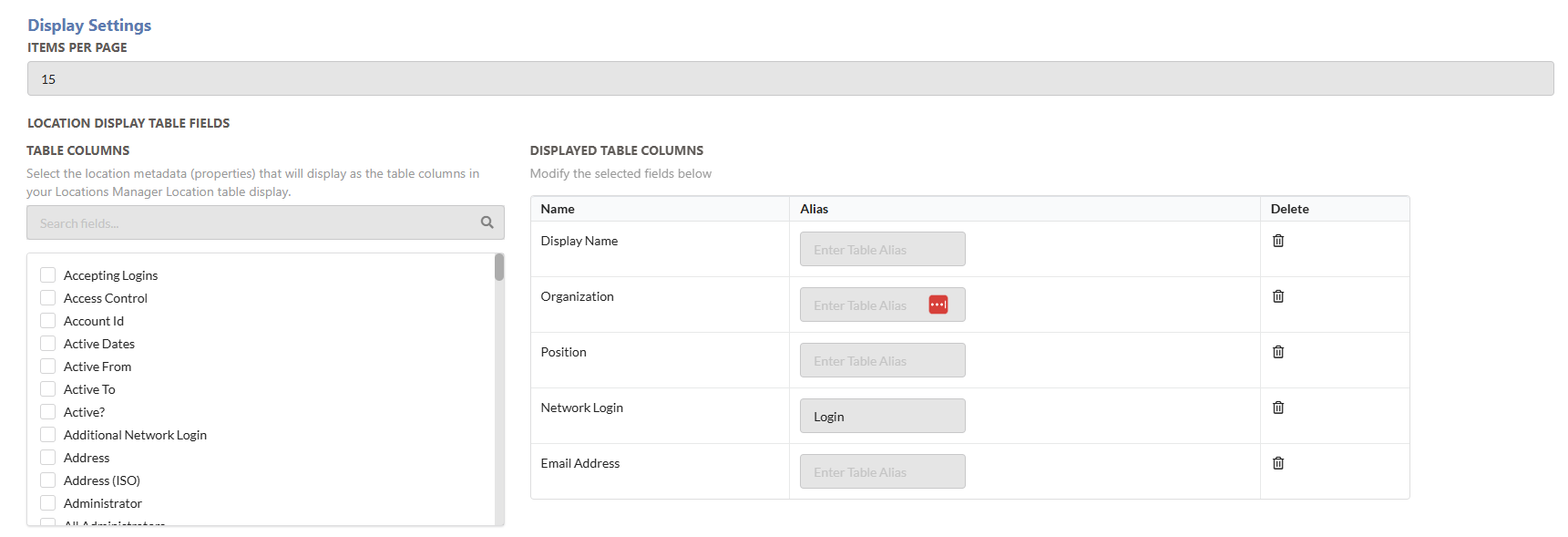
These settings assist with the display of both Location and Record display within Locations Manager
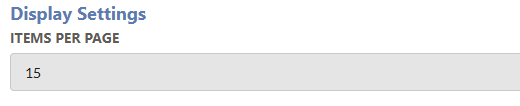
ITEMS PER PAGE
The amount of locations that will be display per page
LOCATION DISPLAY FIELDS
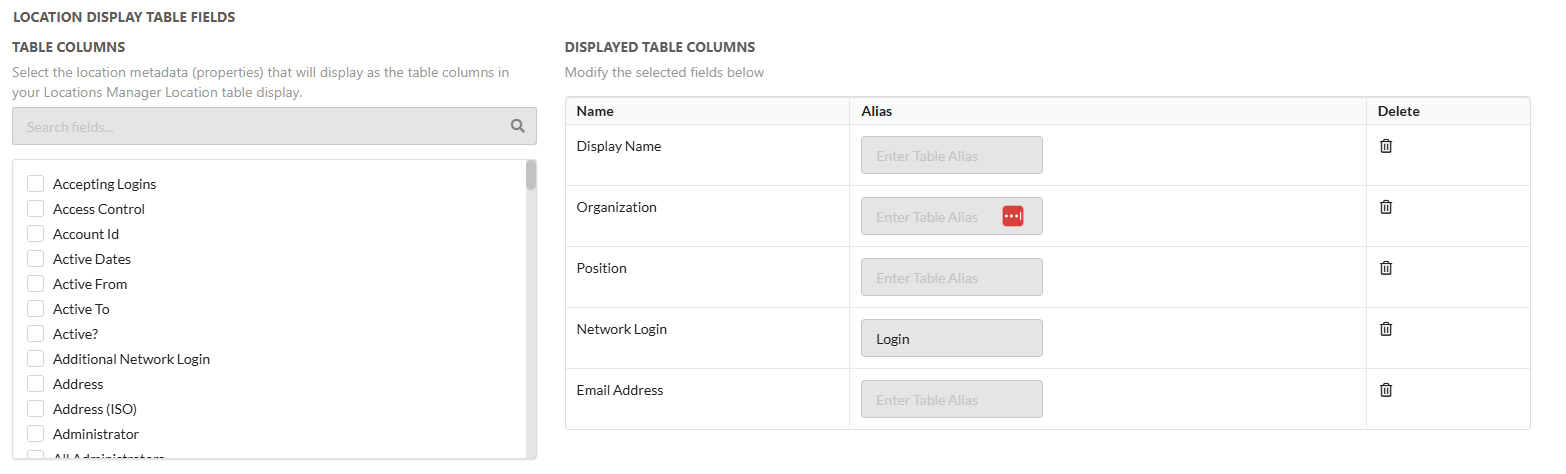
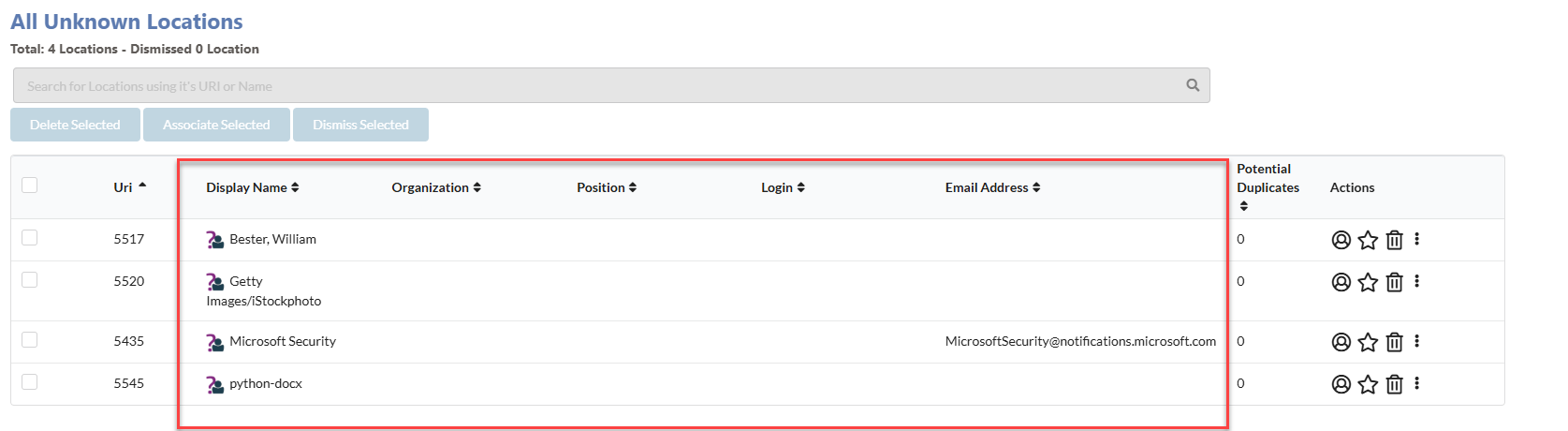
The additional column fields that can be added into the location search results page.
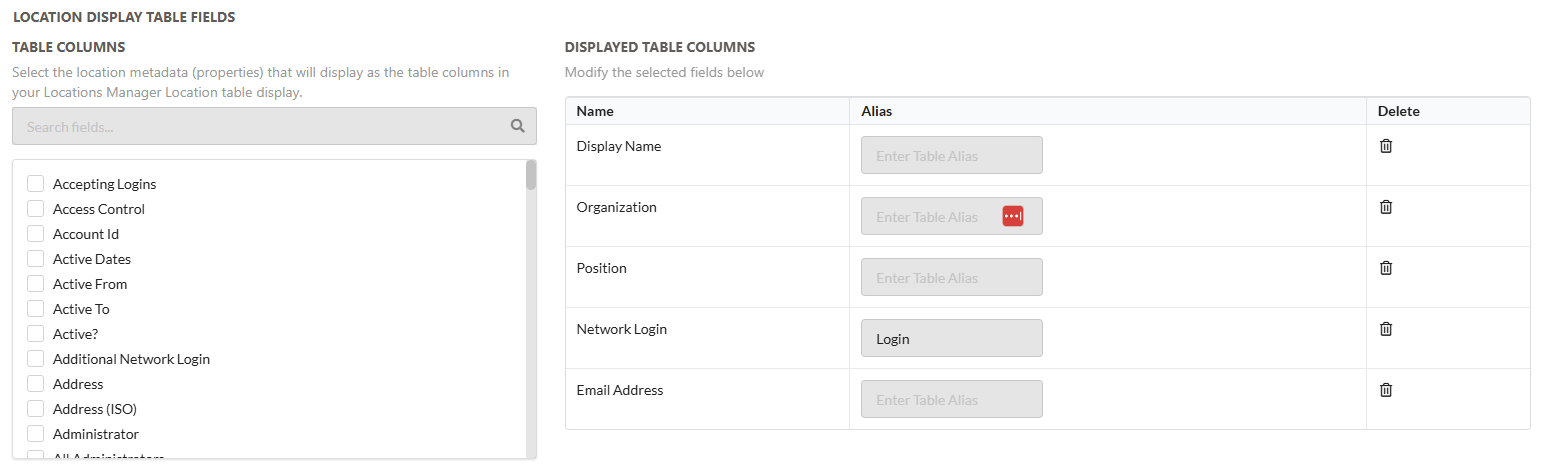
By default, it will display URI, Potential Duplicates and Actions. All other columns can be selected.
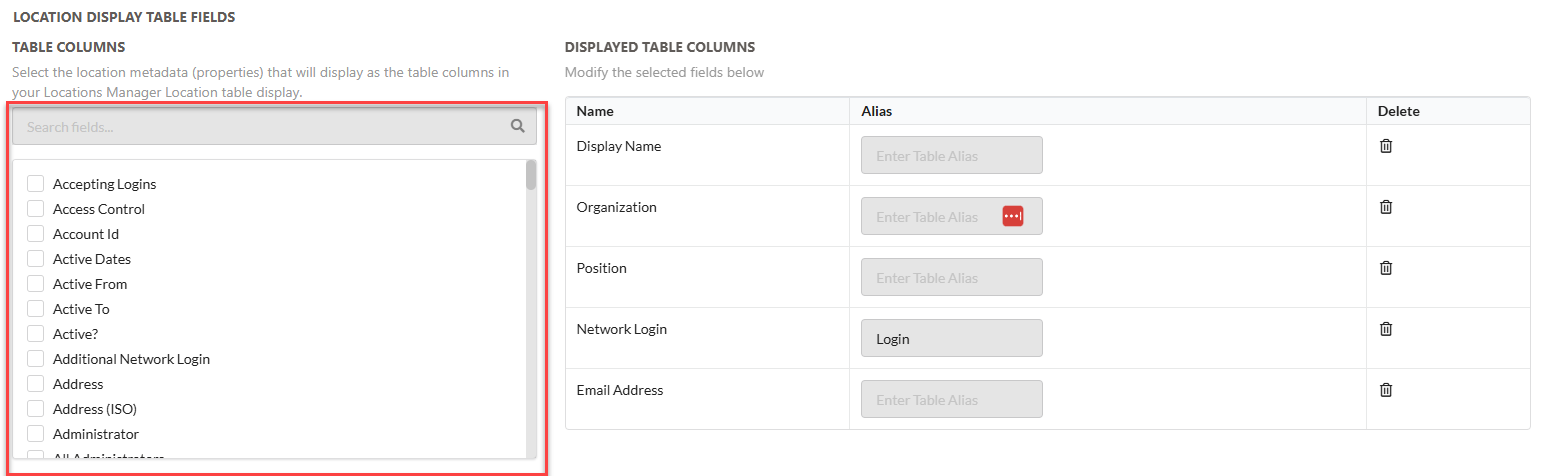
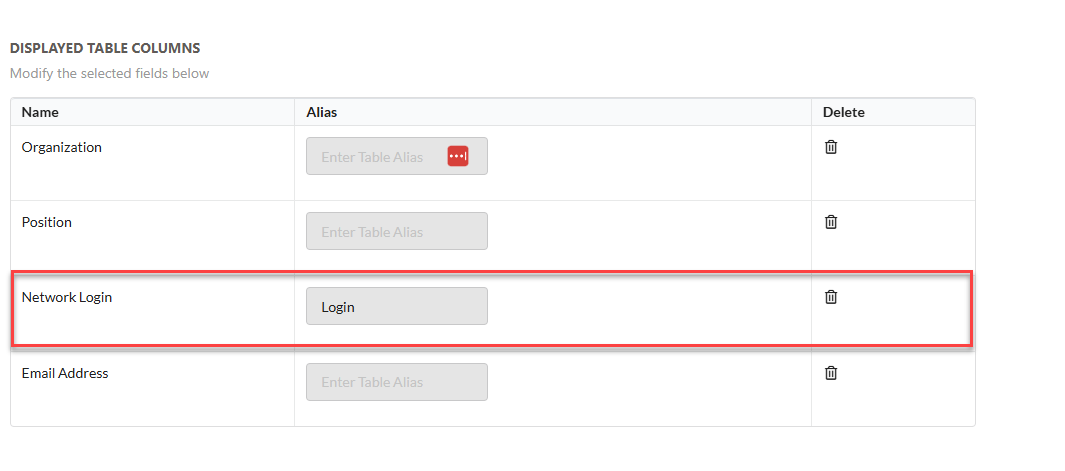
To add a field to the table column, search or scroll through the metadata table on the left hand side.
Enable the checkbox for the field you want to use
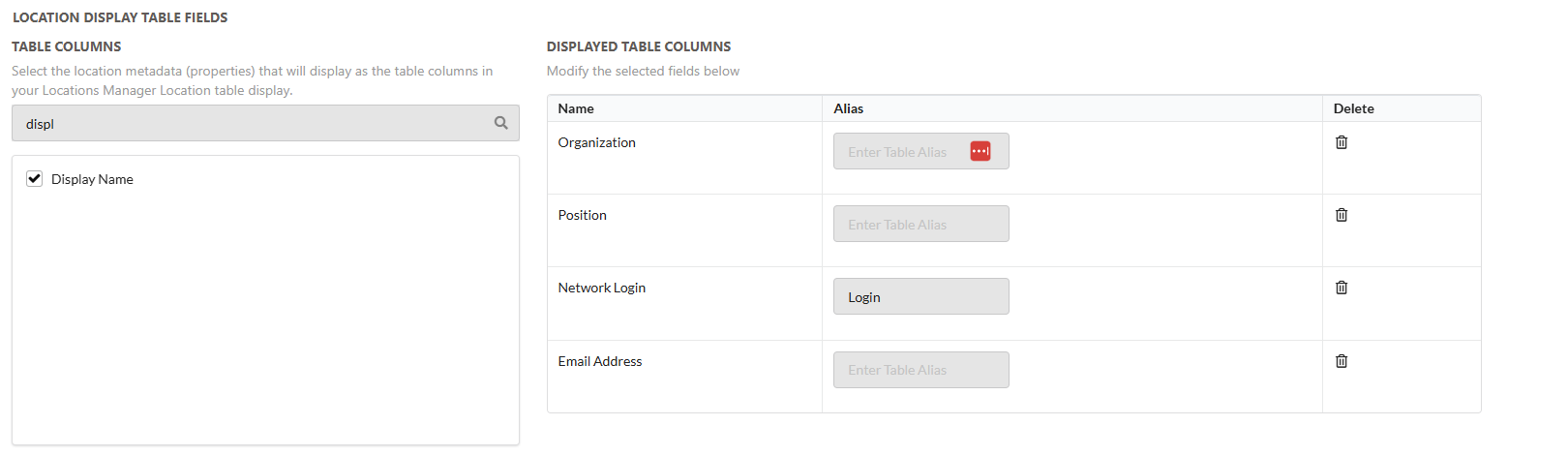
You can change the name of the table column to an alias name that is better used for that metadata column
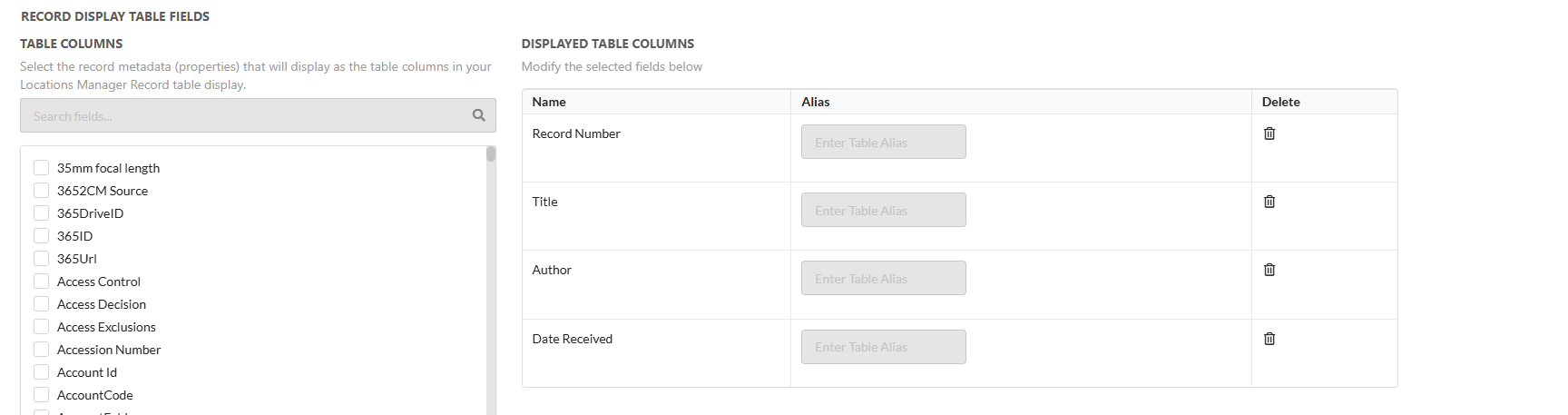
RECORD DISPLAY FIELDS
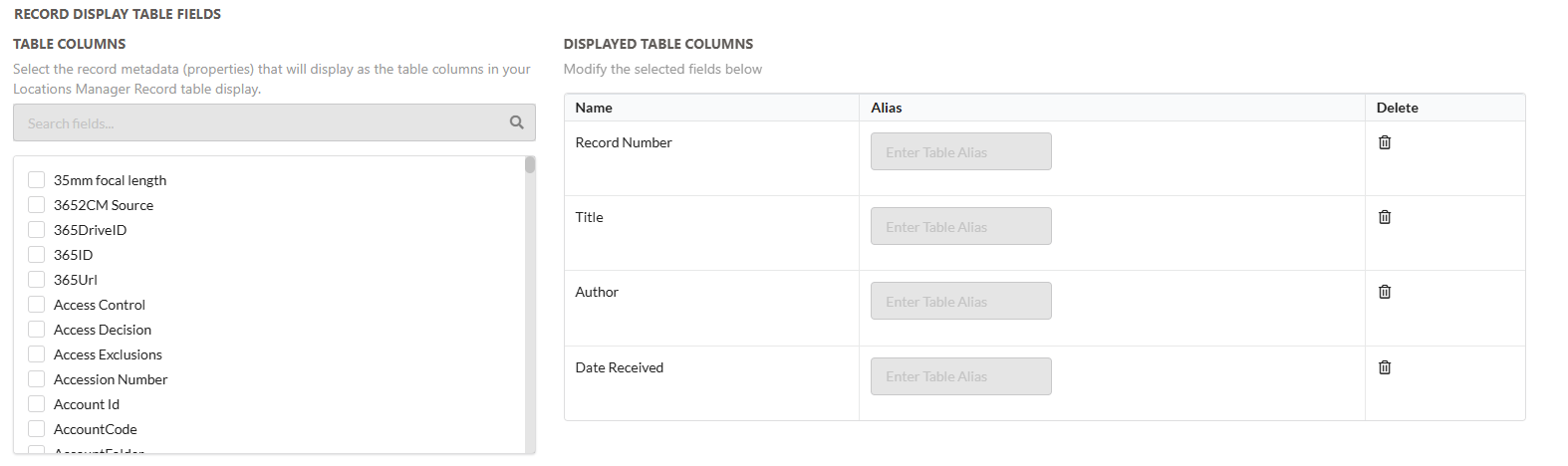
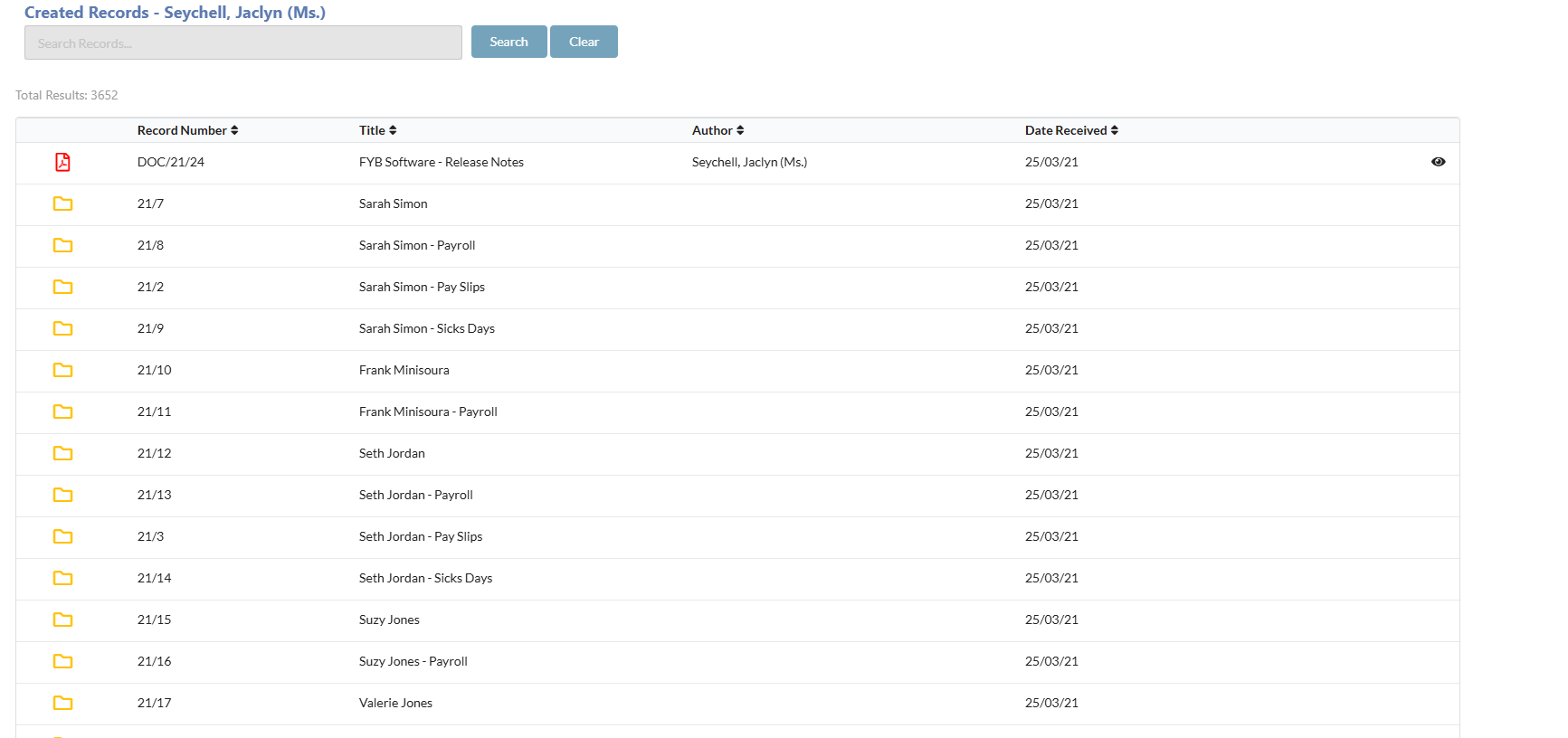
The additional column fields that can be added into the record display results page.
To add a field to the table column, search or scroll through the metadata table on the left hand side.
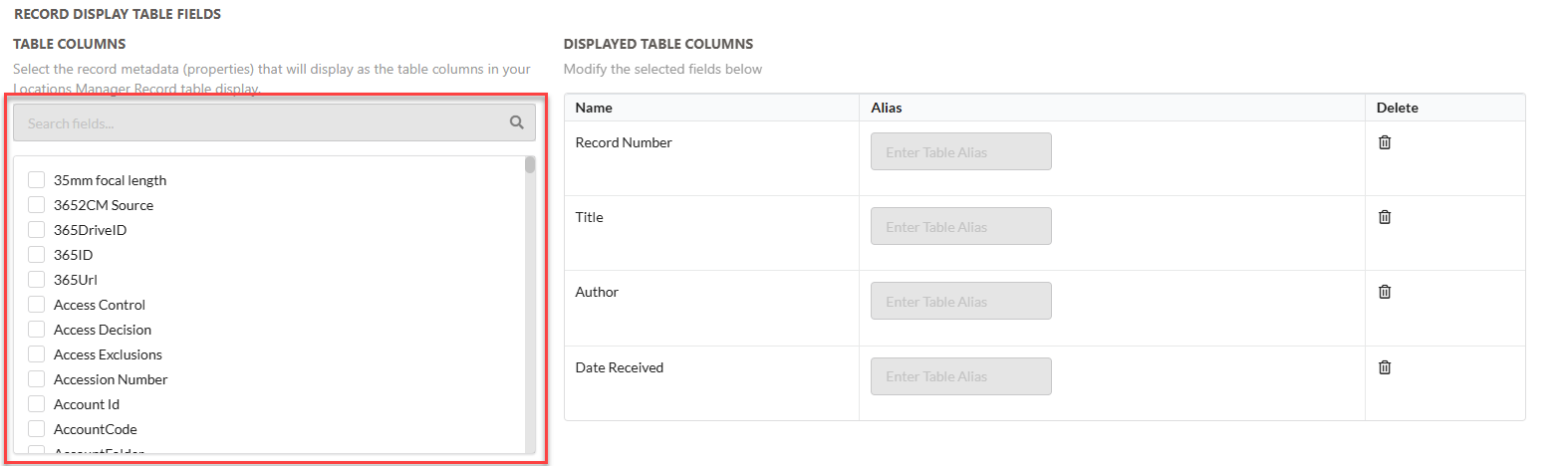
Enable the checkbox for the field you want to use
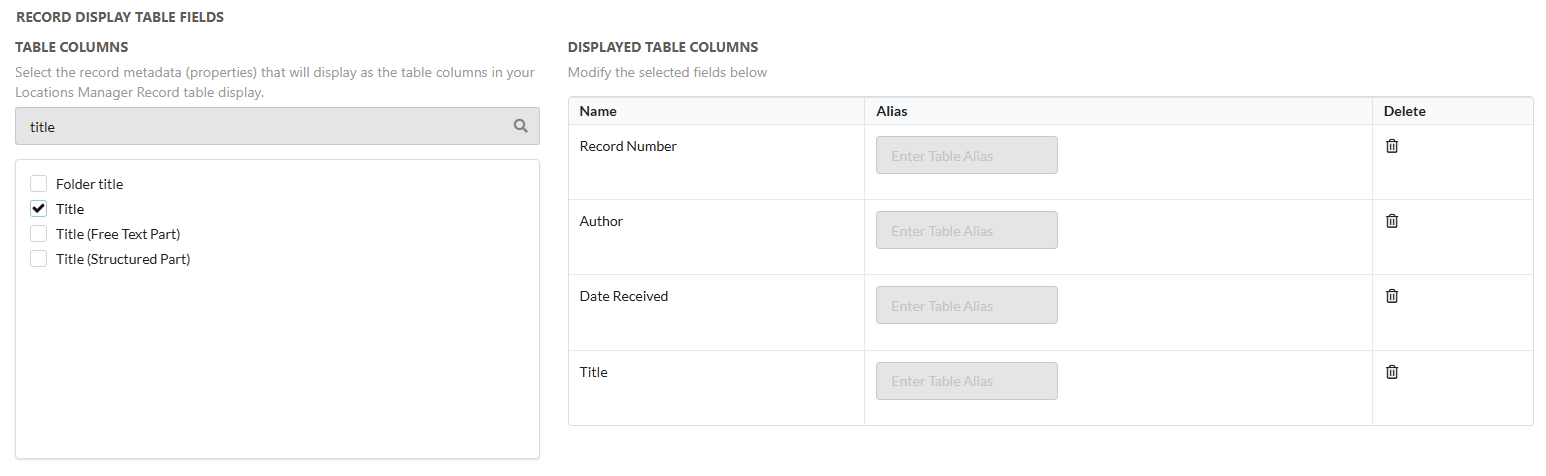
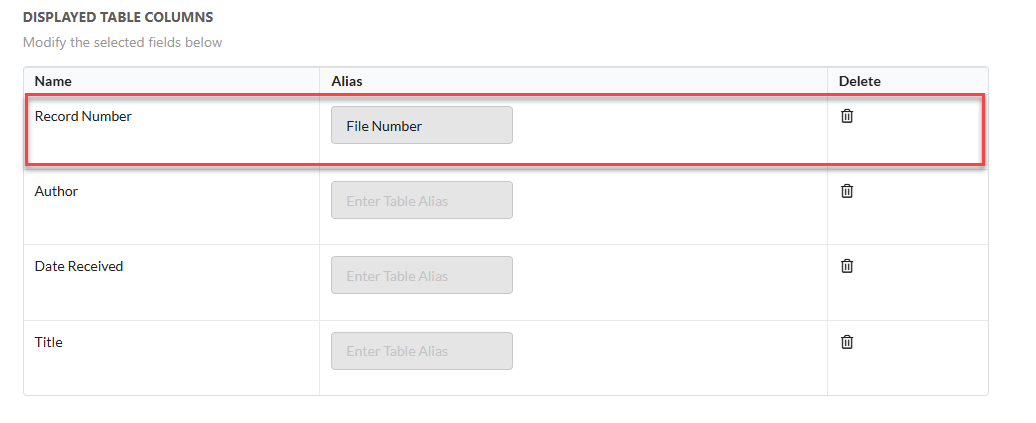
You can change the name of the table column to an alias name that is better used for that metadata column
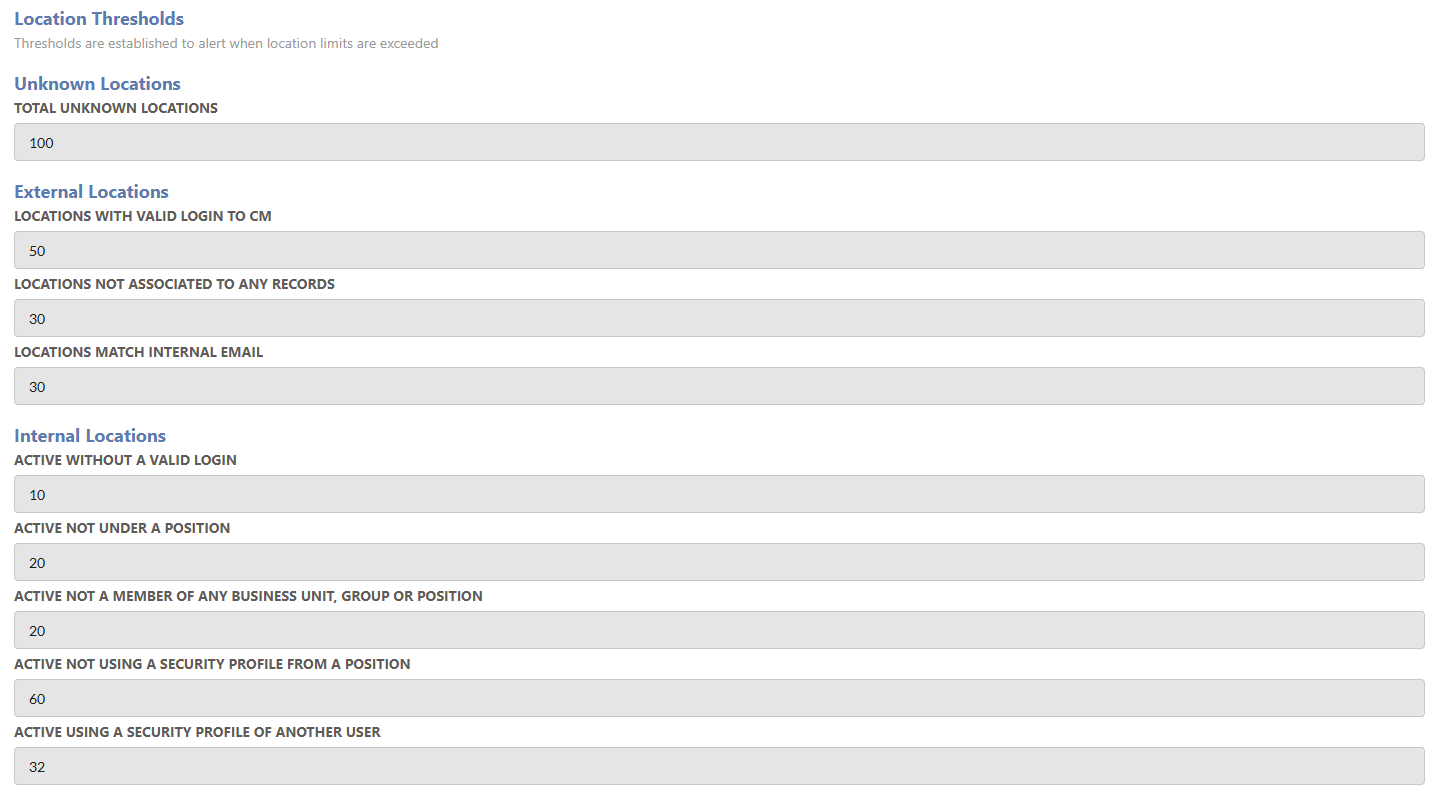
THRESHOLDS
Thresholds provide email alerts to the nominated users to notify that particular location searches have exceeded the threshold limit.
This can be utilised as a warning that action must be taken to resolve the extensive amount of locations within that group. For example, if there are more than 100 unknown locations in Content Manager, Locations Manager will send out an email alert has it has surpassed the threshold.
All data can be observed and actioned with Locations Manager to rectify the issue.