

OVERVIEW
The Link Generator Admin Console can only be accessed by Content Manager Administrators or Records Managers.
To update the application settings please follow these steps below:
-
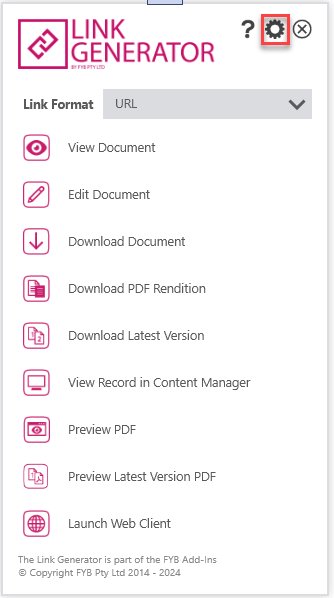
Open Link Generator
-
Click on the settings icon
-
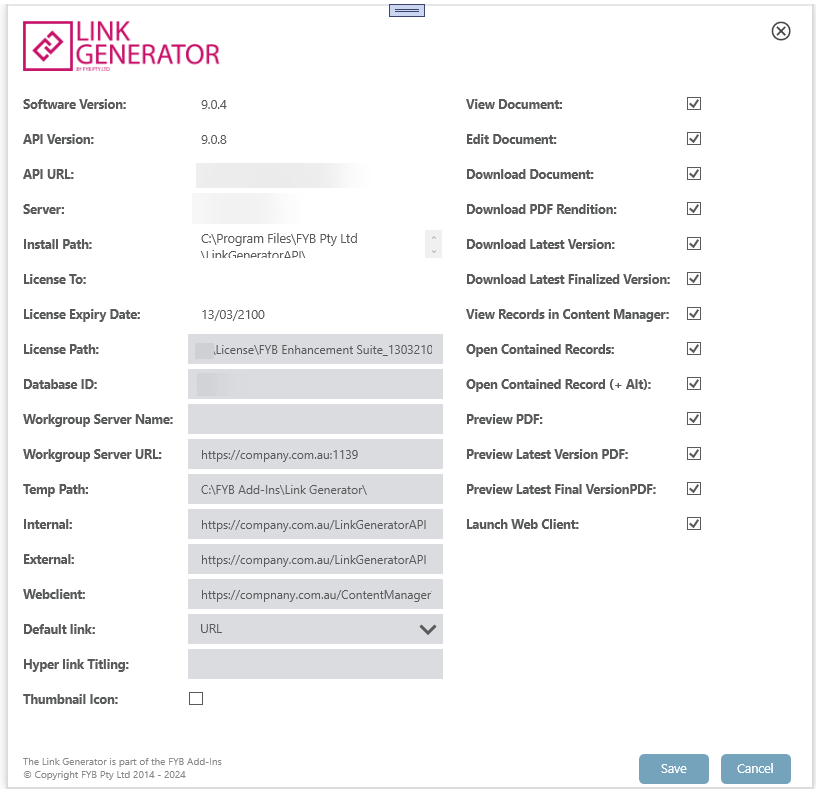
The setting window will display
The Link Generator Admin Console contains the following settings:
LICENSE PATH
The path to the license for Link Generator. Clicking on the path will allow for a new license to be selected. More information on updating the license can be found in the Link Generator License Update Guide.
DATABASE ID
The ID of the dataset Link Generator will be connected to.
TEMP PATH
The temp path utilized by Link Generator. This path must be a shared network path (Example: \\Server\fybaddins$\LinkGenerator\ )
INTERNAL
The internal URL of the FYB Link Generator API.
Example: https://server-name/LinkGeneratorAP
EXTERNAL
If the Link Generator API has been configured for external use then the external URL can be added here.
Example: https://domain.com.au/LinkGeneratorAPI
If externally accessible links are not being used, leave this field empty.
WEB CLIENT
The Content Manager Web client URL.
Example: https://server/ContentManager?q=uri:
To disable the Web Client Link, leave this field empty
DEFAULT LINK
Set the default link format to show when Link Generator opens. This can be set to "URL", "HYPERLINK", or "HTML".
URL will produce a standard URL, like the following:
http://server/LinkGeneratorAPI/LR/HD9D087FDHFK2D/1
HTML will produce an HTML link that can be pasted into a web page, like the following:<a href='http://server/LinkGeneratorAPI/LR/HD9D087FDHFK2D/1'>DOC/20/1234 - FYB Link Generator User Manual 8.1.0</a>
HYPERLINK will produce a hyperlink that can be pasted into a Microsoft Office document, like the following:
DOC/20/1234 - FYB Link Generator User Manual 8.1.0
HYPERLINK TITLING
The titling for hyperlinks can be modified here. If this field is blank, it will be defaulted to Record Number - Record Title {RecordNumber} - {RecordTitle}
Placeholders can be used to populate record data into the title.
Properties will utilise it's Property ID as the placeholder’s name.
Example: { RecordAddressee}
-
Find all Property IDs here for Content Manager Version 10.
-
Find all Property IDs here for Content Manager Version 10.
Additional fields will utilise it's Search Clause Caption.
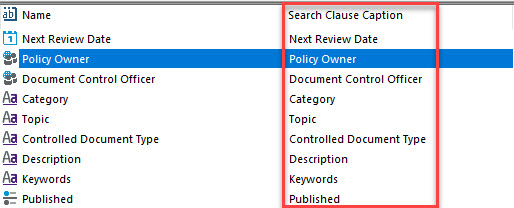
To create a placeholder, surround the property ID, or search clause caption with brackets. For example: {RecordTitle} - {Policy Owner}
THUMBNAIL ICON
To display file type icon thumbnails for word or email hyperlinks.

ENABLING/DISABLING LINK TYPES
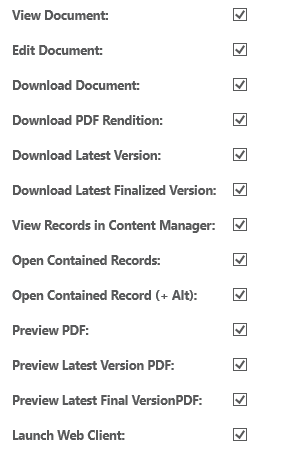
All link types of Link Generator can be enabled or disabled from use. Simply tick/untick the link types that you wish to enable/disable. Disabled link types will be hidden on the user interface.
ENABLING NOTES ON LINK EXECUTION
A note can be added to the record upon link execution with the Link Generator API. Please see the Link Generator API Admin guide for more information.