HOW DOES THE SOFT DELETER WORK?
The FYB Soft Deleter functions in a very simple way:
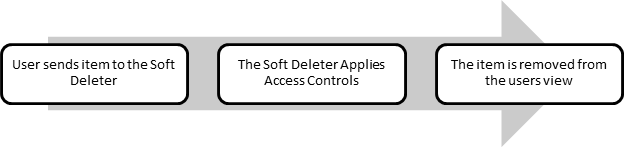
If you have elected to use the optional event processor add-in to allow users without the Modify record access permission (profile and folder) to perform soft deletion, the records will not be removed from the user's view immediately.
It should take approx. 120 seconds by default for the item to be removed from the user's view.
The event processor add-in will require users to have the Modify Record Additional Field Values permission enabled to trigger the event processor to soft delete the record.

In addition, all users of Soft Deleter will require the Modify record permission in order for the application to set notes on records it is soft deleting.
To Soft Delete a record, right click on the record > Send To > ‘FYB Soft Deleter’ button in Content Manager.
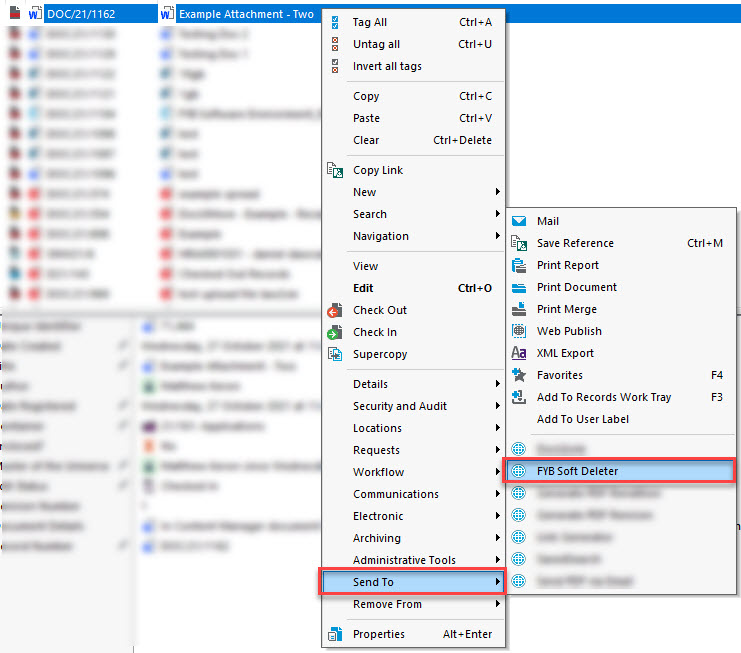
Alternatively, you can use the Soft Deleter button from the ribbon (if configured).

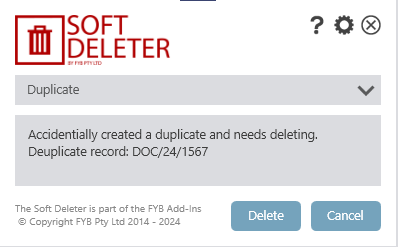
The user is prompted to select a reason for deletion. The user enters this information and clicks Delete.
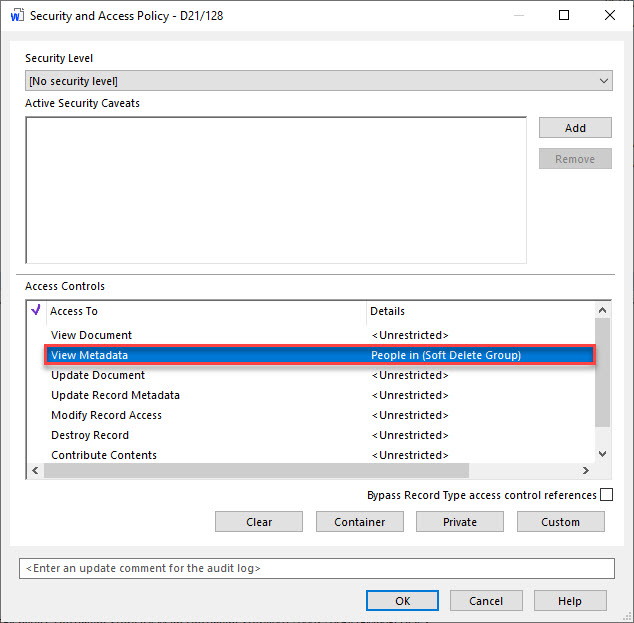
The Soft Deleter will then apply access controls to the item which restricts the ‘View Metadata’ access to the Group - Soft Delete in Content Manager.
From the user’s point of view, the item will simply disappear.
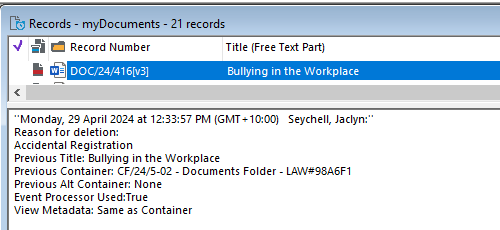
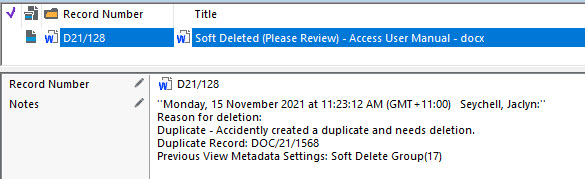
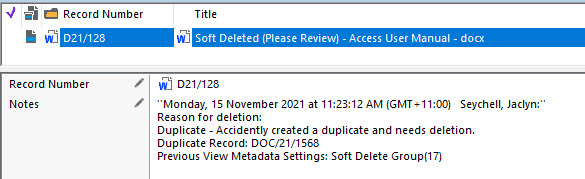
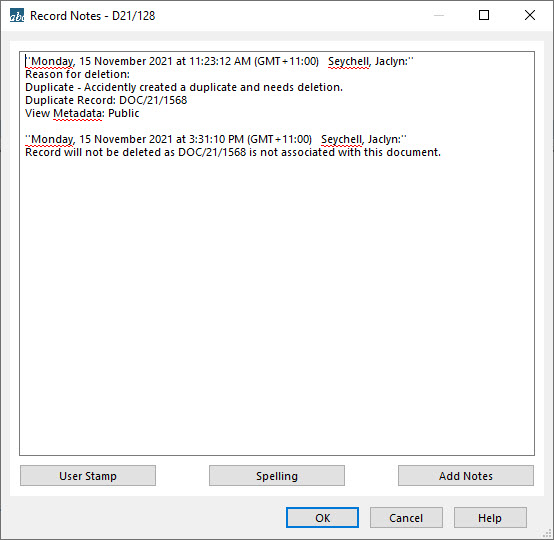
The Record will have a note appended to it with the reason for deletion that was entered by the user. The record will also be locked down so it can no longer be viewed. However, those users that are members of the Group - Soft Delete and administrators are still able to view the record and review the reason it has been sent for soft deletion, and action appropriately.
HOW TO ADJUST SOFT DELETER SETTINGS
Please note that these settings are centrally managed and will affect all users.
To update the application settings please follow these steps below:
-
Open Soft Deleter
-
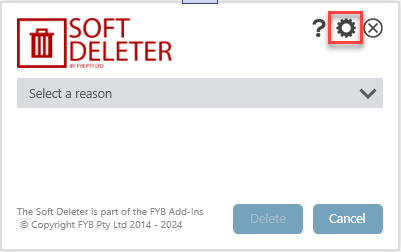
Click on the settings icon
-
The Administrator Console will be displayed
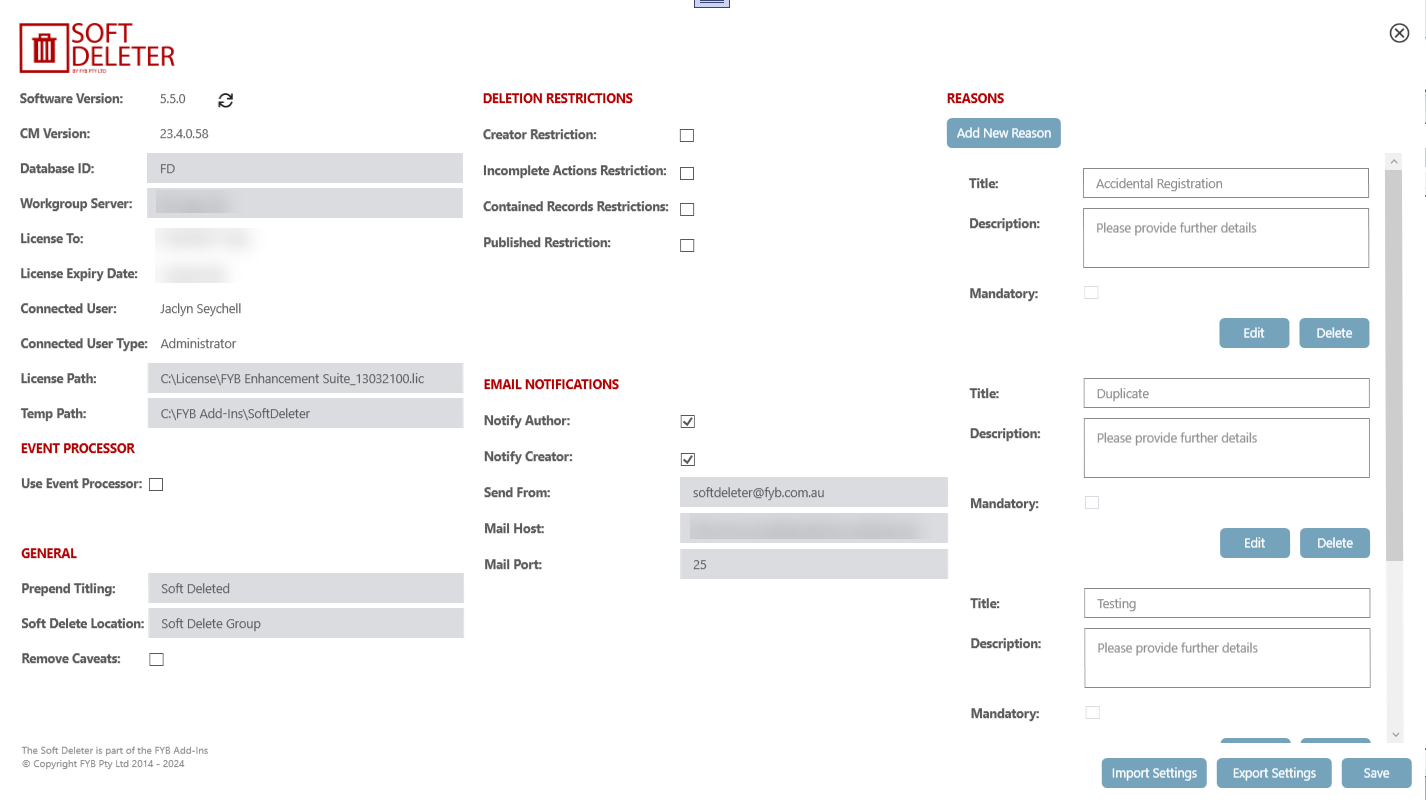
Update the settings as instructed below, and click on the Save button to save the changes
IMPORT SETTINGS
An existing settings file can be imported by following these steps:
1. Click Import Settings
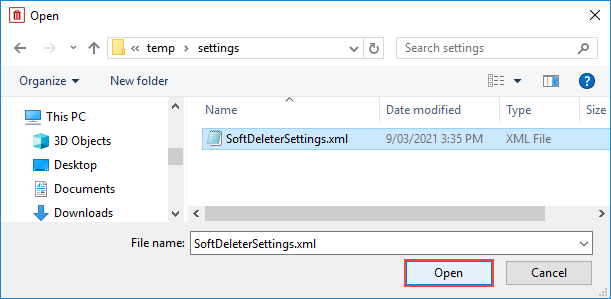
2. Select the existing settings file from the dialog that pops up, and Click Open.
EXPORT SETTINGS

The currently saved settings can be exported by following these steps:
1. Click Export Settings
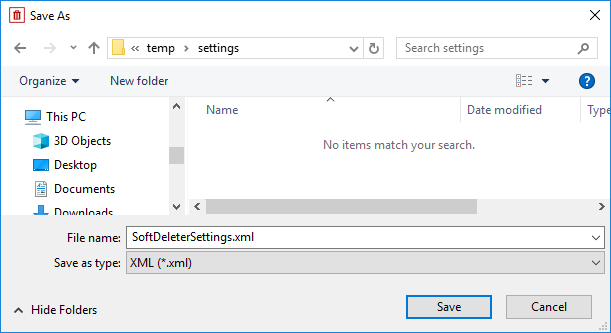
2. Select the save file location and file name using the dialog that pops up, and click Save.
You must save any changes to the settings before using the export settings functionality.
DATASET ID
To adjust the database identifier please follow these steps:
-
To change the dataset ID, enter the Database Identifier into the Database input field

-
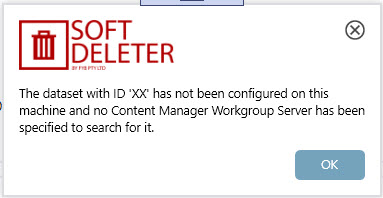
If an invalid database identifier is entered, a notification will be displayed
LICENSE PATH
A valid Dataset ID must be selected before the License Path can be set or updated
To adjust the FYB Soft Deleter license path please follow these steps:
-
Click on the License Path input field

-
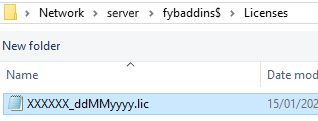
When the File Browser Dialog appears, browse to the license file via its shared path and click on the Open Button
-
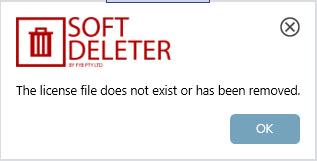
If an invalid license is selected, a notification will be displayed
TEMP PATH

The shared path of the temp folder where Soft Deleter is installed. For example: //server/fybaddins$/SoftDeleter/Temp. The Temp path is where all log files are stored and created.
PREPEND TITLING
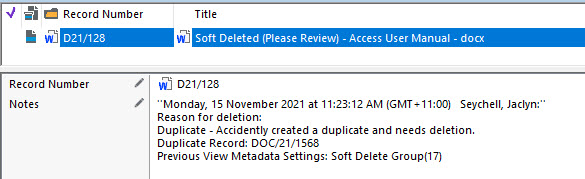
When a value is entered into the Prepend Titling field, it will be added to the beginning of a soft-deleted record's title. This helps easily identify that the record has been marked for deletion. If no value is provided the titling of the record will not be changed.
Please note if using the event processor add-in you will not be able to prepend a tile to the soft deleted records.
USE EVENT PROCESSOR

When the "use event processor" option is selected, the Soft Deleter event processor will be responsible for removing records. Note that records will not be removed right away and may take several minutes to process when using this option.
Notes and prepended titles will not be added to soft deleted records that are deleted using the event processor. The event processor will strictly update the record's access controls and security caveats.
SOFT DELETE LOCATION
This feature can only be used if 'Use Event Processor' above feature is turned off.
To adjust the Soft Delete Location please follow these steps:
-
Click on the Soft Delete Location input field

-
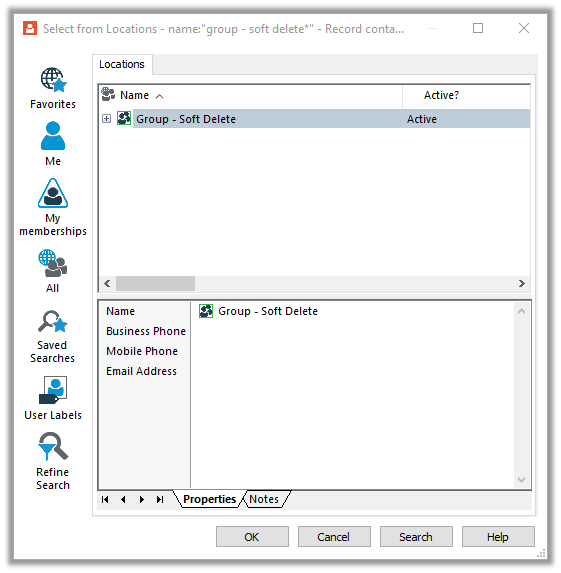
When the Location Dialog appears, select the required Location for Soft Deleter and click on the OK button
-
The URI of the location will be displayed in the Soft Delete Location field
REMOVE CAVEATS
This feature can only be used if 'Use Event Processor' above feature is turned off.

If remove caveats is checked, security caveats will be removed from soft deleted records. A temp folder, as shown below, will also need to be selected for soft deleted records to be transferred to.
TEMP FOLDER
This feature can only be used if 'Use Event Processor' above feature is turned off and 'Remove Caveats' is turned on.

The Temp Folder is used by the FYB Soft Deleter to transfer soft deleted records to a temporary holding container within Content Manager.
To change the temporary folder, please follow these steps:
-
Click on the Temp Folder input field

-
When the record dialog appears, select the required temporary folder for Soft Deleter and press the OK button. The URI of the folder will be displayed in the Temp Folder field.
CREATOR RESTRICTION

If Creator Restriction is checked, only the creator of a record is allowed to soft delete it.
INCOMPLETE ACTIONS RESTRICTION

If Incomplete Actions Restriction is checked, records that contain any incomplete actions will not be soft deleted.
CONTAINED RECORDS RESTRICTION

If Contained Records Restriction is checked, records that have contained records within will not be soft deleted.
Please note the Contained Records Restriction is only compatible with Content Manager v23.x and above.
PUBLISHED RESTRICTION
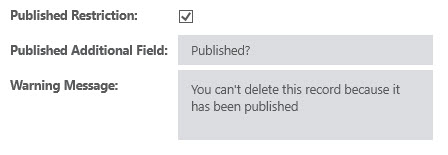
If Published Restriction is checked, this prevents records that are published from being soft deleted.
PUBLISHED ADDITIONAL FIELD
If Published Restriction is checked, a Published Additional Field will also need to be selected. To change the additional field, please follow these steps:
- Click on the Published Additional Field input field
- When the additional field dialog appears, select the required additional field (this must be a Boolean datatype) and click on the OK button
The URI of the additional field will be displayed in the Published Additional Field.
WARNING MESSAGE
If Published Restriction is checked, a warning message will also need to be entered. This message will be displayed for users that attempt to soft delete a record that has been published.
NOTIFY AUTHOR OR CREATOR
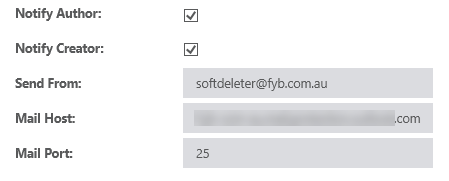
Enabling the notify author or notify creator options will notify those contacts via email when their record is soft deleted.
SEND FROM
The email address that will send all email notifications. This is typically a do not respond email address.
MAIL HOST
The hosting service that will send through the email to the intended recipients.
MAIL PORT
The communication endpoint for how an email will be transmitted. Typically set to port 25.
REASONS FOR DELETION
You may add as many reasons as required and adjust as necessary.
UPDATE AN EXISTING REASON:
-
Click on the Edit button for the reason you want to change
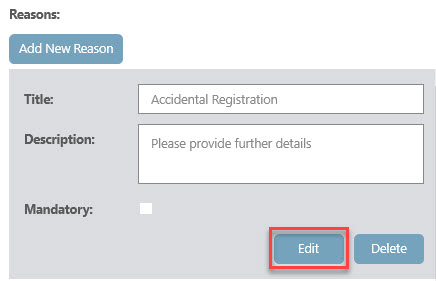
-
Update the Title, Description, and Mandatory values as required. Click Save to keep the changes or click Cancel to discard the changes
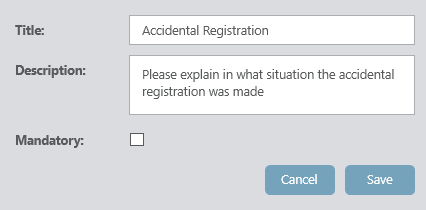
CREATE A NEW REASON:
-
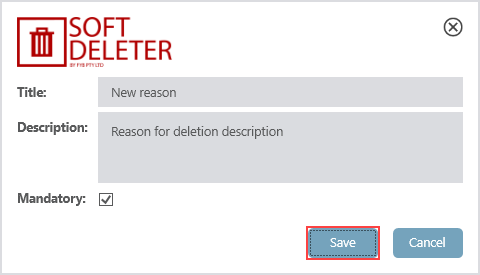
Click on the Add New Reason button

-
The New Reason window will appear. Enter the reason title and description. Check the mandatory option if users are required to enter an explanation for soft deletion using this reason. Click Save.
DELETE A REASON:
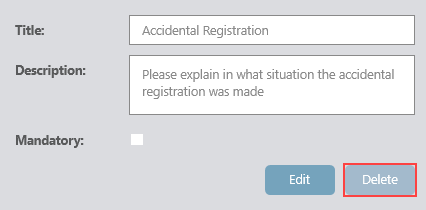
Click the Delete button for the reason you want to remove, and the reason will be removed from the list.
ADMINISTERING SOFT DELETED RECORDS
WHO IS RESPONSIBLE?
Soft deleted records need to undergo a review process by a Content Manager systems administrator or appropriate designated staff member.
We recommend undertaking this process on a weekly or monthly basis (depending on the volume of requests you are receiving).
HOW TO IDENTIFY RECORDS THAT HAVE BEEN SOFT DELETED?
Using the following search, can assist with identifying which records have been soft deleted. It is recommended to have this search saved within Content Manager for ease of use.
Search String: acl:"View Metadata",[URI of Soft Deleter Group]
Example:: acl:"View Metadata",17
This search will return all results where there are items locked down to the ‘Group - Soft Delete’ in Content Manager.
WHAT TO DO WITH RECORDS THAT HAVE BEEN DELETED USING THE ADD-IN?
While the user believes that this item has been deleted, administrators need to identify if the item can be deleted in accordance with record-keeping standards.
Many options need to be considered before determining what action should be taken with the item.
The first task that should be undertaken is to read the reason the user has provided for deleting the item. This will provide context and help us make an informed decision.
OPTION ONE: NORMAL ADMINISTRATIVE PRACTICE (NAP) OR SHORT-TERM VALUE RECORDS
The item that has been deleted by the user may fall under the category of NAP or Short-Term Value Records.
NAP is the concept that material can be destroyed according to 'normal administrative practices'. This provides for the routine destruction of drafts, duplicates, and publications, with the test that it is obvious that no information of continuing value to the organisation will be destroyed.
Material that can be disposed of under NAP comprises items of an ephemeral or transitory nature created, acquired, or collected by agency officers during their official duties. Such material has no ongoing value and is not usually incorporated into the agency recordkeeping system.
SHORT TERM VALUE – Records of such short-term value that they do not support or contribute to the business functions of the organisation. These include:
• records of a trivial nature
• records that duplicate (or extract) information that is already held elsewhere
• records with little or no administrative, fiscal, evidential, cultural, or no known historical, value
If this is the case, create an annual folder for NAP or Short-Term Value records with the following criteria:
• Retention set to NAP or Short-Term Value
• Access Controls set to the Records Team or System Administrator
With the documents that fall in the NAP or Short-Term Value category:
- Change the container location of the item that has been deleted to the Folder you have created for NAP/Short Term Value
- Update the Access Control on the Document to be ‘based on container’, this means it will inherit the security of the NAP/Short Term Value Record folder, which has either been locked down to the Records Team or System Administrator.
Doing this means that the item is still ‘hidden’ from the view of the person who requested the deletion of the item. - At the end of the annual period (either financial or calendar end), close the folder
- This will then trigger off the retention period and the folder can be destroyed as part of your normal archiving and disposal processes
This option ensures that the items have been destroyed using approved disposal criteria.
You can then create a new folder for the next calendar or financial year to house other deleted items that are considered NAP / Short Term Value.
OPTION TWO: DELETE THE DOCUMENT
If the item falls under NAP or Short-Term Value you also have the option to delete the record from Content Manager, as you do not need to keep a record of items that are destroyed under these categories.
Deleting the item will remove it from the system. The only way to restore it is from backups (if available).
To delete a record:
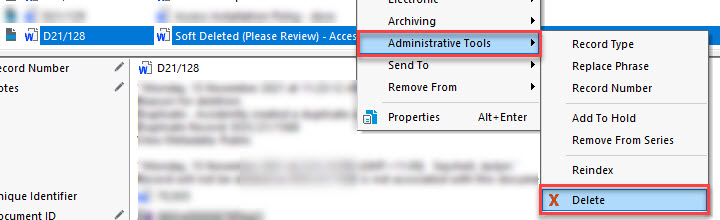
- Right-click on the item
- Select Administrative Tools > Delete
OPTION THREE: DOCUMENT SHOULD NOT BE DELETED ( UN-SOFT DELETING A RECORD)
On inspection of the item, you may determine that the item should not be permanently removed from Content Manager. You will need to expose the document back to the user. To do this:
-
Locate the Record in Content Manager
-
If the temp folder feature is being used, find the container the record was originally contained within. The record should be moved back to its original container prior to being deleted.
-
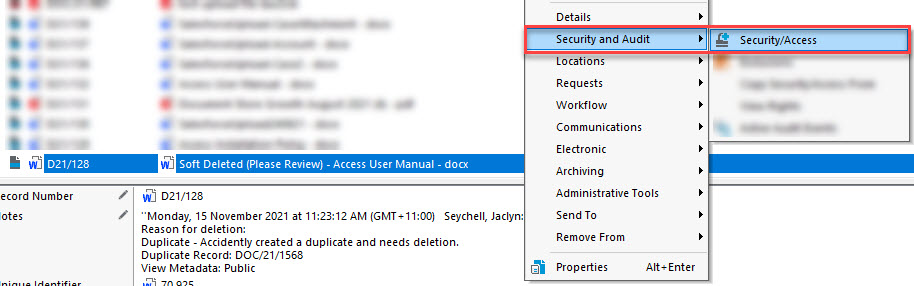
Right click on the record and navigate to Security and Audit > Security and Access.
-
Update the View Metadata access control to be the same as the other access controls of the document. This could be set to ‘Everyone’ or ‘Based on Container’ etc
-
Click on the OK button
-
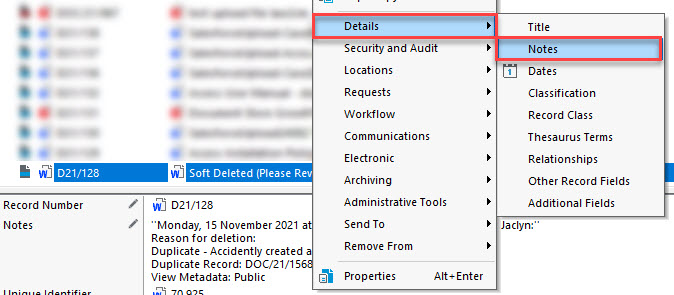
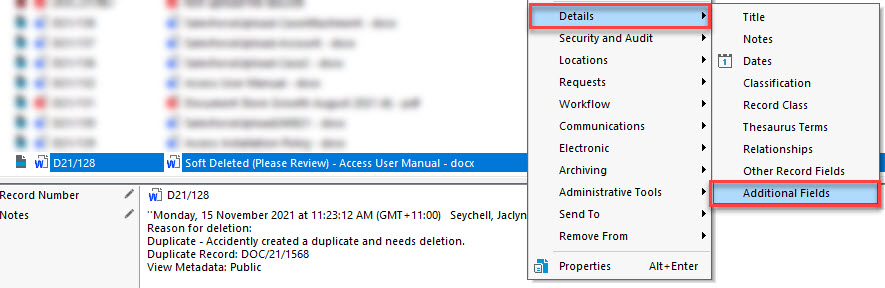
Right Click on the Record, Click Details > Notes. Update the Notes to state that the item has been reinstated
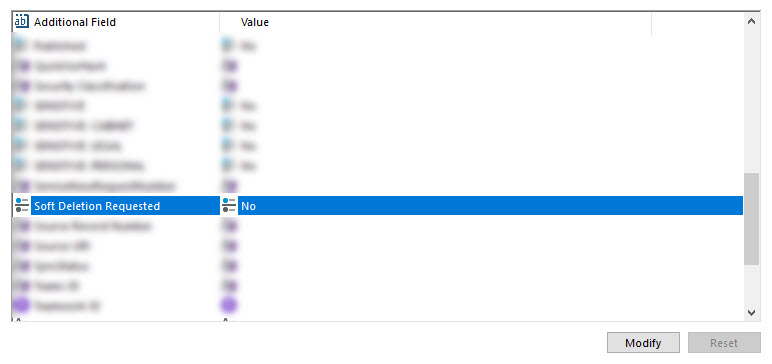
If using the event processor add-in then the soft deletion requested additional field should be toggled back to False (no)
-
Right Click on the record, Click Details > Additional Fields
-
Find the Soft Deletion Requested Additional Field, and toggle value to No and click the OK button