

OVERVIEW
The Admin Console for PDF Generator provides Content Manager System Administrators with a simple interface to quickly set up or update the application settings.
Note
These settings are centrally managed and will affect all users.
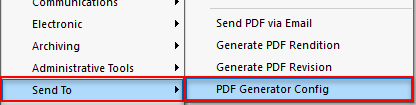
- Right-click on a record and select Send To -> PDF Generator Config
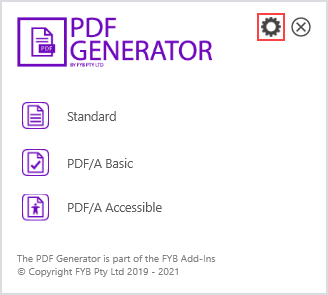
For Content Manager System Administrators, the Admin Console can also be accessed from the PDF Generator menu by clicking the settings icon.
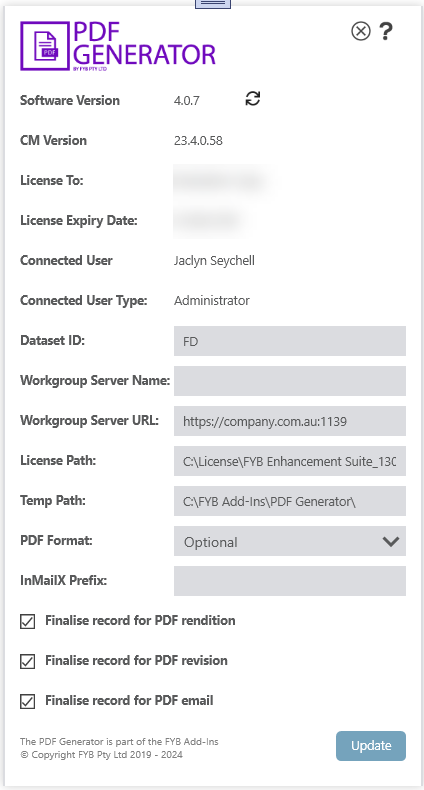
- The settings window will display and the following settings can be updated
| SETTING | DESCRIPTION |
|---|---|
| Check Latest Version | Check the latest version of PDF Generator available |
| Software Version | The installed version of PDF Generator |
| CM Version | The installed version of Content Manager |
| Dataset ID | The Content Manager dataset connected to PDF Generator |
| Workgroup Server Name | The workgroup server name established for the connection to the Content Manager dataset. This can be configured to use either the workgroup server name or URL |
| Workgroup Server URL | The workgroup server URL established for the connection to the Content Manager dataset. This can be configured to use either the workgroup server name or URL |
| License Path | Shared network path of the license |
| Temp Path | Shared network path of the temp directory |
| PDF Format | The format of the PDF files that will be generated. Set to optional to allow the user to choose this themselves |
| InMailX Prefix | This is optional for organisations that use InMailX. This is the inMailX tag that will be added to the email subject line when generating PDF's for email. This should be in the following format: FirmID-DBID.URI . For example: FYB-FD.URI |
| Finalise record for PDF revision | If this option is checked the record will be finalised after a PDF revision is created |
| Finalise record for PDF rendition | If this option is checked the record will be finalised after a PDF rendition is created |
| Finalise record for PDF email | If this option is checked the record will be finalised after the PDF has been sent via email |
- Once the configuration is updated as required, click on the Update button to save the changes