

GENERAL
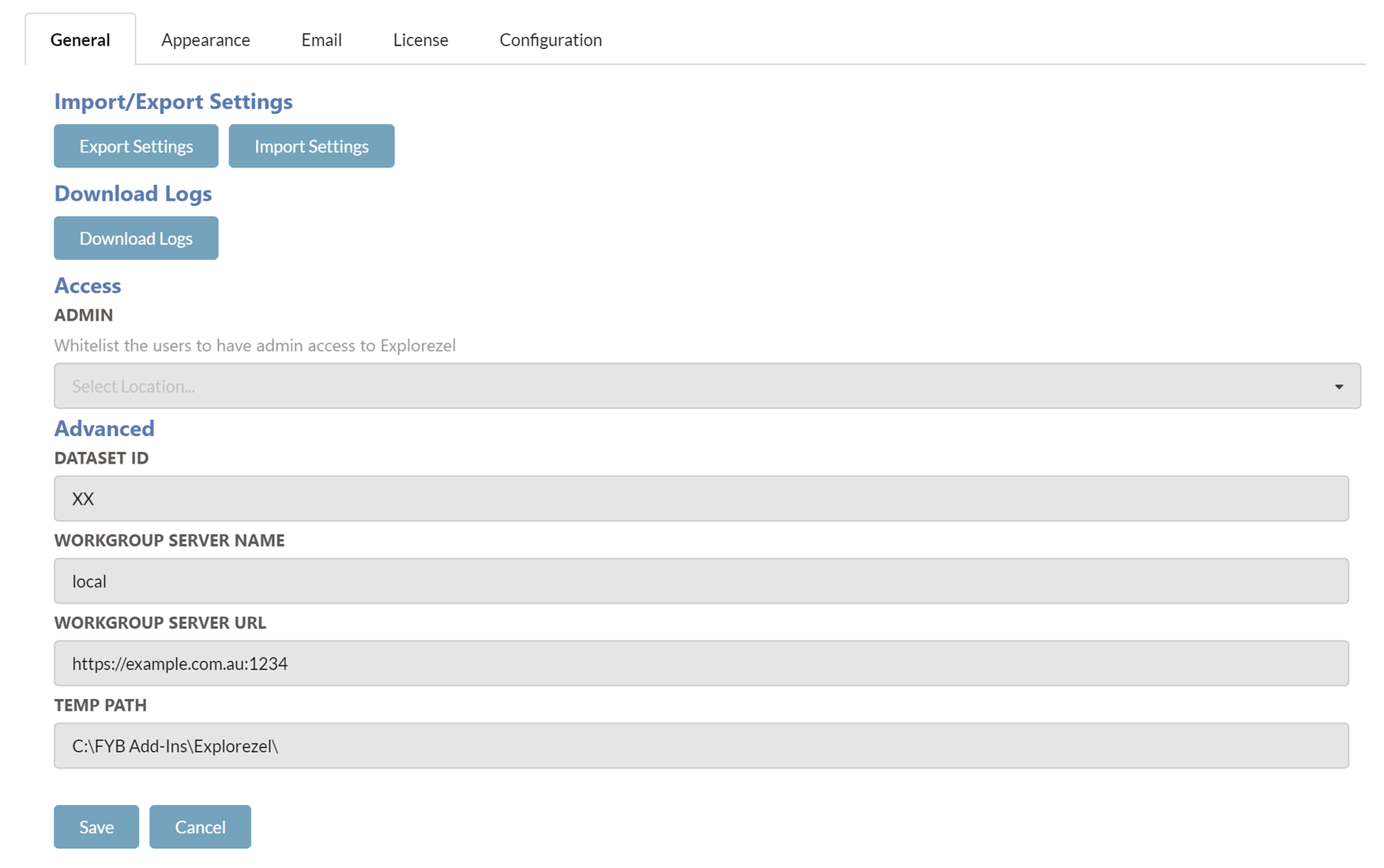
| FUNCTIONALITY | DESCRIPTION |
|---|---|
| EXPORT/IMPORT SETTINGS |  Export existing configuration settings or import previously configured settings. See the EXPORTING AND IMPORTING SETTINGS section of this guide. |
| DOWNLOAD LOGS |  Download a zip file containing all the Explorezel log files. |
| WHITELIST ADMIN ACCESS |  This field allows you to whitelist Content Manager users who are not an Administrator or Records managers to allow them access to Explorezel's admin section. |
| DATASET ID |  The ID of the Content Manager Dataset. |
| WORKGROUP SERVER NAME |  The Workgroup server name of your Content Manager Dataset. Changes to this field will require an App Pool restart. |
| WORKGROUP SERVER URL | The workgroup server URL of your Content Manager workgroup server that Explorezel is connecting to Changes to this field will require an App Pool restart. |
| TEMP PATH |  The Temp directory for Explorezel. This directory will also contain the Explorezel log files. Changes to this field will require an App Pool restart. |
EXPORTING AND IMPORTING SETTINGS
You can either export the current configuration settings or import existing settings using the buttons below.
EXPORT
To export Explorezel's current settings, click the Export Settings button. This will automatically download the zip file containing the Explorezel configuration files. These files can be imported back into Explorezel when required.
IMPORT
To import existing settings, follow the steps below.
Only import JSON files that were previously taken from Explorezel's App_Data folder or exported from Explorezel.
-
Click on the Import Settings button

-
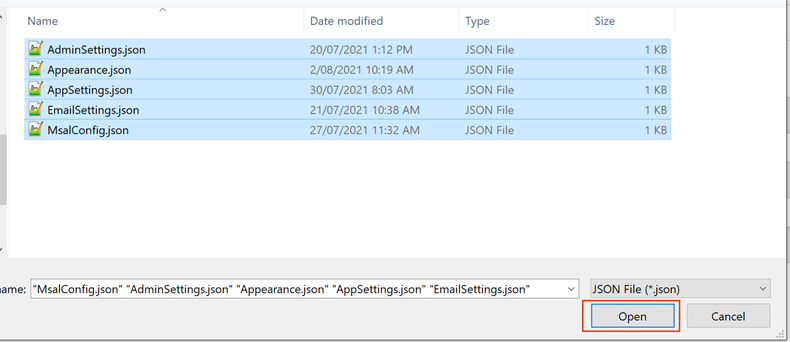
Select the MsalConfig.json, AdminSettings.json, Appearance.json, AppSettings.json and EmailSettings.json files
-
Click on the Open button
-
A success message will appear once the settings files have been updated and the admin page will reload shortly after to update the settings
APPEARANCE
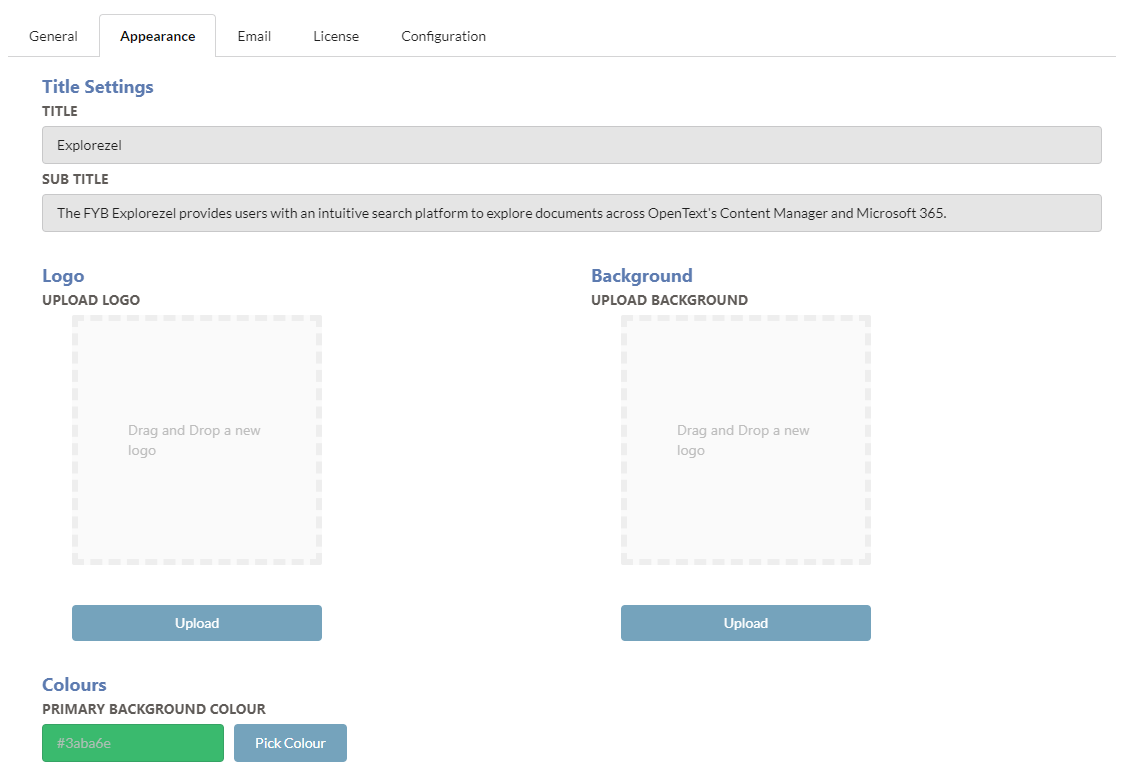
| FUNCTIONALITY | DESCRIPTION |
|---|---|
| TITLE | The main title displayed on the Explorezel home page. |
| SUBTITLE | The subtitle displayed on the Explorezel home page. |
| PRIMARY BACKGROUND COLOUR | Controls the colour of the header and footers for the application. |
| PRIMARY FONT COLOUR | Controls the font colour of the header and footers for the application. |
| MAIN AND SUBTITLE FONT COLOUR | Controls the colour of the Title and Subtitle displayed on the home page. |
| LOGO | Sets the logo for the application. |
| BACKGROUND | Sets the background for the home page. |
EMAIL SETTINGS
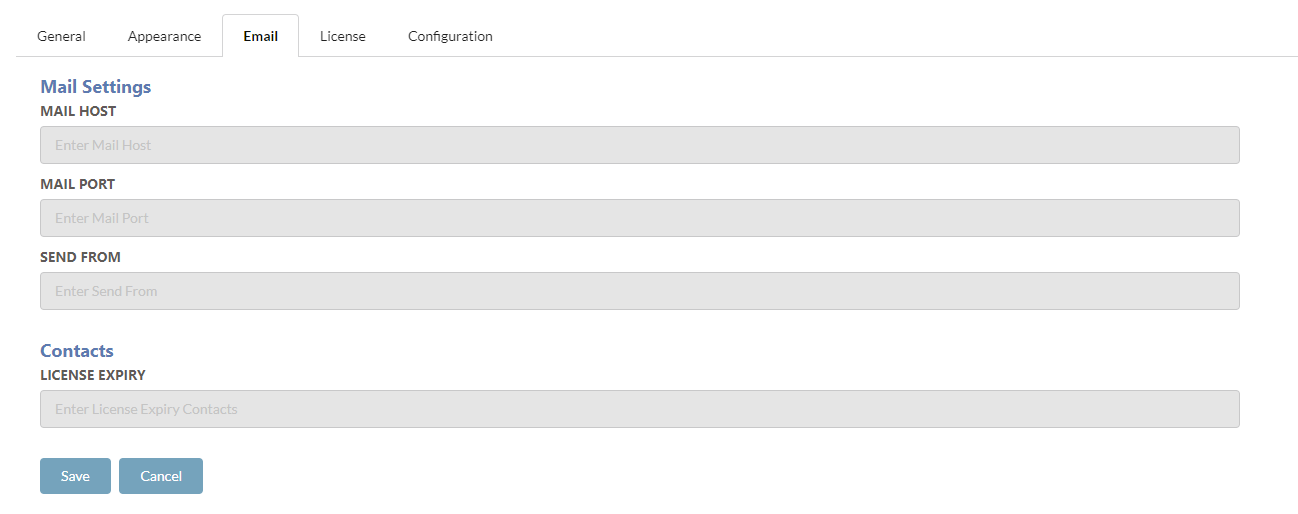
| FUNCTIONALITY | DESCRIPTION |
|---|---|
| MAIL HOST | The mail host that is used to send all email notifications. |
| MAIL PORT | The mail port, to allow for email notifications to be sent. |
| SEND FROM | The email address that all email notifications are sent from. |
| LICENSE EXPIRY CONTACTS | Provide the email addresses of the users that shall receive an email notification when the Explorezel license is due to expire. Multiple contacts can be added by adding a ';' between each contact. (e.g. name@company.com.au; secondname@company.com.au). |
CONFIGURATION
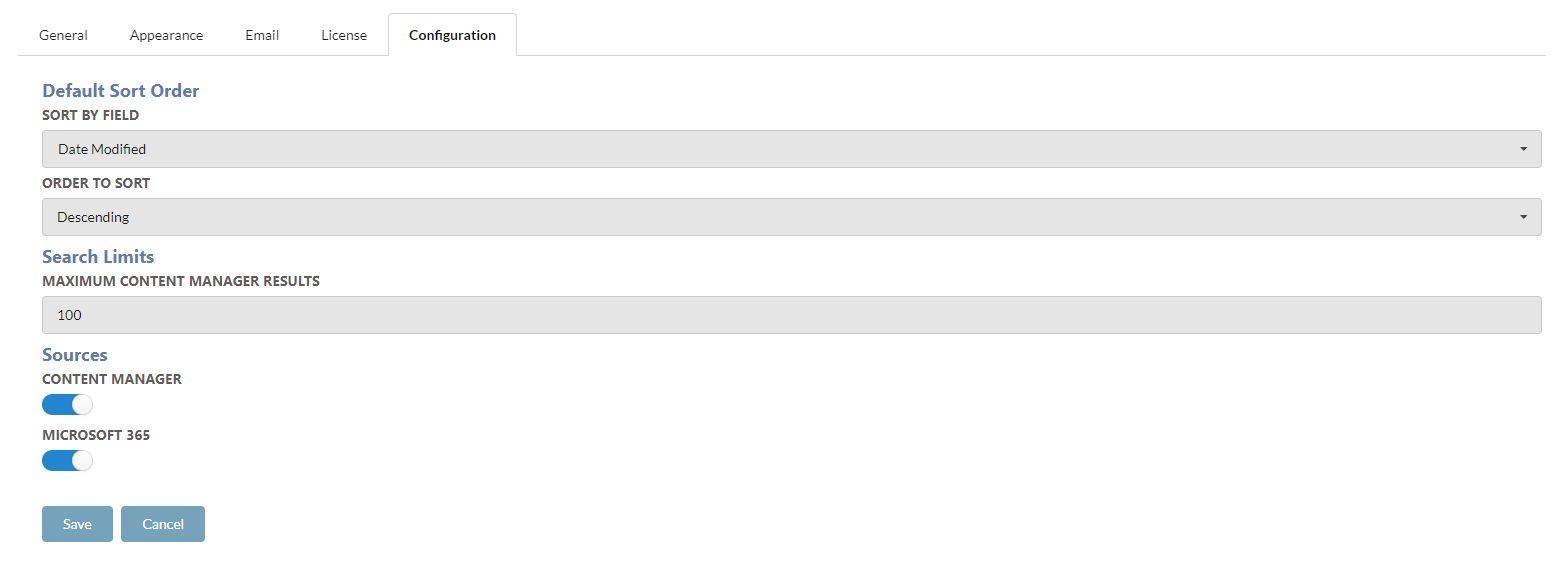
| NAME | DESCRIPTION |
|---|---|
| SORT BY FIELD | Choose the Content Manager field to use for the default sort order applied to all search results. |
| ORDER TO SORT | Determines the order for the default sorting. |
| MAXIMUM CONTENT MANAGER RESULTS | Choose the maximum number of content manager results to be displayed. |
| ENABLE CONTENT MANAGER | If enabled, Content Manager documents can be searched for/will appear in the results table. |
| ENABLE MICROSOFT 365 | If enabled, Microsoft 365 documents can be searched for/will appear in the results table. |