

GENERAL
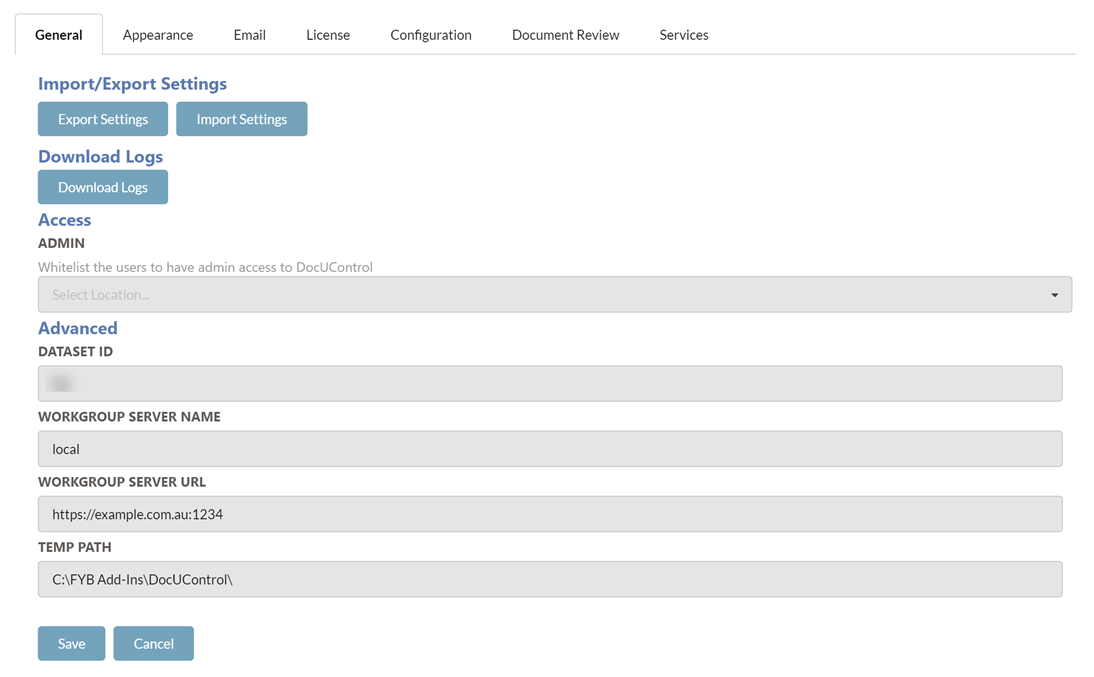
EXPORTING AND IMPORTING SETTINGS
You can either export the current configuration settings or import existing settings using the buttons below.
EXPORT
To export DocUControl's current settings, click on the Export Settings button. This will automatically download the zip file containing the DocUControl configuration files. These files can be imported back into DocUControl when required.
IMPORT
To import existing settings, follow the steps below.
Only import JSON files that were previously taken from the DocUControl's App_Data folder or exported from DocUControl.
-
Click on the Import Settings button

-
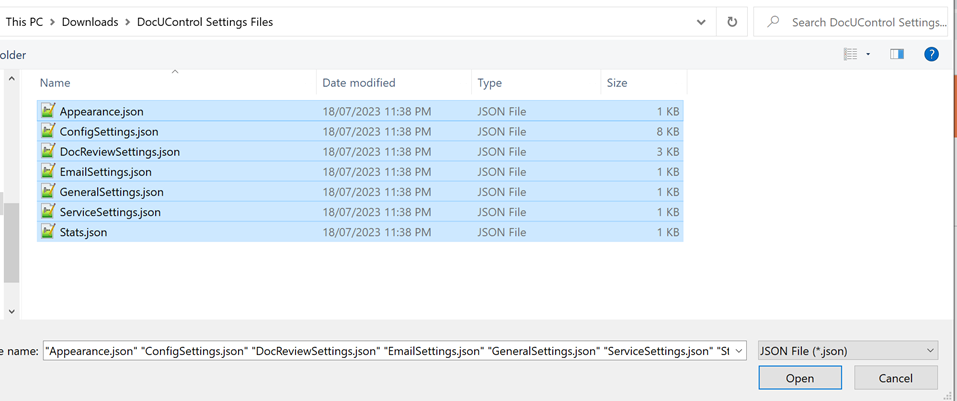
Select the settings files and click on the Open button
-
A success message will appear once the settings files have been updated and the admin page will reload shortly after to update the settings
DOWNLOAD LOGS
Download a zip file containing all the DocUControl log files.
ADMIN ACCESS
This field allows you to whitelist Content Manager users who are not an Administrator or Records managers to allow them access to DocUControl's admin console
DATASET ID
The ID of the Content Manager dataset that DocUControl is connecting to.
WORKGROUP SERVER NAME
The workgroup server name of your Content Manager workgroup server that DocUControl is connecting to Changes to this field will require an App Pool restart.
WORKGROUP SERVER URL
The workgroup server URL of your Content Manager workgroup server that DocUControl is connecting to Changes to this field will require an App Pool restart.
TEMP PATH
For the temp directory for DocUControl, please include the trailing slash, for example: C:\FYB Add-Ins\DocUControl. This directory will also contain the DocUControl log files. Changes to this field will require an App Pool restart.
APPEARANCE
TITLE SETTINGS
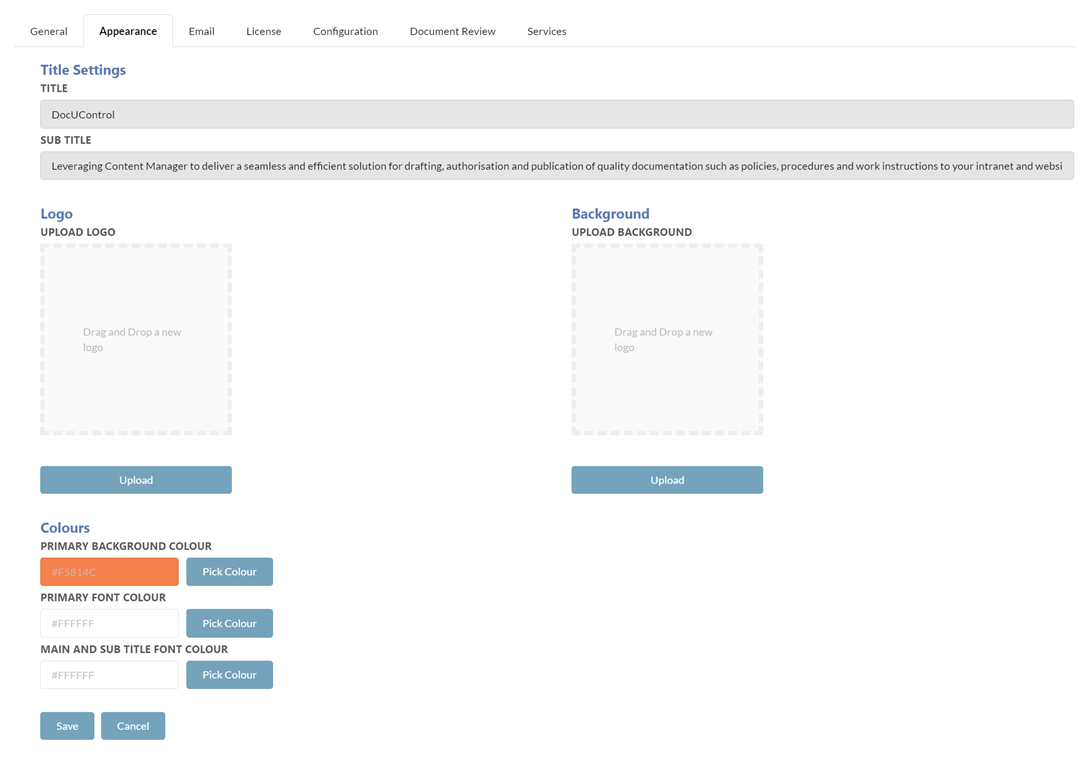
TITLE
Sets the title for the solution.
The title appears on the main landing page of the application above the search bar.

SUBTITLE
Sets the subtitle for the solution.
The subtitle appears on the main landing page of the application below the search bar.

LOGO
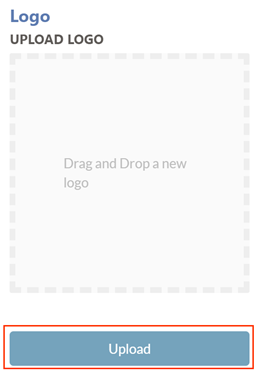
Sets the header logo for the application.
Click and drag the desired logo file into the file area and click on the Upload button

BACKGROUND
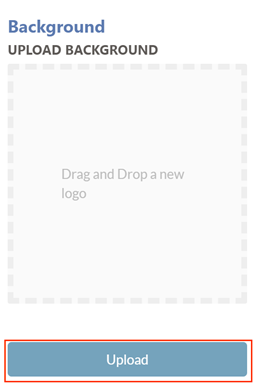
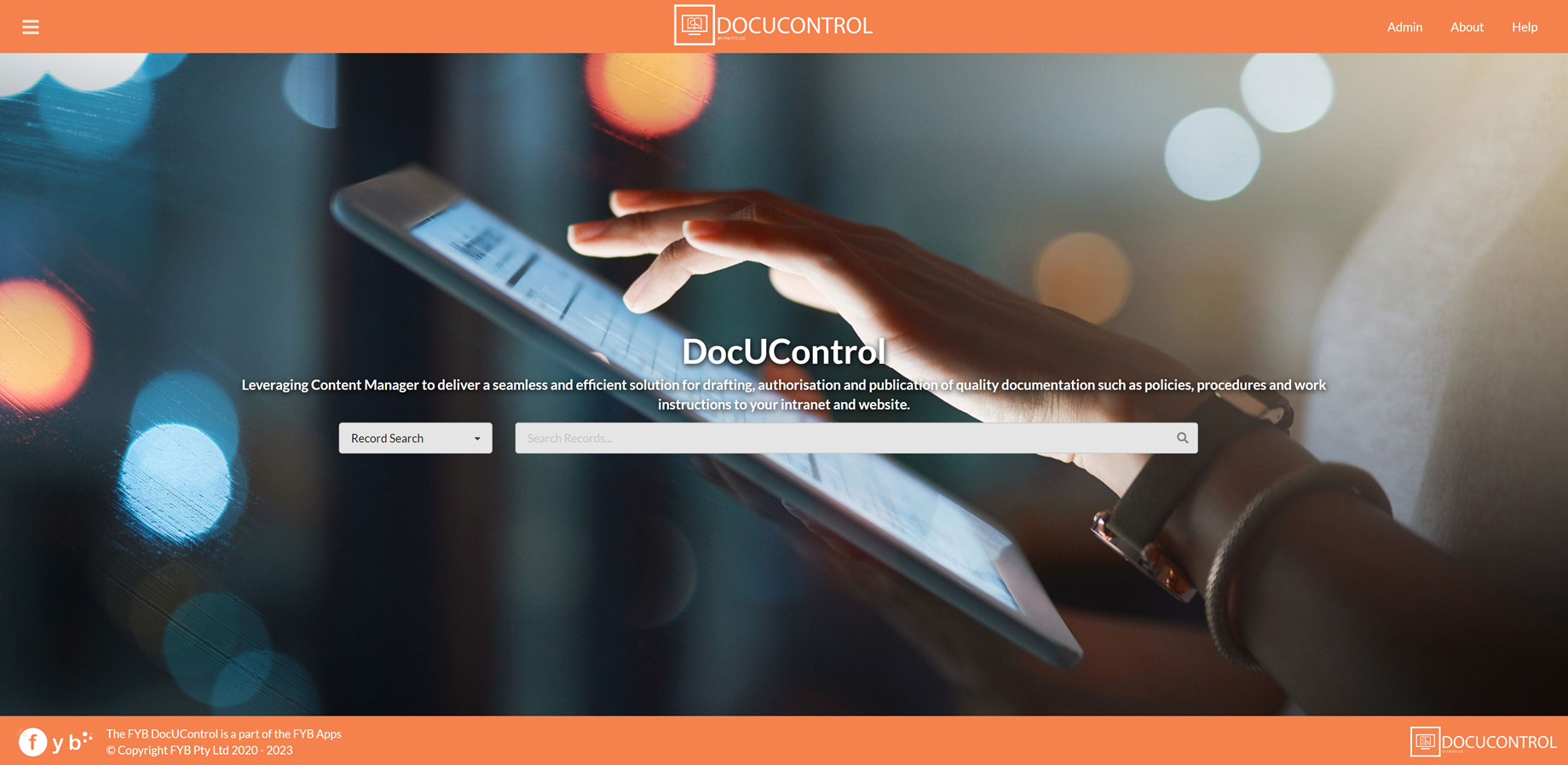
Sets the background image for the home page of the application.
Click and drag the desired background file into the file area and click on the Upload button
COLOURS
PRIMARY BACKGROUND COLOUR
Sets the background colour of the header and footer banners of the application.
PRIMARY FONT COLOUR
Sets the colour of the font of the text used in the application's header and footer banners.
MAIN AND SUB TITLE FONT COLOUR
Sets the colour of the font of the Title and Subtitle text on the home page of the application.
EMAIL SETTINGS
SMTP AUTHENTICATION
NONE

Choose this option if your SMTP does not have authentication
USERNAME/PASSWORD
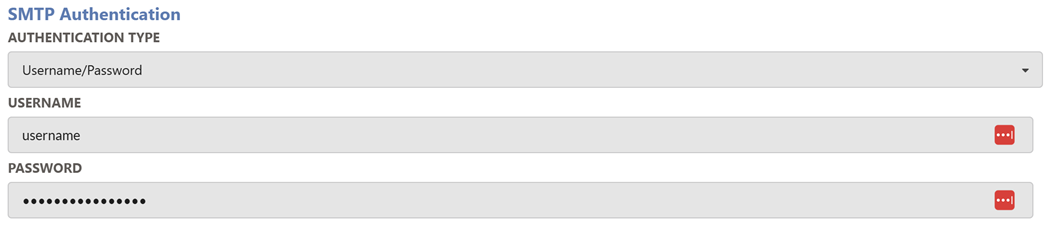
Choose this option if your SMTP server is secured by a username and password.
Supply the values of the SMTP's username and password to the respective fields
CERTFICATE

Choose this option if your SMTP server is protected by a certificate.
Provide the certificate friendly name of the SMTP certificate to the respective field.
MAIL SETTINGS
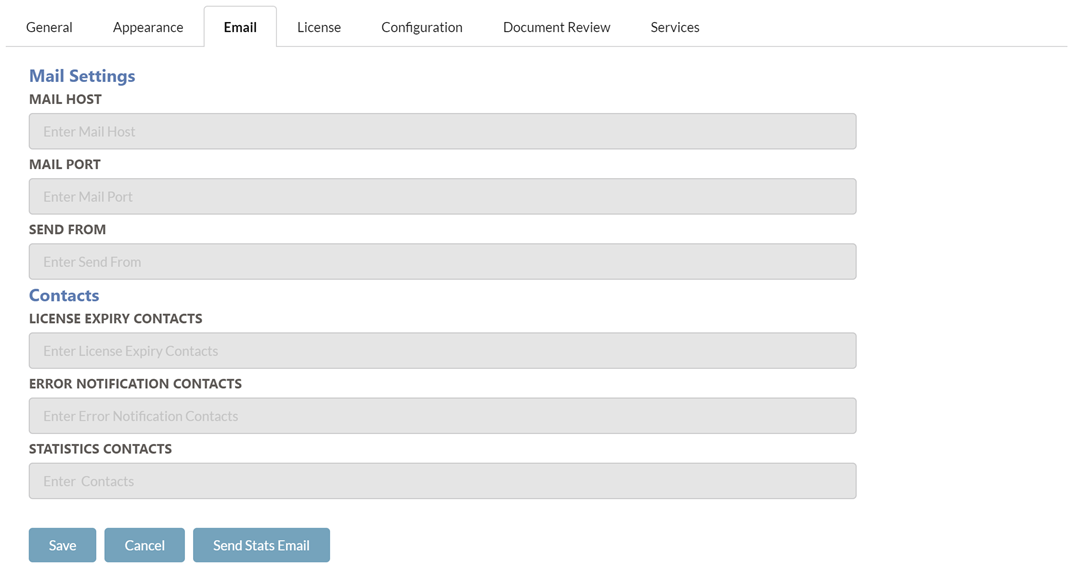
MAIL HOST
The mail host that is used to send all email notifications from.
MAIL PORT
The mail port to allow for email notifications to be sent.
SEND FROM
The email address that all email notifications are sent from.
CONTACTS
LICENSE EXPIRY CONTACTS
Provide the email addresses of the users who shall receive an email notification when the DocUControl license is due to expire. Multiple contacts can be added by adding a ';' between each contact. (e.g. name@company.com.au; secondname@company.com.au).
ERROR NOTIFICATION CONTACTS
Provide the email addresses of the users who shall receive notifications when errors occur during the Document Review Schedule process. Multiple contacts can be added by adding a ';' between each contact. (e.g. name@company.com.au; secondname@company.com.au).
STATISTICS CONTACTS
Provide the email addresses of the users that shall receive an email of the monthly usage statistics for DocUControl. Multiple contacts can be added by adding a ';' between each contact. (e.g. name@company.com.au; secondname@company.com.au).
SEND STATS EMAIL
Instantly send the monthly usage statistics for DocUControl to the email addresses listed in the.
CONFIGURATION SETTINGS
This is for specifying the Content Manager Record Type used by the DocUControl solution. It is also where the category configuration and metadata settings are set up. Category and metadata settings cannot be set up until a valid Content Manager record type has been chosen.
RECORD SETTINGS
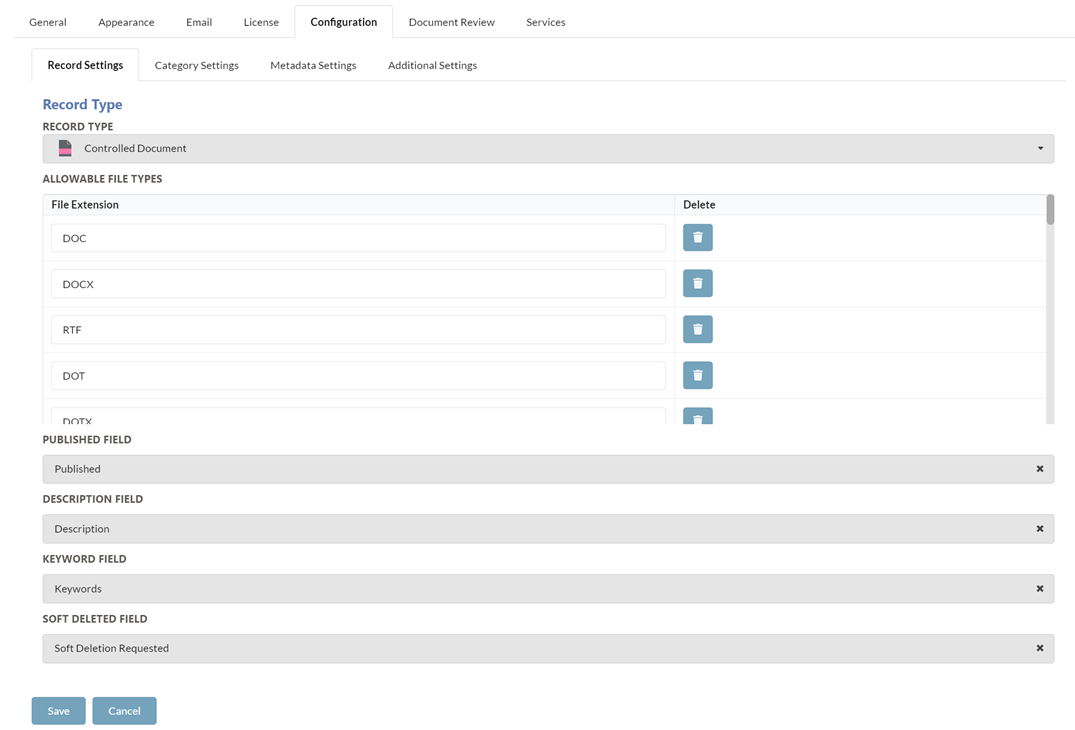
RECORD TYPE
This dropdown allows the user to choose the Content Manager record type that the DocUControl will utilise. This record type must be selected prior to any other settings being configured.
The record type is a central component of the solution, all documents displayed on the web interface are of this record type.
All metadata from this record type can be displayed on the interface also.
We recommend having a separate record type from your normal day-to-day document management, such as a Controlled Document.
ALLOWABLE FILE TYPES
This table allows you to edit which file extensions can be displayed in DocUControl.
DELETE A FILE EXTENSION
- Click on the trash icon
- Click on the Save button at the bottom of the page
ADD A FILE EXTENSION
- Scroll down to the bottom of the table
- Enter a new file extension (without the .)
- Click the plus icon
- Click on the Save button at the bottom of the page
EDIT A FILE EXTENSION
- Update the name inside the field
- Click Save at the bottom of the page
Only file extensions listed in the DocUControl Prerequisites will support PDF viewing/generation.
PUBLISHED FIELD
Choose which Content Manager field to be used as the Published Identifier for documents on the interface. This field is mandatory
DESCRIPTION FIELD
Choose which Content Manager field should be displayed as the description for documents on the interface. This field is mandatory
KEYWORD FIELD
Choose which Content Manager field should be used as the searchable keyword field on the interface. This field is mandatory
SOFT DELETED FIELD
This field is optional and is used in conjunction with FYB Soft Deleter. Select the Soft Deleted additional field (the same field used with FYB Soft Deleter). During the document review process, Records that have been soft deleted will be skipped.
CATEGORY SETTINGS
The chosen lookup sets selected must be attached to the record type chosen above.
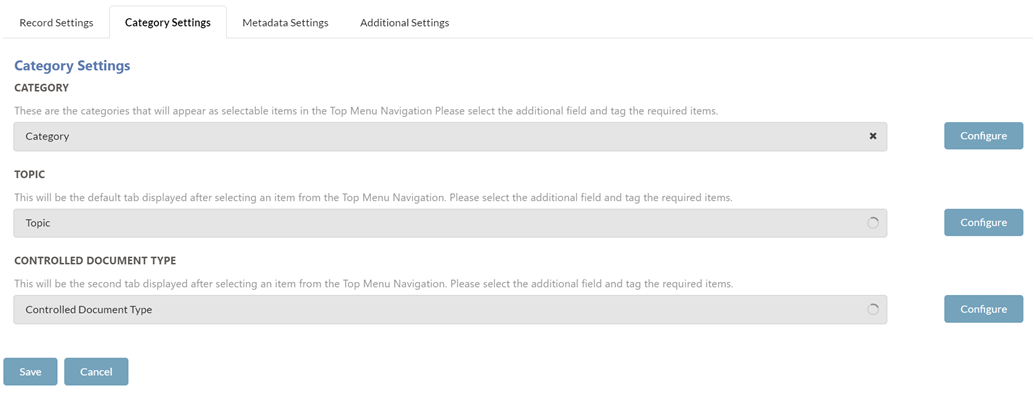
CATEGORY
This drop-down allows the selection of the Content Manager lookup set that is to be used as the main navigation items.
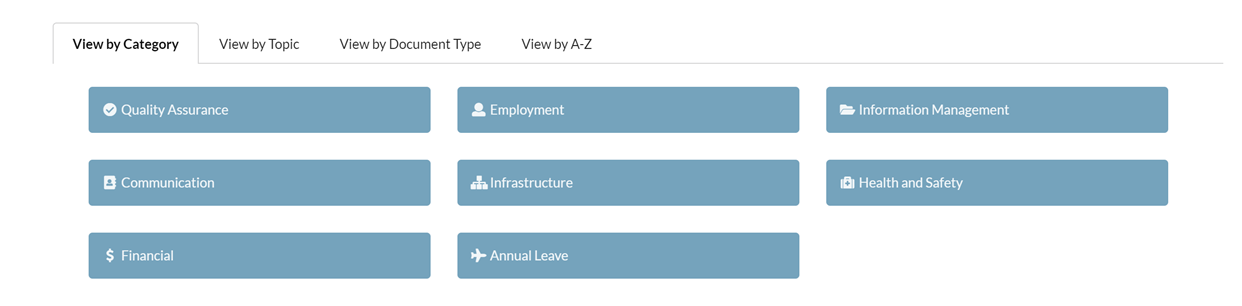
Once a lookup set is chosen the required items can be ticked on/off, whatever has been ticked will be added as a button to the main navigation of the site.
TOPIC
This drop-down allows the selection of the Content Manager lookup set that is to be used for the Topic category in DocUControl.
CONTROLLED DOCUMENT TYPE
This drop-down allows the selection of the Content Manager lookup set that is to be used for the Controlled Document Type category in DocUControl.
CATEGORY ITEM CONFIGURATION
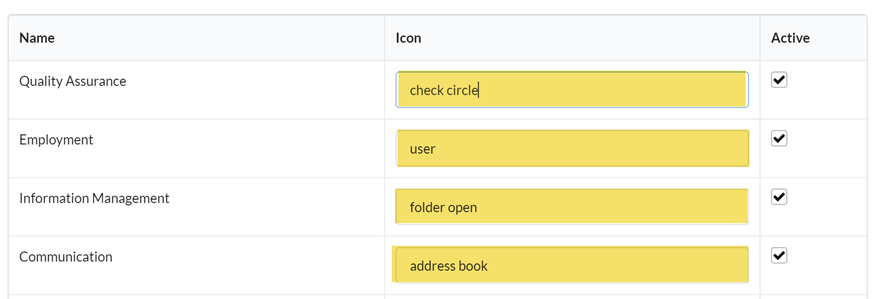
To configure the category items:
-
Click on the Configure button

-
Tag the category items to be displayed in the Browse By Category page
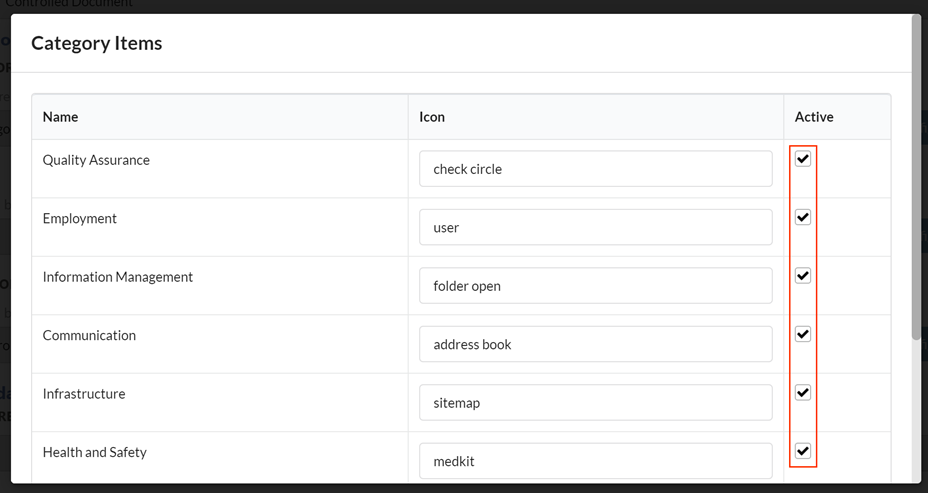
Steps 3 to 5 are optional
-
Navigate to the icons list here and copy the name of an icon
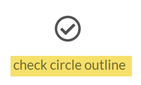
-
Paste the name of the copied icon into the icon field for a category item

-
Repeat steps 3 and 4 for all the category items.
-
Click on the Ok button
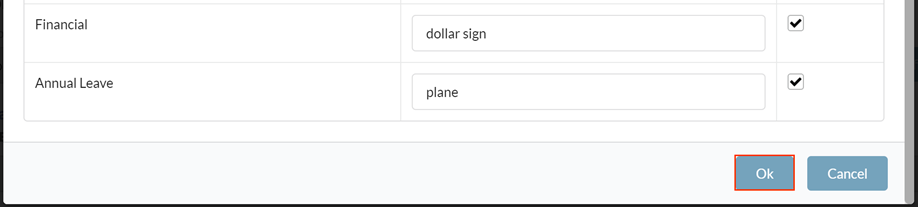
Repeat the above steps for the Topic and Controlled Document Type items. The Browse by Category Page will display the selected icons in the category buttons
METADATA SETTINGS
SORT BY FIELD
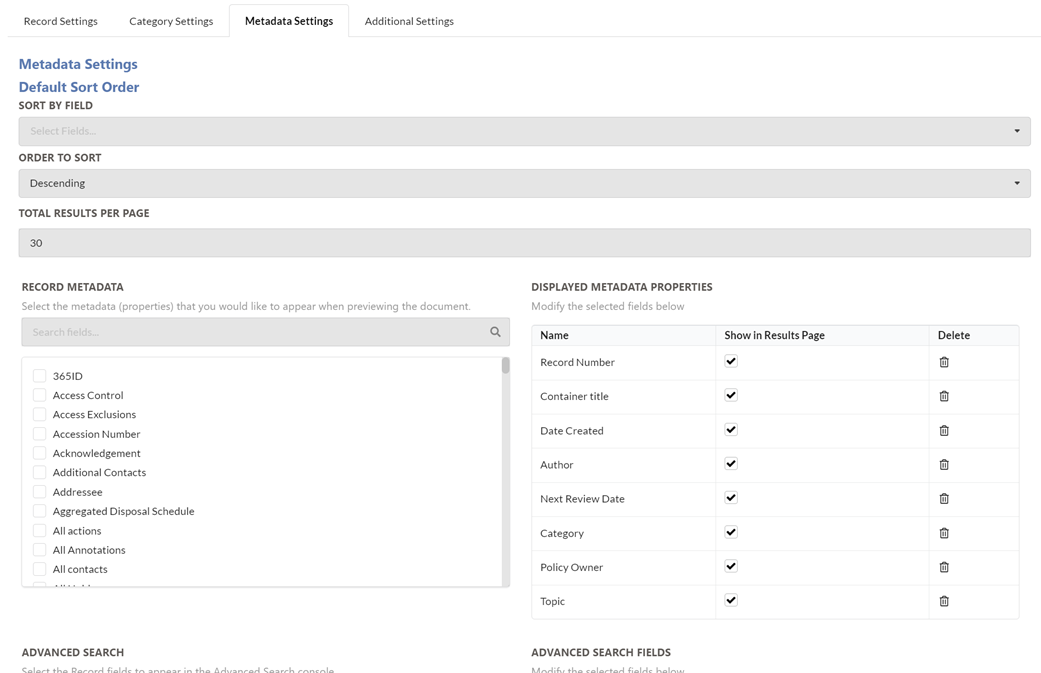
Choose the record field to use for default sorting. The record will be sorted using this field when search results are first displayed in DocUControl.
Choose the Title (Free Text Part) field to sort documents on the Document Title field in DocUControl.
ORDER TO SORT
Choose between Ascending and Descending order for the default sorting.
RECORD METADATA
This list view allows the administrator to determine what metadata they would like displayed when:
- Viewing a document in the browser
- Displaying search results
- Search Result Filter options
If the Show In Results Page option is enabled, the metadata field will be displayed in the filters section and the search results table on the Search results page. If it's not enabled, the metadata will only be shown on the Document View page.
DISPLAYED METADATA PROPERTIES
This list view allows the administrator to determine the order of the chosen record metadata.
Items can be reordered by clicking and dragging on the rows displayed in the table.
Use the Show in Results Table checkbox to determine what metadata is displayed in the Search Results.
ADVANCED SEARCH
This list view allows the Administrator to select which metadata fields they want to be a part of the Advanced Search dialogue.
ADDITIONAL SETTINGS
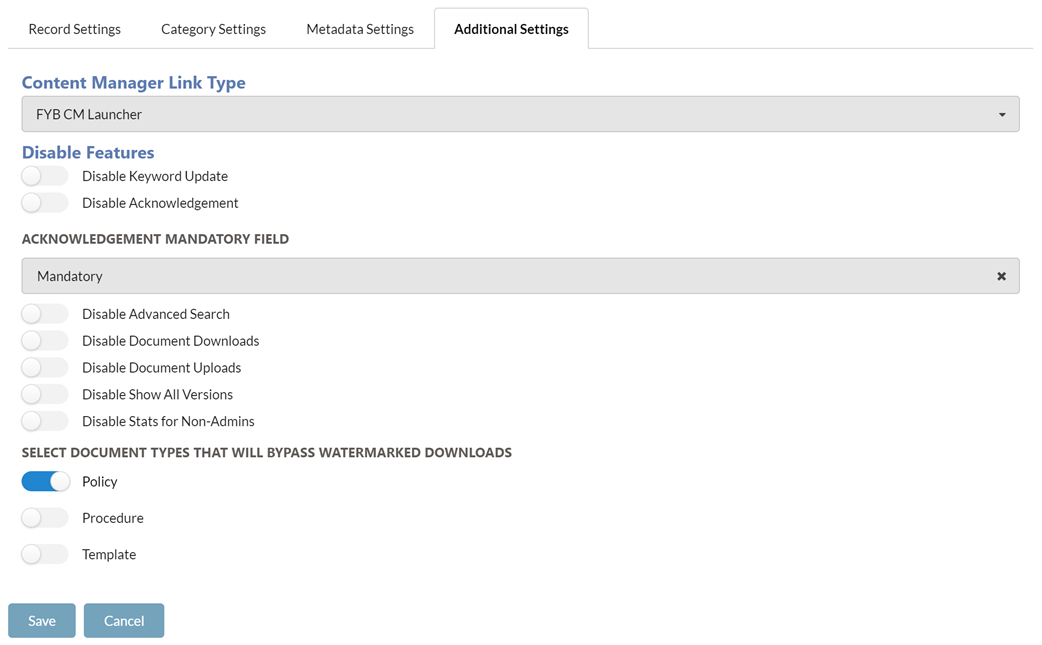
CONTENT MANAGER LINK TYPE
Choose between using the FYB CMLauncher, Content Manager Protocol or the Content Manager Web Client for launching documents from DocUControl in Content Manager.
If the Content Manager Web Client option is enabled, you must supple the URL of the Content Manager Web Client.

DISABLE KEYWORD UPDATE
Disabling this option will prevent users from updating the Keywords of documents via DocUControl.
DISABLE ACKNOWLEDGEMENT
If enabled, the acknowledgment functionality will be hidden.
ACKNOWLEDGEMENT MANDATORY FIELD
Specify the additional field responsible for determining if a Document is mandatory and needs to be acknowledged by users.
DISABLE ADVANCED SEARCH
Enabling this option will hide the Advanced search menu item from the hamburger menu.
DISABLE DOCUMENT DOWNLOADS
Enabling this will prevent users from downloading the Documents. Note this will hide the toolbar in the PDF view
DISABLE DOCUMENT UPLOADS
Enabling this will prevent users from uploading new documents
DISABLE SHOW ALL VERSIONS
Enabling this will hide the Show All Versions button from the Document View page.
DISABLE STATS FOR NON-ADMINS
Enabling this option will hide the statistics page from Non-Admin users.
BYPASS WATERMARKED DOWNLOADS
Enabled Document Types (taken from the lookup set selected for Controlled Document Types) won't have watermarks added to its documents when downloaded.
DOCUMENT REVIEW
SCHEDULER SETTINGS
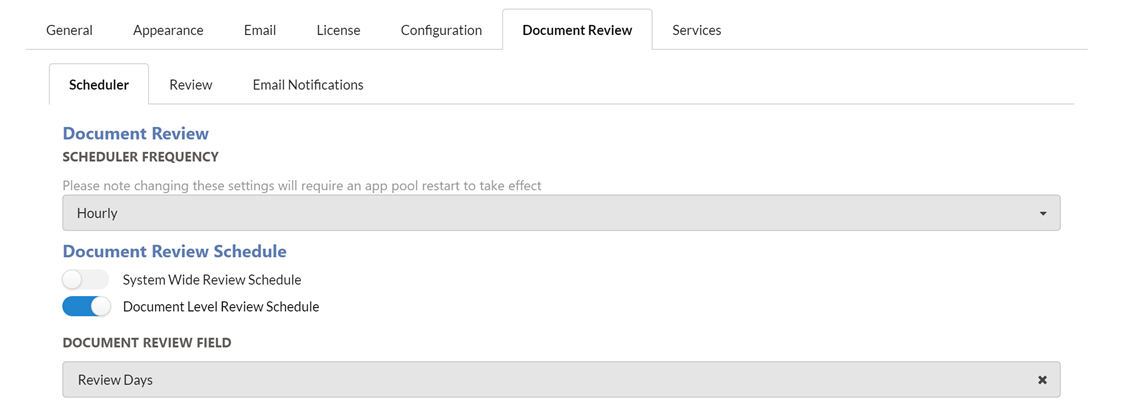
SCHEDULER FREQUENCY
Set the frequency that the document review will occur.
SCHEDULER START HOUR
For Daily, Weekly and Monthly scheduler types, specify the hour (in 24 hour time) that the scheduler will start processing Records. The default value is 7:00am.
SYSTEM-WIDE DOCUMENT REVIEW SCHEDULE
The number of days before the review date that the review email notification will be sent. For example, if this option has been set to 30 days and the next review date was 30 September 2021, then a review notification email would be received on 1 September 2021 (30 days before the review date). This setting is system-wide and applies to all documents. It cannot be enabled if the option below has been enabled. The Review Date Increase field will be used to determine when the Next Review date will be set.
DOCUMENT LEVEL REVIEW SCHEDULE
Used if you wish to control the review period from a Content Manager additional field on the document record type instead of system-wide. The additional field selected must be a number representing the number of days. This setting is applied on a per-document basis. It cannot be enabled if the option above has been enabled.
POWER AUTOMATE FLOW
Used if you wish to use a Power Automate flow as a workflow for when new Record Versions are created. Use the Review Flow URL field to specify the Power Automate trigger URL.
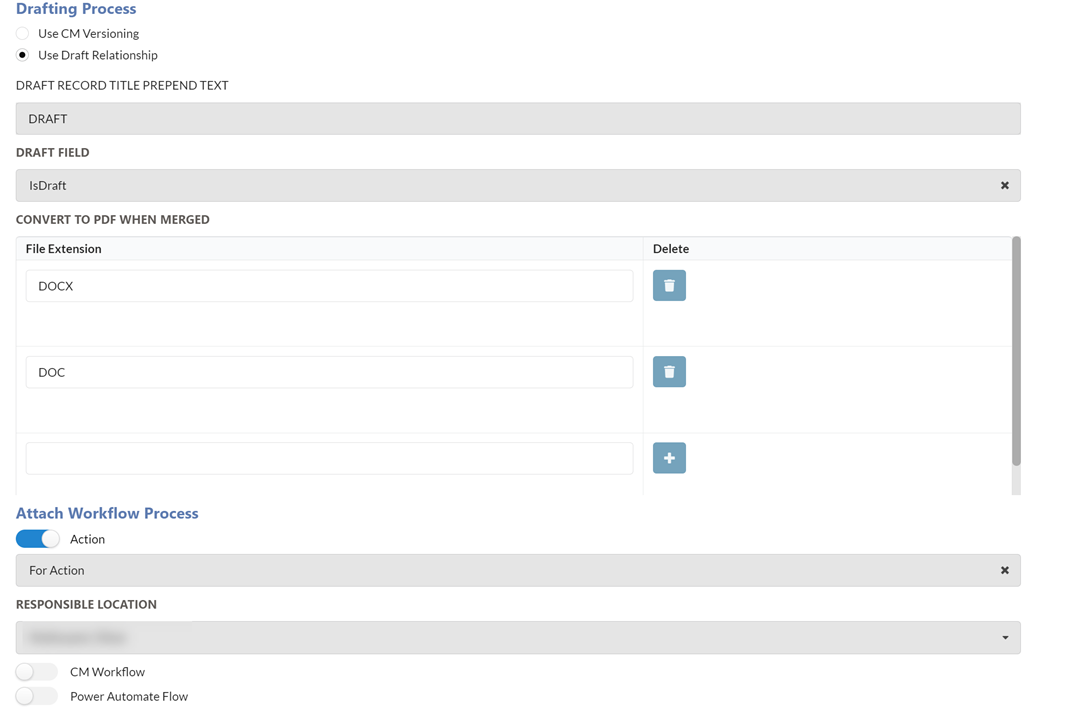
ACTION
Sets an action to Controlled Documents within the review process.
RESONSIBLE LOCATION (OPTIONAL)
Specify the location to assign actions to. If this field is left blank, then the Document Control officer assigned to the record will be assigned to the action
WORKFLOW
Sets a workflow to control documents within the review process. See Workflow Mapping for more information.
WORKFLOW MAPPING
Before mapping workflows, ensure that the Controlled Document Type field has been configured in the Configuration tab.

Workflows can be mapped to documents with a specific Controlled Document Type or a single Workflow can be used for all Documents.
-
Enable the CM Workflow option
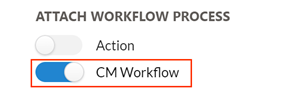
-
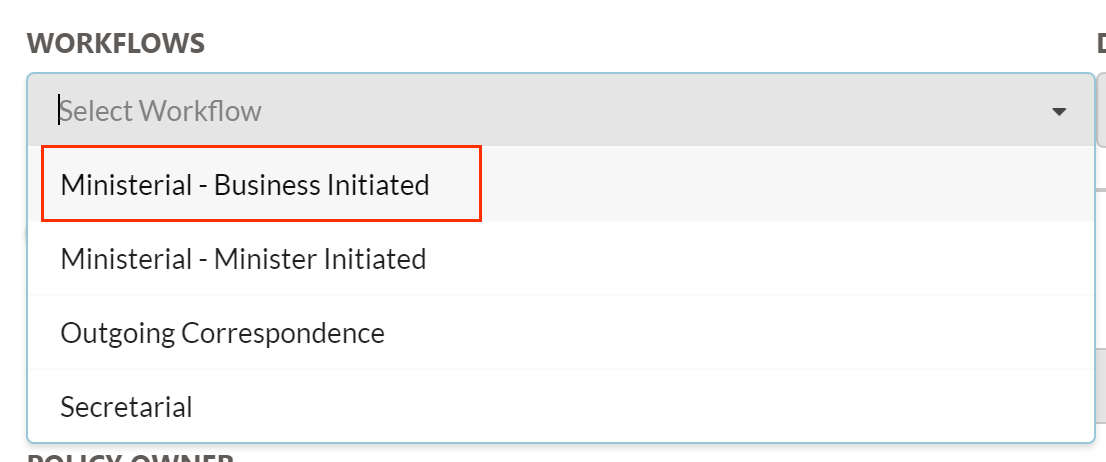
Select a workflow from the Workflows dropdown
-
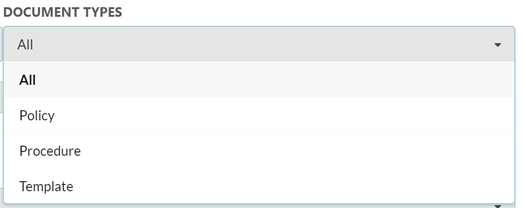
Select a Controlled Document Type
Select All to apply to selected Workflow to all documents or select a specific Controlled Document Type.
-
The selected Workflow and Controlled Document Type will be added to the mapping table
Click on the Bin icon to delete the mapping

-
Scroll down and click on the Save button

DRAFTING PROCESS
Use CM Versioning
Enabled by default, a new Record Version is created when a Record has been reviewed.
Use Draft Relationship
Instead of a new Record Version being created, a copy of the Record is created and added as a 'Draft Of' relation to the main Record (if the relation does not already exist). The Draft record can then be merged onto the main Record as a new revision via DocUControl (see the DocUControl Help guide for more info). The Draft Of relation will need to be created. See the DocUControl Installation guide for more information.

DRAFT RECORD TITLE PREPEND TEXT
Enter text to be prepended to title of newly created Draft Records
DRAFT FIELD
The boolean additional field to denote weather or not the Record is a Draft Document. This field is mandatory when using the Use Draft Relationship option.
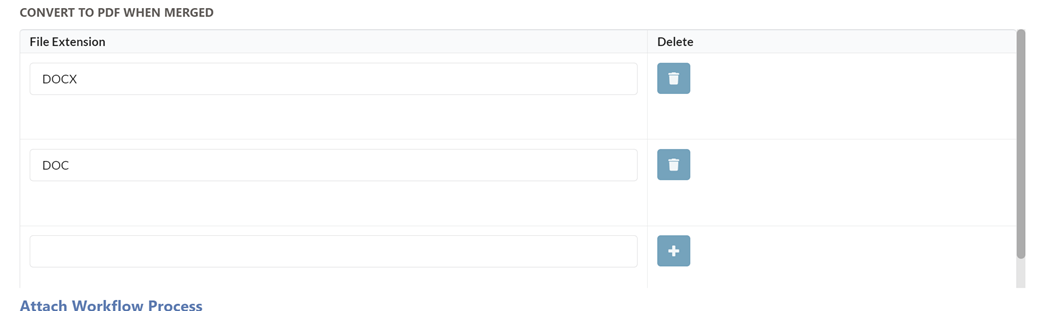
CONVERT TO PDF WHEN MERGED
Enter the File extensions to be automatically converted to a PDF when a Draft Document is merged onto the main document
REVIEW SETTINGS
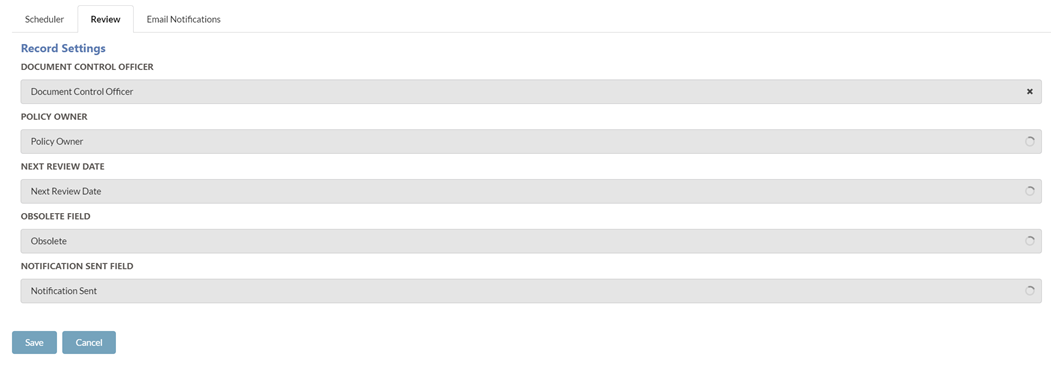
DOCUMENT CONTROL OFFICER
Sets the Content Manager additional field to use as the document control officer. This location will receive review notification emails.
POLICY OWNER
Sets the Content Manager additional field to use as the policy owner. This location will receive overdue notification emails.
NEXT REVIEW DATE
Sets the Content Manager additional field to use as the next review date.
OBSOLETE FIELD
Sets the Content Manager additional field to use as the obsolete field. Records with the Obsolete value set to True will be skipped in the Document Review Scheduler process.
NOTIFICATION SENT FIELD
Sets the Content Manager additional field to use to keep track of which Records have had Publication Notifications sent to prevent duplicate notifications.
EMAIL NOTIFICATIONS
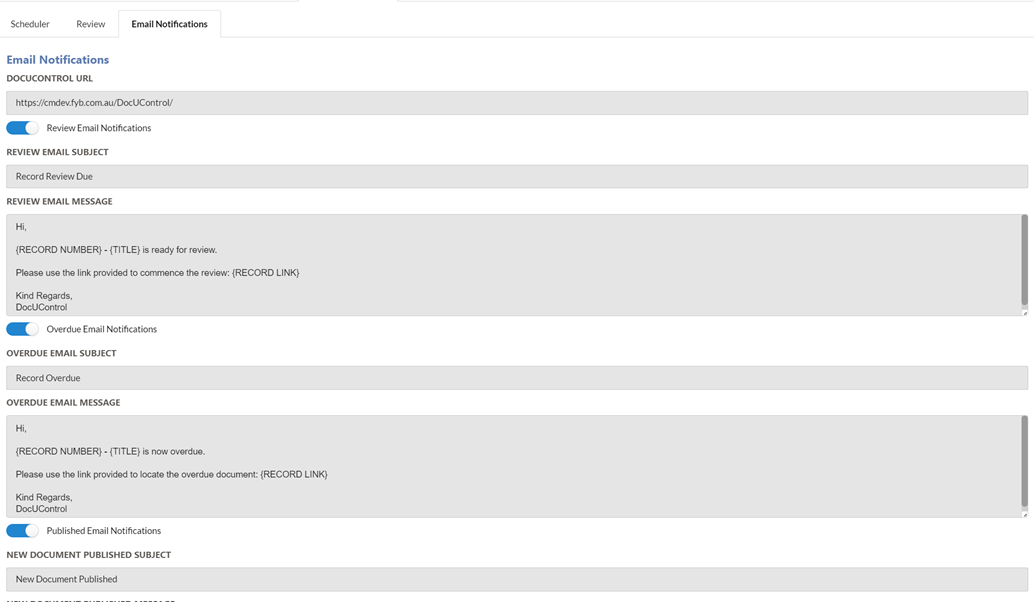
The settings below are for the Review, Overdue and New Document Published notification emails.
REGULAR EMAIL PLACEHOLDERS
The following tags can be used within the email subject or body:
| Tag | Description |
|---|---|
| {RECORD NUMBER} | Record number |
| {TITLE} | Record Title |
| {DATE CREATED} | The Date Created of a record |
| {REVIEW DATE} | The Next Review date of the record |
| {RECORD TYPE} | The name of the record type |
| {POLICY OWNER} | The name of the Policy Owner |
| {AUTHOR} | The record author |
| {CONTAINER} | The record's container number |
| {REVIEW OFFICER} | The name of the Document Control Officer |
| {RECORD LINK} | The hyperlink to view the record |
| {DOCUCONTROL RECORD LINK} | The hyperlink to view the record within DocUControl |
DRAFT PROCESS EMAIL PLACEHOLDERS
The following placeholders are only available if the Use Draft Relationship option is enabled.
| Tag | Description |
|---|---|
| {PRIMARY RECORD NUMBER} | Record number of the Primary Record |
| {PRIMARY TITLE} | Record Title of the Primary Record |
| {PRIMARY DATE CREATED} | The Date Created of the Primary Record |
| {PRIMARY REVIEW DATE} | The Next Review date of the Primary Record |
| {RECORD TYPE} | The name of the record type |
| {PRIMARY POLICY OWNER} | The name of the Policy Owner of the Primary Record |
| {PRIMARY AUTHOR} | The record author of the Primary Record |
| {PRIMARY CONTAINER} | The Primary Record's container number |
| {PRIMARY REVIEW OFFICER} | The name of the Primary Record' Document Control Officer |
| {PRIMARY RECORD LINK} | The hyperlink to view the Primary Record's |
| {PRIMARY DOCUCONTROL RECORD LINK} | The hyperlink to view the record within DocUControl |
| {DRAFT RECORD NUMBER} | Record number of the Draft Record |
| {DRAFT TITLE} | Record Title of the Draft Record |
| {DRAFT DATE CREATED} | The Date Created of the Draft Record |
| {DRAFT REVIEW DATE} | The Next Review date of the Draft Record |
| {DRAFT POLICY OWNER} | The name of the Policy Owner of the Draft Record |
| {DRAFT AUTHOR} | The record author of the Draft Record |
| {DRAFT CONTAINER} | The Draft Record's container number |
| {DRAFT REVIEW OFFICER} | The name of the Draft Record' Document Control Officer |
| {DRAFT RECORD LINK} | The hyperlink to view the Draft Record's |
| {DRAFT DOCUCONTROL RECORD LINK} | The hyperlink to view the record within DocUControl |
DOCUCONTROL URL
The URL of DocUControl is used to create the CMLauncher Hyperlinks when sending emails using the {RECORD LINK} placeholder.
For Example
EMAIL CHECKBOX
Toggles the notification on/off
EMAIL SUBJECT
The subject line of the review email
EMAIL MESSAGE
The message body of the review email
SERVICE SETTINGS
Use at your own risk
Before using the Microsoft services, please note that the files will need to be shared/uploaded to Microsoft Cloud for analysis. We (FYB Pty Ltd) will not be liable and nor do we hold any responsibility for any privacy breaches or data damages because of using this feature.
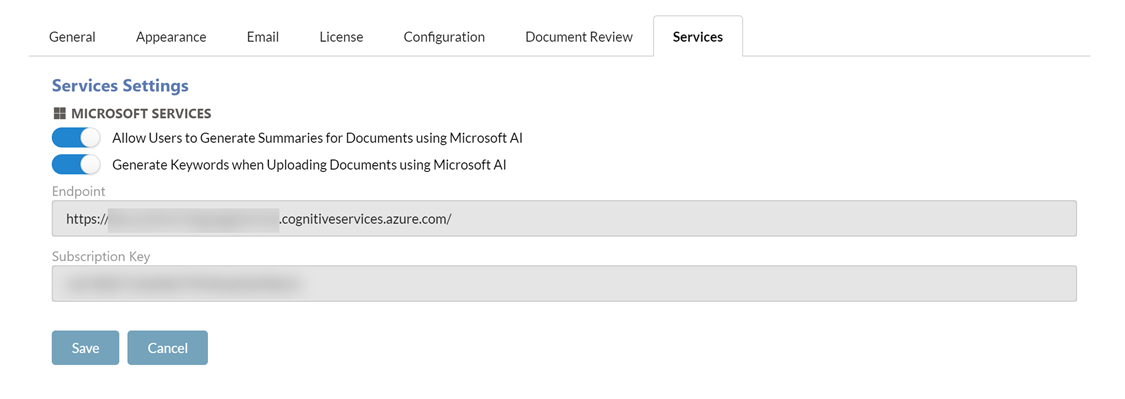
To use Microsoft Services, you must obtain a subscription to Microsoft Cognitive Language Service
Once obtained, supply the Endpoint and Subscription Key values to the respective fields in DocUControl.
GENERATE SUMMARIES
Enable the Allow Users to Generate Summaries for Documents using Microsoft AI option to allow users to generate short summaries of the document they are currently viewing.
GENERATE KEYWORDS
Enable the Generate Keywords when Uploading Documents using Microsoft AI option to allow DocUControl to generate keywords (using AI) when a user uploads a document.